The best screen recording software captures your screen, webcam, and audio to create tutorials, product demos, team updates, training videos, and presentations. Whether you’re a content creator building a YouTube tutorial channel, a remote team replacing meetings with async video, or a teacher recording lessons, the right screen recorder matches your workflow, editing needs, and budget. With AI-powered transcription, auto-captioning, and smart editing now standard in leading tools, screen recording software in 2026 does far more than just capture pixels. We tested 12 screen recorders across capture quality, editing tools, sharing features, AI capabilities, and value.
Quick Comparison
| Software | Best For | Price | Free Option | Rating |
| Camtasia | Professional tutorials & course content | $39/yr | 3-day trial | 9.4 |
| OBS Studio | Free advanced recording & streaming | Free (open source) | Yes | 9.3 |
| Loom | Quick async team communication | Free (5 min) | $13/user/mo | Yes (limited) | 9.1 |
| ScreenFlow | Mac professional screen recording | $169 one-time | Trial | 8.9 |
| Snagit | Quick captures & visual documentation | $39/yr | Trial | 8.7 |
| ScreenPal | Budget-friendly screen recording | Free | $3–$6/mo | Yes (limited) | 8.5 |
| Descript | Text-based video editing from recordings | Free (limited) | $24/mo | Yes | 8.4 |
| Bandicam | Gaming & high-FPS capture | $37/yr or $60 lifetime | Yes (watermark) | 8.2 |
| ShareX | Free Windows capture & automation | Free (open source) | Yes | 8.0 |
| Screencastify | Chromebook & browser recording | Free (30 min) | $7/mo | Yes | 7.8 |
| ActivePresenter | E-learning & SCORM authoring | Free | $199 one-time | Yes | 7.6 |
| QuickTime Player | Built-in Mac screen recording | Free | Yes | 7.3 |
Why 2026 Is Different
AI Transcription and Captioning Became Standard
Loom, Camtasia, Descript, and ScreenPal now automatically transcribe recordings and generate captions. Descript takes this further with text-based editing — edit the transcript and the video cuts automatically. AI-powered screen recording software eliminates the manual captioning work that previously took longer than the recording itself, making every screen capture instantly searchable and accessible.
Async Video Replaced Unnecessary Meetings
Loom pioneered the shift from meetings to recorded screen shares, and the approach has gone mainstream. Teams record quick screen walkthroughs instead of scheduling 30-minute calls. Viewer analytics show who watched and for how long. Comments enable asynchronous feedback. The best screen recording software in 2026 functions as a communication tool that reduces meeting overhead while preserving visual context.
OBS Studio Made Professional Recording Free
OBS Studio provides unlimited recording and live streaming with multi-source mixing, scene transitions, and audio filters at zero cost. While it requires a learning curve, OBS delivers capabilities that match or exceed paid alternatives for recording and streaming. Combined with a separate editor, OBS gives professionals free screen recording software that imposes no restrictions on quality, length, or output.
Camtasia
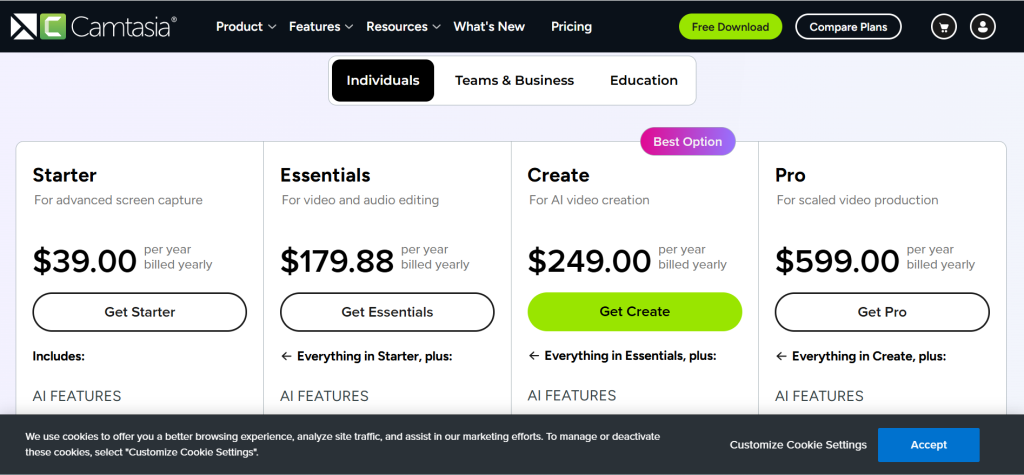
| Best For | Professional tutorials, course content, and training videos |
| Pricing | $39/yr (individual) | Team pricing available |
| Free Plan | 3-day trial |
| Key Strength | Most complete recording + editing suite for polished tutorial content |
| Recording | Screen, webcam, system audio, microphone — up to 4K |
| Editing | Multi-track timeline, annotations, callouts, cursor effects, transitions |
| AI Features | AI-powered captions, background removal, asset generation |
| Platforms | Windows, Mac |
| Our Rating | 9.4/10 |
Camtasia is the most complete screen recording software for creating polished tutorial and training content. The built-in multi-track editor eliminates the need for separate editing software. Annotations, callouts, cursor effects, and zoom-in animations guide viewer attention precisely. Templates and assets accelerate production. For educators, trainers, and content creators who need screen recording software with professional editing built in, Camtasia delivers the highest production quality from recording to final export.
Falls Short: Most expensive screen recorder ($180/year). Overkill for quick, casual recordings. Heavy system requirements for 4K editing. Not designed for live streaming. Learning curve for advanced editing features. Verdict: Best screen recording software for professionals creating polished tutorials and training videos who need integrated recording and editing.
OBS Studio
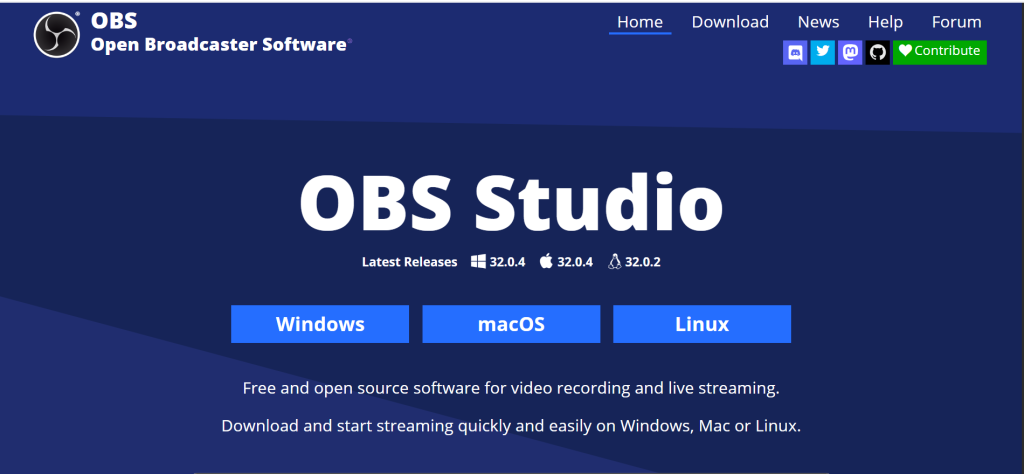
| Best For | Free professional recording and live streaming |
| Pricing | Free (open source) |
| Free Plan | Yes — completely free |
| Key Strength | Most powerful free recording and streaming with unlimited customization |
| Recording | Multi-source capture, scenes, transitions, unlimited length and resolution |
| Editing | None — requires external editor |
| AI Features | Plugin-based noise suppression and audio filters |
| Platforms | Windows, Mac, Linux |
| Our Rating | 9.3/10 |
OBS Studio is the most powerful free screen recording software available. Multiple video sources, custom scenes, real-time audio mixing, and advanced encoding settings provide professional-grade capture at zero cost. Live streaming support connects to Twitch, YouTube, and any RTMP platform. No watermarks, no time limits, no resolution restrictions. For creators who want maximum recording control without paying for software and don’t mind using a separate editor, OBS Studio provides capabilities that match expensive paid alternatives.
Falls Short: No built-in editing — requires separate video editor. Steep learning curve. Interface is intimidating for beginners. Configuration requires technical knowledge. Not suited for quick, casual recordings. No sharing features. Verdict: Best free screen recording software for technically capable users who want maximum control and don’t need built-in editing.
Loom
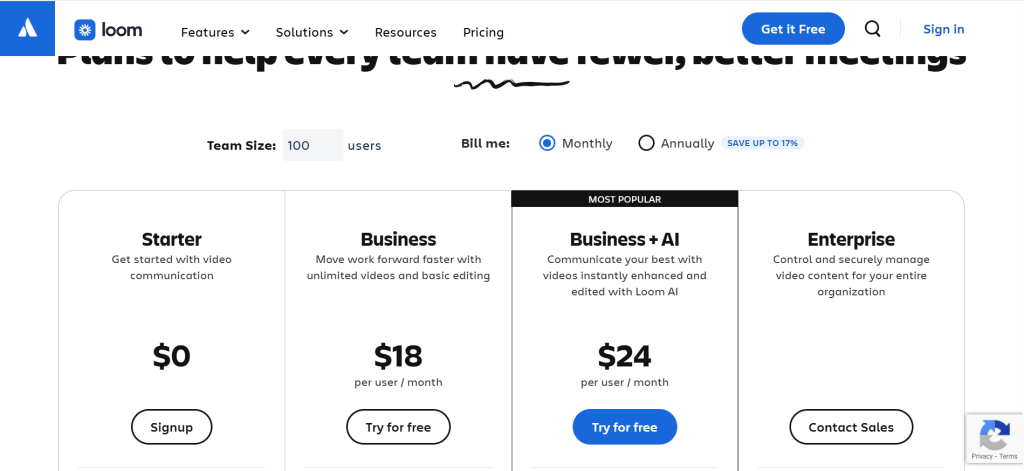
| Best For | Quick async team video communication |
| Pricing | Free (5 min, 25 videos) | Business $18/user/mo | Enterprise custom |
| Free Plan | Yes — limited to 5 min and 25 videos |
| Key Strength | Fastest path from recording to shared link for team communication |
| Recording | Screen, webcam, or both — one-click start |
| Editing | Basic trimming, stitching, drawing tools |
| AI Features | AI transcription, auto-chapters, summary generation, filler word removal |
| Platforms | Windows, Mac, Chrome, iOS, Android |
| Our Rating | 9.1/10 |
Loom provides the fastest screen recording software for async team communication. One-click recording, instant sharing links, and viewer analytics create a video-first communication workflow that replaces unnecessary meetings. AI generates transcripts, chapter summaries, and removes filler words automatically. Comments on specific timestamps enable asynchronous feedback. For remote teams that want to replace meetings with quick screen recordings, Loom delivers the smoothest recording-to-sharing experience in screen recording software.
Falls Short: Free plan limited to 5 minutes and 25 videos — increasingly restrictive. Basic editing tools. Not suitable for professional tutorial production. Paid plan required for meaningful use. No advanced video editing. Privacy concerns with cloud-hosted recordings. Verdict: Best screen recording software for remote teams wanting to replace meetings with quick async video messages.
ScreenFlow (Mac)
| Best For | Professional Mac screen recording and editing |
| Pricing | $168/yr |
| Free Plan | Free trial (watermarked export) |
| Key Strength | Best Mac-native recording and editing combo with Apple Silicon optimization |
| Recording | Screen, webcam, iOS device, system audio — multi-source |
| Editing | Multi-track timeline, animations, callouts, chroma key, nested clips |
| AI Features | AI-powered captions |
| Platforms | Mac only |
| Our Rating | 8.9/10 |
ScreenFlow is the premier screen recording software for Mac users who need professional recording and editing in one application. Apple Silicon optimization delivers smooth performance. iOS device recording captures iPhone and iPad screens directly. Multi-source recording combines screen, webcam, and multiple audio inputs. The editing timeline rivals dedicated video editors. For Mac professionals creating tutorials, course content, or product demos, ScreenFlow provides the most complete Mac-native screen recording and editing experience.
Falls Short: Mac-only. One-time price ($169) is steep versus subscription alternatives. No Windows or Linux version. Stock media library requires separate purchase. No live streaming. Smaller community than Camtasia. Verdict: Best screen recording software for Mac professionals wanting the best native recording and editing combination.
Snagit
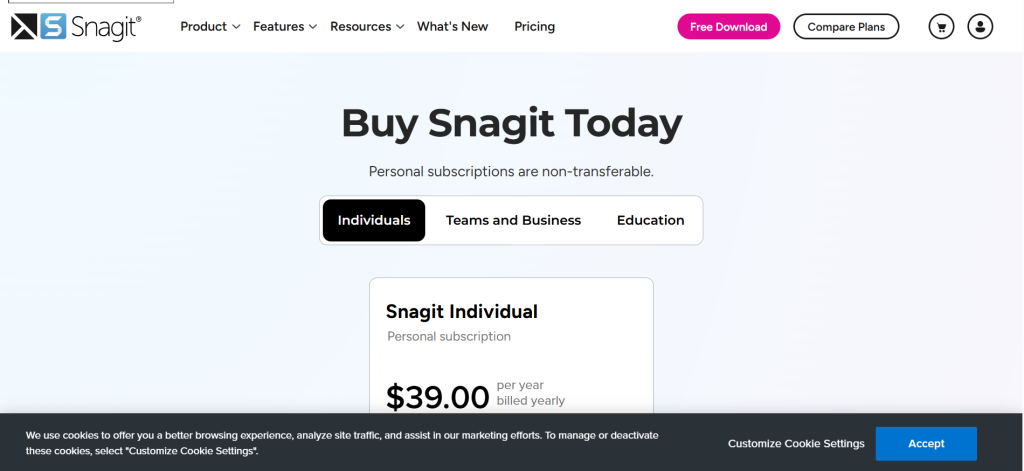
| Best For | Quick screen captures and visual documentation |
| Pricing | $39/yr (individual) |
| Free Plan | 15-day trial |
| Key Strength | Fastest tool for capturing, annotating, and sharing screen content |
| Recording | Screen + webcam with simple trimming |
| Editing | Screenshot annotations, arrows, callouts, step-by-step guides, blur |
| AI Features | Smart Move, text recognition, template generation |
| Platforms | Windows, Mac |
| Our Rating | 8.7/10 |
Snagit excels at the intersection of screen recording and visual documentation. While it records video, its real strength is capturing screenshots, adding annotations, creating step-by-step guides, and generating visual documentation instantly. Smart Move rearranges UI elements in screenshots. For teams creating internal documentation, knowledge base articles, or support guides that mix screenshots and short recordings, Snagit provides the fastest visual communication tool available.
Falls Short: Video editing is basic — trim only. Not a full video editor. Annual subscription model. Limited for long-form recording. Video features are secondary to screenshots. Verdict: Best screen recording software for teams needing quick visual documentation with annotated screenshots and short recordings.
ScreenPal (formerly Screencast-O-Matic)
| Best For | Budget-friendly screen recording for individuals and small teams |
| Pricing | Free (limited) | Solo Deluxe $3/mo | Solo Premier $6/mo | Team $8/user/mo |
| Free Plan | Yes — 15 min recordings, basic editing |
| Key Strength | Most affordable paid screen recorder with solid editing |
| Recording | Screen, webcam, or both — up to 4K |
| Editing | Timeline editor, annotations, transitions, green screen, captions |
| AI Features | AI captions, smart recording suggestions |
| Platforms | Windows, Mac, Chromebook, iOS, Android |
| Our Rating | 8.5/10 |
ScreenPal delivers the best value in screen recording software with paid plans starting at just $3/month. The editing tools punch above their price point with timeline editing, annotations, transitions, and green screen support. Cross-platform availability covers every device. For budget-conscious creators and small teams who need more than free tools provide but can’t justify Camtasia’s pricing, ScreenPal provides the most recording and editing capability per dollar.
Falls Short: Free plan has limitations (15 min, watermark on some features). Less polished than Camtasia or ScreenFlow. Advanced features require Premier tier. Smaller community. Brand recognition lower than competitors. Verdict: Best screen recording software for budget-conscious users wanting affordable recording and editing.
Descript
| Best For | Text-based video editing from screen recordings |
| Pricing | Free (limited) | Hobbyist $24/mo | Business $33/mo |
| Free Plan | Yes — limited transcription and exports |
| Key Strength | Edit video by editing the transcript — revolutionary text-based workflow |
| Recording | Screen + webcam with built-in recording |
| Editing | Text-based editing, filler word removal, AI voices, overdub |
| AI Features | AI transcription, text-based editing, filler removal, AI voice cloning |
| Platforms | Windows, Mac |
| Our Rating | 8.4/10 |
Descript revolutionizes screen recording software with text-based editing: record your screen, get an automatic transcript, then edit the video by editing the text. Delete a sentence from the transcript and the corresponding video cuts automatically. Filler word removal cleans up narration instantly. AI Overdub fixes mistakes by typing corrections. For creators who want to edit screen recordings as easily as editing a document, Descript provides the most innovative editing approach in screen recording software.
Falls Short: Text-based editing has a learning curve. Subscription required for meaningful use. Recording features are basic compared to OBS or Camtasia. Performance with long recordings. Audio-only editing is stronger than video editing. Verdict: Best screen recording software for creators who want to edit recordings through transcript text rather than traditional timelines.
Bandicam
| Best For | Gaming capture and high-FPS recording |
| Pricing | Free (watermark, 10 min) | $37/yr | $60 lifetime |
| Free Plan | Yes — 10 min with watermark |
| Key Strength | Lowest performance impact for gaming and DirectX/OpenGL recording |
| Recording | Screen, game, webcam overlay — up to 4K 480fps |
| Editing | Basic trimming only |
| AI Features | None |
| Platforms | Windows only |
| Our Rating | 8.2/10 |
Bandicam delivers the highest-performance screen recording software for gaming and applications that demand minimal system impact. DirectX, OpenGL, and Vulkan hooking captures gameplay with minimal frame rate reduction. 4K recording at up to 480fps handles the most demanding capture scenarios. Hardware-accelerated encoding keeps file sizes manageable. For gamers and users recording performance-intensive applications who need screen recording software that doesn’t tank frame rates, Bandicam provides the least intrusive capture experience.
Falls Short: Windows-only. Free version adds watermark and limits to 10 minutes. No video editing beyond trimming. No sharing or collaboration features. Interface is dated. No AI features. Verdict: Best screen recording software for Windows gamers and users needing high-FPS capture with minimal performance impact.
ShareX
| Best For | Free Windows screen capture with automation |
| Pricing | Free (open source) |
| Free Plan | Yes — completely free |
| Key Strength | Most versatile free Windows capture tool with workflow automation |
| Recording | Screen recording (GIF and video), screenshot capture, scrolling capture |
| Editing | Image annotation tools, basic video trimming |
| AI Features | OCR text recognition |
| Platforms | Windows only |
| Our Rating | 8.0/10 |
ShareX provides the most versatile free screen recording software for Windows with automation features that no other free tool matches. Auto-upload to cloud services, custom workflows, scrolling captures, OCR text recognition, and GIF recording create a powerful capture toolkit. For Windows power users wanting comprehensive free screen recording software with automation and cloud upload workflows, ShareX delivers remarkable depth at zero cost.
Falls Short: Windows-only. Interface is cluttered and unintuitive. No video editing. Learning curve for configuration. Not designed for tutorials or team communication. Documentation is sparse. Verdict: Best free screen recording software for Windows power users wanting automated capture workflows.
Screencastify
| Best For | Chromebook and browser-based classroom recording |
| Pricing | Free (30 min) | Starter $7/mo | Pro $10/mo |
| Free Plan | Yes — 30 min recordings |
| Key Strength | Best Chrome extension for classroom and Google Workspace recording |
| Recording | Browser tab, desktop, webcam via Chrome extension |
| Editing | Basic trimming, annotations, merge |
| AI Features | AI-generated quiz questions from recordings |
| Platforms | Chrome browser (any OS) |
| Our Rating | 7.8/10 |
Screencastify provides the simplest screen recording software for education and Chromebook environments. The Chrome extension records without any software installation. Google Classroom integration distributes recordings to students. Google Drive storage keeps recordings in the Google ecosystem. For teachers and students on Chromebooks who need browser-based screen recording software that integrates with Google Workspace, Screencastify delivers the most education-focused capture experience.
Falls Short: Chrome-only. Free plan limited to 30 minutes. Basic editing. Not suited for professional production. Requires Chrome browser. Feature set is narrow. Verdict: Best screen recording software for educators on Chromebooks wanting Google Classroom-integrated recording.
ActivePresenter
| Best For | E-learning authoring with SCORM/LMS export |
| Pricing | Free (watermark on some features) | $199 one-time |
| Free Plan | Yes — most features free |
| Key Strength | Screen recording + interactive e-learning authoring with LMS export |
| Recording | Screen, webcam, audio with smart capture |
| Editing | Timeline editing, annotations, quizzes, branching, interactions |
| AI Features | Smart capture for step-by-step tutorials |
| Platforms | Windows, Mac |
| Our Rating | 7.6/10 |
ActivePresenter combines screen recording software with interactive e-learning authoring. Record your screen, then add quizzes, interactions, branching scenarios, and export as SCORM/xAPI for LMS deployment. Smart capture automatically creates step-by-step tutorials from your recording. For instructional designers and corporate trainers who need screen recording software that produces LMS-compatible interactive training content, ActivePresenter bridges the gap between capture and courseware authoring.
Falls Short: Interface feels dated. Less polished than Camtasia for pure recording. Free version has watermarks on some advanced features. Smaller user community. Not suited for casual or team communication recording. Verdict: Best screen recording software for instructional designers creating SCORM-compatible interactive training from screen captures.
QuickTime Player (Mac)
| Best For | Built-in Mac screen recording |
| Pricing | Free (included with macOS) |
| Free Plan | Yes — included with every Mac |
| Key Strength | Zero-setup screen recording already installed on every Mac |
| Recording | Full screen or selected area, with microphone audio |
| Editing | Basic trimming only |
| AI Features | None |
| Platforms | Mac only |
| Our Rating | 7.3/10 |
QuickTime Player provides instant screen recording software on every Mac with zero installation. Full screen or selected area capture with microphone audio works from the File menu. For Mac users who need a single, quick screen recording without installing any additional software, QuickTime provides the absolute fastest path to capturing screen content.
Falls Short: Very basic — no webcam overlay, no system audio capture natively, no annotations. Trim-only editing. No sharing features. No captions or transcription. Only useful for the simplest recording needs. Verdict: Best screen recording software only for Mac users making the quickest possible screen capture with zero setup.
Recommended Picks by Need
| Need | Recommendation | Why |
| Professional tutorials | Camtasia | Best recording + editing combined |
| Free recording (any OS) | OBS Studio | Unlimited, no watermarks, no cost |
| Team async communication | Loom | Fastest record-to-share workflow |
| Mac professional | ScreenFlow | Best Mac-native recording + editing |
| Visual documentation | Snagit | Screenshots + annotations + short recordings |
| Budget recording | ScreenPal | Most features per dollar ($3/mo) |
| Text-based editing | Descript | Edit video by editing transcript |
| Gaming capture | Bandicam | Lowest performance impact |
| Windows automation | ShareX | Free capture with automated workflows |
| Chromebook classroom | Screencastify | Chrome extension with Google integration |
| E-learning authoring | ActivePresenter | Recording + SCORM/LMS export |
Frequently Asked Questions
What is the best screen recording software?
Camtasia is the best screen recording software for creating polished tutorials with its integrated editor. OBS Studio is the best free option with unlimited capabilities. Loom is best for quick team communication. ScreenFlow is best for Mac professionals. The right choice depends on whether you need editing power (Camtasia), free flexibility (OBS), or sharing speed (Loom).
What is the best free screen recording software?
OBS Studio is the best free screen recording software with no watermarks, no time limits, and professional-grade capabilities. ShareX is the best free option for Windows power users wanting automated workflows. QuickTime provides built-in free recording on Mac. ScreenPal and Screencastify offer free tiers with some limitations.
How do I record my screen?
On Mac, press Command+Shift+5 to access built-in screen recording via Screenshot/QuickTime. On Windows, press Windows+G to open Xbox Game Bar for basic recording. For more features, install dedicated screen recording software like OBS Studio (free), Loom (free tier), or Camtasia (paid). Most tools offer one-click recording of your full screen, a selected window, or a custom region.
What screen recording software do YouTubers use?
Most YouTubers use OBS Studio for its free unlimited recording and streaming capabilities. Camtasia is popular for tutorial channels that need integrated editing. ScreenFlow is common among Mac-based creators. Loom is used for quick explainer content. DaVinci Resolve (free) often handles post-production editing of screen recordings from any tool.

![Marketing Automation Case Study: 12 Real Examples, Strategy & ROI Results [2026]](https://marketingcasestudy.io/wp-content/uploads/2026/05/marketing-automation-case-study-featured-768x403.png "Marketing Automation Case Study: Real Examples, Strategy & ROI Results [2026] 8")