Professional digital art no longer requires expensive software. The free drawing software available in 2026 has matured to the point where professional illustrators, concept artists, comic creators, and graphic designers publish commercial work created entirely with tools that cost nothing. Krita’s brush engine rivals Corel Painter. GIMP’s editing capability approaches Photoshop. Inkscape handles vector workflows that Illustrator charges $22.99 per month for. And in 2025, Affinity — previously a $70+ professional design suite competing directly with Adobe — became completely free after Canva’s acquisition, fundamentally reshaping the free creative software landscape.
Free drawing software in 2026 divides into five distinct categories serving different creative workflows. Digital painting applications (Krita, MyPaint, FireAlpaca, Autodesk Sketchbook) provide brush engines, pen pressure sensitivity, and canvas tools optimized for creating original artwork. Photo editing and manipulation tools (GIMP, Photopea, Paint.NET) handle retouching, compositing, and image-based design. Vector illustration editors (Inkscape) create scalable logos, icons, and graphics. Comprehensive design suites (Affinity) combine photo editing, vector design, and page layout in professional packages. Mobile-first drawing apps (ibisPaint, MediBang Paint) bring full digital art capability to tablets and smartphones.
This guide tests 12 free drawing programs across every major creative workflow, evaluating each for brush quality and customization, pen pressure and tablet support, layer management, color tools, file format compatibility, performance on realistic hardware, and the specific creative discipline each tool serves best. Every review identifies exactly who should use each tool and who should choose something else, because a concept artist painting in Krita has fundamentally different needs than a graphic designer creating logos in Inkscape.
Quick Comparison: Top 12 Free Drawing Software for 2026
| Software | Best For | Price | Pen Pressure | Platform | Type | Our Rating |
| Krita | Digital painting & illustration | Free | Full | Win/Mac/Linux | Raster + anim | 9.5/10 |
| GIMP | Photo editing & manipulation | Free | Yes | Win/Mac/Linux | Raster | 9.0/10 |
| Inkscape | Vector illustration & logos | Free | Limited | Win/Mac/Linux | Vector | 9.1/10 |
| Photopea | Browser-based Photoshop alt. | Free (ads) | No | Web (any) | Raster + vector | 9.0/10 |
| Affinity | Pro design suite (now free) | Free | Yes | Win/Mac/iPad | Raster + vector | 9.4/10 |
| MediBang Paint | Manga & comic creation | Free | Yes | Win/Mac/iOS/Android | Raster | 8.5/10 |
| Sketchbook | Sketching & concept art | Free | Full | Win/Mac/iOS/Android | Raster | 8.6/10 |
| FireAlpaca | Lightweight digital painting | Free | Yes | Win/Mac | Raster | 8.0/10 |
| ibisPaint | Mobile-first digital art | Free (ads) | Yes | iOS/Android/Win | Raster | 8.4/10 |
| MyPaint | Minimalist open-source painting | Free | Full | Win/Mac/Linux | Raster | 7.8/10 |
| Paint.NET | Simple Windows image editing | Free | Limited | Windows | Raster | 7.6/10 |
| Canva | Template-based graphic design | Free (tier) | No | Web/Mobile | Design | 7.5/10 |
How We Evaluated These Free Drawing Programs
Every application was tested by creating actual artwork relevant to its target creative discipline.
Brush quality and customization: We evaluated default brush variety, pressure curve response, tilt sensitivity, brush engine customization depth, stabilizer quality for smooth linework, texture brush capability, and whether the tool produces natural-feeling strokes that respond intuitively to the artist’s hand movements.
Pen pressure and tablet support: We tested pen pressure levels, tilt recognition, barrel rotation support, tablet driver compatibility (Wacom, Huion, XP-Pen), and whether the application provides genuinely responsive drawing input without lag or missed strokes.
Layer management: We assessed layer count limits, blending mode variety, clipping masks, layer groups, adjustment layers, non-destructive editing capability, and transform tools that enable complex compositions.
Color tools: We compared color wheel implementation, palette management, color picker types, gradient tools, color management profiles, HDR support, and whether the tool supports CMYK for print-ready output.
File format compatibility: We tested native format capability, PSD import and export quality, SVG support, standard export formats (PNG, JPEG, TIFF), and how well each tool integrates into workflows that include commercial software.
Performance: We measured responsiveness on both high-end workstations and modest hardware, canvas size handling, undo speed, brush lag at high resolution, GPU acceleration, and memory management with complex multilayer projects.
Why Free Drawing Software Changed in 2026
Three developments have fundamentally reshaped the free creative software landscape. First, and most significantly, Canva acquired Affinity in 2024 and made the entire Affinity design suite — Affinity Photo, Affinity Designer, and Affinity Publisher — completely free in 2025, unified into a single application simply called Affinity. This suite previously competed directly with Adobe Photoshop, Illustrator, and InDesign at $69.99 per application. Providing professional-grade photo editing, vector design, and page layout at zero cost is arguably the most impactful change in the creative software market in the past decade. Any list of free drawing software that omits Affinity is now fundamentally incomplete.
Second, browser-based editors have reached desktop-class capability. Photopea operates entirely in the browser, requires no installation, supports PSD files with layers and smart objects, provides adjustment layers, vector tools, and RAW photo support, and processes everything client-side for privacy. Creators on Chromebooks, school computers, shared workstations, or any device where software installation is restricted now have access to Photoshop-class editing through any web browser. This accessibility expansion has brought professional image editing to millions of users who previously had no viable option.
Third, mobile drawing applications have matured into serious creative tools. ibisPaint provides over 15,000 brushes, full layer management, and professional features on smartphones and tablets. MediBang Paint offers cloud sync across desktop and mobile devices. These mobile apps have created a generation of digital artists who create professional-quality artwork on tablets and phones, often preferring the direct touch interaction over traditional desktop pen-tablet setups.
Detailed Reviews: Best Free Drawing Software for 2026
1. Krita — Best Free Digital Painting Application for Serious Artists
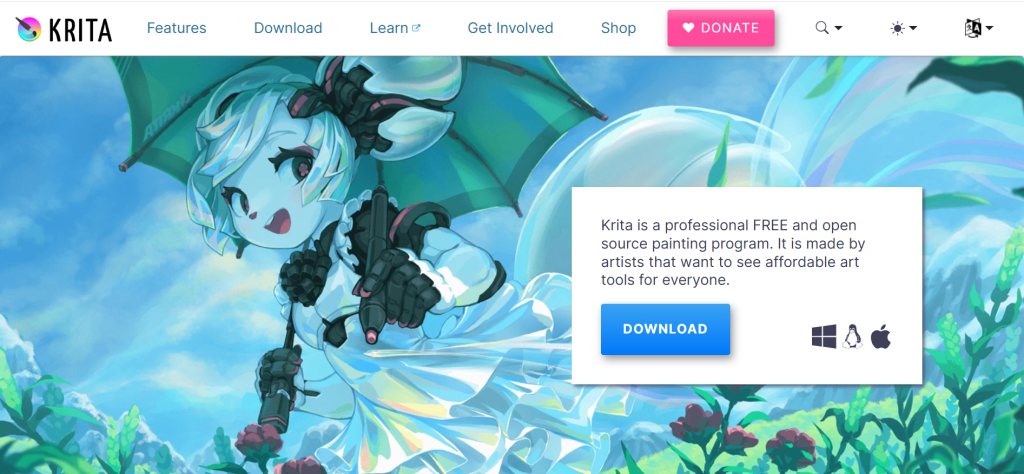
| Best For | Digital painters, illustrators, concept artists, comic creators, and texture artists who want professional-grade brush tools and canvas experience at zero cost |
| Pricing | Completely free and open-source (GPL). Optional paid version on Steam/Windows Store ($9.79) provides automatic updates and supports development. No feature differences between free and paid versions |
| Key Features | Professional brush engine with 9+ brush engines and 100+ customizable presets. Full pen pressure sensitivity with tilt and barrel rotation support. Brush stabilizer for smooth linework. Dedicated animation timeline for frame-by-frame 2D animation. Resource manager for brushes, patterns, textures, and workspaces. Wrap-around mode for seamless texture and pattern creation. HDR painting support. PSD import and export. Python scripting for automation. Pop-up palette for quick color and brush access. Reference images docker. Assistant tools for perspective, vanishing points, and ellipses |
| Key Strengths | Most powerful free brush engine available — rivals Corel Painter and Photoshop for natural media simulation. Full pen pressure, tilt, and barrel rotation support across Wacom, Huion, and XP-Pen tablets. Brush stabilizer produces clean linework comparable to Clip Studio Paint. Animation timeline enables frame-by-frame 2D animation within the painting application. Wrap-around mode for seamless texture creation serves game artists and pattern designers. HDR painting support for high dynamic range workflows. Active open-source community with regular updates and feature additions. Python scripting automates repetitive workflows |
| Key Weaknesses | Photo editing capabilities trail GIMP, Photoshop, and Affinity Photo. Performance can slow with very large canvases (8K+) on modest hardware. Vector tools are basic compared to Inkscape, Affinity Designer, or Illustrator. Text tools are limited compared to design-focused applications. Learning curve for customizing interface, brush settings, and workspace layout. No CMYK color mode for direct print production output. Lacks non-destructive adjustment layers (available as filter layers but less intuitive) |
| Integrations | PSD import/export for Photoshop workflow compatibility. PNG, JPEG, TIFF, EXR, BMP export. OpenRaster (.ora) for open-source workflow. Brush packs importable from community resources. Python and Qt scripting for automation |
| Best Pairing | Krita for digital painting + GIMP for photo editing + Inkscape for vector work |
Krita’s brush engine is the technical foundation that makes it the best free digital painting application available. Nine distinct brush engines — Pixel, Smudge, Color Smudge, Shape, Quick Line, Filter, Hairy, Chalk, and Spray — provide different rendering behaviors that simulate natural media with remarkable fidelity. The Color Smudge engine produces oil painting effects where colors blend on the canvas as they would with physical paint. The Hairy Brush engine simulates individual bristles that fan, splay, and leave textured marks. The Chalk engine recreates the grainy, pressure-sensitive character of dry media. Combined with full pen pressure sensitivity, tilt recognition, and barrel rotation support, these engines produce a drawing experience that professional concept artists describe as indistinguishable from commercial alternatives.
The brush stabilizer deserves specific attention for illustrators and comic artists. Drawing smooth curves and clean linework freehand requires either exceptional hand control or software stabilization that dampens micro-tremors and smooths stroke paths. Krita’s stabilizer provides adjustable smoothing levels that produce clean inks and precise linework comparable to Clip Studio Paint’s celebrated stabilizer. For comic artists, character designers, and illustrators who depend on clean line quality, this stabilizer is not a minor convenience feature — it fundamentally enables the workflow.
The animation timeline transforms Krita from a static painting application into a complete 2D animation tool. Frame-by-frame animation with onion skinning, layer animation, and audio sync enables creators to produce animated shorts, character turnarounds, and animated elements entirely within Krita. While dedicated animation software like OpenToonz provides deeper animation features, Krita’s integrated animation capability means an illustrator who also creates animated content needs only one application for both workflows.
Where Krita Falls Short
Krita is a painting application, not a photo editor or design tool. Photo retouching, compositing, and image manipulation are significantly less capable than GIMP or Photopea. Vector tools are basic. Text tools are limited. Large canvas performance on modest hardware requires proxy or reduced-resolution workflows. Artists who need both painting and photo editing must pair Krita with GIMP or Photopea.
The Verdict on Krita
Krita is the definitive recommendation for digital painting at any price point, free or paid. Its brush engine, tablet support, stabilizer, and animation timeline provide everything a digital painter needs. Professional concept artists, illustrators, and comic creators have published books, game assets, and commercial illustrations created entirely in Krita. The $9.79 Steam version is identical in features to the free download and simply provides automatic updates while supporting continued development.
2. Affinity — Best Free Professional Design Suite (Photo Editing, Vector Design, and Page Layout)
| Best For | Designers, photographers, and illustrators who need professional-grade photo editing, vector design, and page layout in a single free application that rivals Adobe’s Creative Suite |
| Pricing | Completely free since 2025 (following Canva acquisition). Previously $69.99 per application. Available on Windows, Mac, and iPad. No subscription, no watermarks, no feature restrictions |
| Key Features | Affinity Photo: Professional photo editing with RAW development, advanced layer compositing, frequency separation, HDR merge, panorama stitching, and batch processing. Affinity Designer: Professional vector design with pen tool, node editing, Boolean operations, gradient mesh, isometric drawing, and symbol management. Affinity Publisher: Professional page layout with master pages, IDML import, advanced typography, data merge, and preflight checking. All three integrated in a single application with Persona switching. CMYK, Pantone, and ICC profile support for print production. PSD, AI, PDF, SVG, EPS import and export |
| Key Strengths | Genuinely professional design suite now completely free — the most significant free software development of the decade. Affinity Photo rivals Photoshop for photo editing and retouching. Affinity Designer rivals Illustrator for vector illustration and design. Affinity Publisher rivals InDesign for page layout and publishing. Full CMYK and Pantone support for professional print production. PSD file support with layer preservation. Persona switching enables photo editing, vector design, and pixel painting in a single document. Performance is notably fast on both Windows and Mac, especially Apple silicon. Non-destructive editing with adjustment layers and live filter layers |
| Key Weaknesses | Now owned by Canva — long-term development direction uncertain. Brush engine for digital painting is capable but trails Krita for pure illustration work. Plugin ecosystem is limited compared to Photoshop. No equivalent to After Effects for motion graphics or animation. Scripting and automation are less developed than GIMP or Photoshop. Learning curve for users new to professional design software. Asset and brush library is smaller than Photoshop’s ecosystem. Cloud collaboration features trail Figma and Adobe Creative Cloud |
| Integrations | PSD, AI, PDF, SVG, EPS, TIFF, PNG, JPEG import/export. ICC color profiles and Pantone support. IDML import from InDesign. RAW file support for major camera brands. PDF/X export for print production |
| Best Pairing | Affinity for photo editing and design + Krita for digital painting + Inkscape for specialized SVG work |
Affinity becoming free in 2025 is the single most impactful change in the creative software market in the past decade. Previously sold at $69.99 per application (Photo, Designer, Publisher), the Affinity suite provided professional-quality alternatives to Adobe Photoshop, Illustrator, and InDesign. Canva’s acquisition and subsequent decision to make the suite free transformed it from a budget alternative into the most powerful free creative software package available. Any evaluation of free drawing and design software that omits Affinity is now fundamentally incomplete.
Affinity Photo provides photo editing capability that genuinely approaches Photoshop. RAW development with non-destructive parametric adjustments, advanced layer compositing with full blending modes, frequency separation for skin retouching, HDR merge, panorama stitching, batch processing, and comprehensive selection tools provide a professional photo editing workflow. Unlike GIMP, Affinity Photo includes non-destructive adjustment layers, live filter layers, and a modern interface that follows contemporary design conventions. For photographers and designers who need Photoshop-class editing, Affinity Photo now provides it at zero cost.
Affinity Designer handles vector workflows with professional depth. The pen tool, node editing, Boolean path operations, gradient mesh, isometric drawing tools, and symbol management provide the vector design capability that Illustrator charges $22.99 per month for. The ability to switch between vector and raster personas within a single document means designers can create vector illustrations with raster texture details without switching applications.
Where Affinity Falls Short
The Canva ownership introduces uncertainty about long-term development direction and feature priorities. The brush engine, while capable, trails Krita for pure digital painting workflows. The plugin ecosystem is limited compared to Photoshop’s decades-old marketplace. There is no equivalent to After Effects for motion graphics. Scripting and automation capabilities are less developed than GIMP or Photoshop. Users transitioning from Adobe will need to adapt to different keyboard shortcuts and workflow conventions.
3. GIMP — Best Free Open-Source Photo Editor and Photoshop Alternative
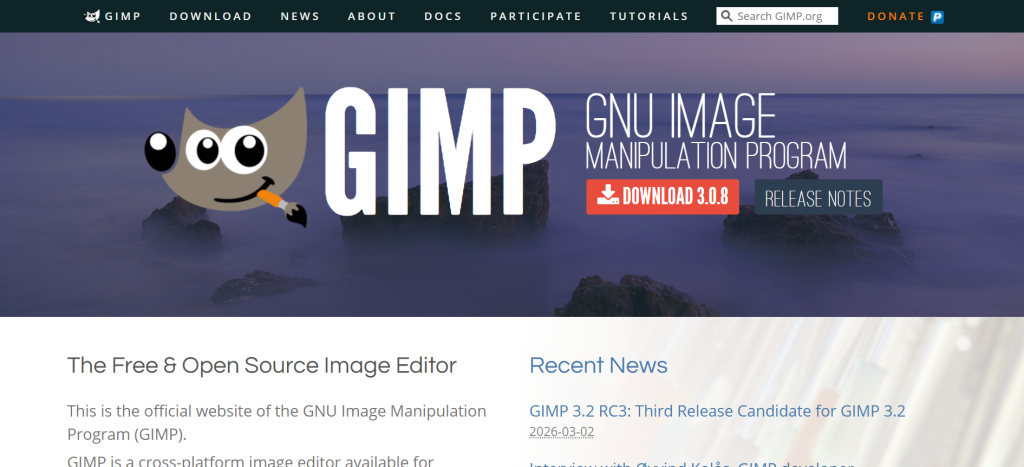
| Best For | Users who need a completely free, open-source Photoshop alternative for photo retouching, image compositing, graphic design, and batch processing, with maximum customization through scripting and plugins |
| Pricing | Completely free and open-source (GPL). No paid tiers, no watermarks, no restrictions. Cross-platform: Windows, Mac, Linux |
| Key Features | Complete raster image editor with layers, channels, paths, and masks. Selection tools: rectangle, ellipse, free select, scissors, foreground select, fuzzy select, by color. Paint tools: pencil, paintbrush, airbrush, clone, heal, perspective clone, blur/sharpen. Layer management with blending modes, opacity, masks, and groups. Color management with ICC profiles. Customizable interface with dockable panels. Script-Fu and Python scripting engines for automation and batch processing. Extensive plugin ecosystem with hundreds of community tools. PSD import and export with layer support. GEGL-based non-destructive editing pipeline (in development) |
| Key Strengths | Most comprehensive free image editor available — handles workflows Photoshop charges $22.99/mo for. Completely open-source with no proprietary dependencies. Script-Fu and Python scripting enable powerful automation and batch processing. Plugin ecosystem extends capability with hundreds of community tools. PSD file compatibility allows integration into Photoshop-based workflows. Customizable interface adapts to any workflow preference. Cross-platform consistency across Windows, Mac, and Linux. 28+ years of active development with massive knowledge base |
| Key Weaknesses | Interface feels dated and less intuitive than Photoshop, Affinity, or Photopea. Digital painting and illustration tools trail Krita significantly. No native CMYK color mode for print production (available via plugin). Non-destructive editing is still developing through GEGL pipeline. Performance lags behind commercial alternatives on complex compositing. Learning curve is steeper than most modern alternatives. Adjustment layers are not yet implemented in the traditional sense. Some keyboard shortcuts and workflow conventions differ significantly from Photoshop |
| Integrations | PSD, TIFF, PNG, JPEG, BMP, GIF, PDF, EPS, SVG import/export. RAW file support via plugins (UFRaw, RawTherapee). Script-Fu, Python, Perl scripting. GEGL filters. Extensive plugin ecosystem. Batch processing via scripting |
| Best Pairing | GIMP for photo editing + Krita for digital painting + Inkscape for vector work |
GIMP has been the default free Photoshop alternative for 28 years, and it remains the most comprehensive free open-source image editor available. The feature set covers photo retouching, compositing, image manipulation, graphic design, and batch processing with a depth that no other completely open-source tool matches. For users who need a free image editor and prefer open-source software with no proprietary dependencies, GIMP remains the definitive choice.
The scripting capability is GIMP’s strongest differentiator for professional workflows. Script-Fu and Python scripting engines enable automation that transforms repetitive tasks into one-click operations. A photographer who needs to apply the same crop, color correction, and export settings to 500 images can script the entire workflow. A graphic designer who creates variations of the same template can automate the production of dozens of versions. This programmability enables professional efficiency that visual interfaces alone cannot match.
The plugin ecosystem extends GIMP’s capability with hundreds of community-developed tools. Specialized filters, advanced sharpening algorithms, panorama stitching, animation tools, and workflow enhancers add capability that the base application does not include. For power users willing to invest time in plugin discovery and configuration, GIMP’s extensibility approaches unlimited capability.
Where GIMP Falls Short
GIMP’s interface is its most persistent weakness. Despite modernization efforts, the interface feels dated compared to Photoshop, Affinity, and Photopea. Standard Photoshop conventions (single-window mode, adjustment layers, non-destructive editing) are either absent or implemented differently. The digital painting tools are adequate but trail Krita significantly for illustration work. Affinity Photo, now free, provides a more modern and capable photo editing experience with non-destructive adjustment layers, making GIMP’s primary advantage its open-source nature rather than its capability advantage.
4. Inkscape — Best Free Vector Illustration and Logo Design Editor
| Best For | Designers, illustrators, and web developers who need free vector graphics creation for logos, icons, illustrations, diagrams, and SVG web graphics |
| Pricing | Completely free and open-source (GPL). Cross-platform: Windows, Mac, Linux. No paid tiers, no watermarks |
| Key Features | Comprehensive vector drawing with Bezier pen, pencil, calligraphy, and shape tools. Node editing for precise path manipulation. Boolean path operations (union, difference, intersection, exclusion). Text tool with kerning, spacing, and text-on-path. SVG as native format ensuring web standards compatibility. Layers and object management. Color management with RGB, HSL, CMYK (limited), and color swatches. Clone and pattern tools for repeating elements. Extensions ecosystem for specialized tasks (barcode, palette, batch). DXF export for laser cutting and CNC. PDF and EPS import and export |
| Key Strengths | Most capable free vector editor available — handles workflows Illustrator charges $22.99/mo for. SVG-native format ensures maximum web compatibility and standards compliance. Comprehensive path editing and Boolean operations for complex vector artwork. Calligraphy tool creates natural hand-lettered effects with pressure sensitivity. Extensions ecosystem adds specialized capabilities. Open-source with active community development. Cross-platform consistency. DXF export serves laser cutting, CNC, and fabrication workflows |
| Key Weaknesses | Performance slows significantly with very complex vector files (thousands of objects). Interface feels dated compared to Affinity Designer or Figma. Pen pressure support for drawing is limited compared to raster painting tools. No native CMYK support for professional print workflows (conversion available). Learning curve for mastering Bezier path editing and node manipulation. Gradient mesh implementation trails Illustrator and Affinity Designer. Live effects and appearance panel capabilities are less developed. Some file format imports (AI, CDR) have compatibility limitations |
| Integrations | SVG, PDF, EPS, AI (partial), DXF, PNG, JPEG import/export. LaTeX integration for scientific publishing. Extensions for barcodes, palette management, and batch processing |
| Best Pairing | Inkscape for vector work + Krita for raster painting + GIMP for photo compositing |
Inkscape is the free vector editor that logo designers, icon creators, and web developers reach for when Adobe Illustrator’s subscription cost is not justifiable. The core vector tools — Bezier pen, node editing, Boolean operations, text-on-path, clones, and gradient fills — handle the vast majority of vector design workflows with professional results. Logos, icons, illustrations, infographics, diagrams, and web graphics created in Inkscape are indistinguishable from those created in Illustrator for the majority of use cases.
SVG as the native format provides a specific advantage for web-focused designers. SVG files are the standard for scalable web graphics, and Inkscape’s native SVG output ensures maximum compatibility with web browsers, CSS styling, and JavaScript manipulation. Designers creating icons for web applications, interactive graphics for websites, or illustrations for responsive layouts produce web-ready output directly from Inkscape without format conversion or compatibility concerns.
The calligraphy tool produces natural hand-lettered effects with pen pressure sensitivity that creates beautiful display lettering, decorative elements, and artistic text treatments. Combined with the text-on-path feature and extensive font support, Inkscape provides a complete type-centric design workflow for lettering artists and typographic designers.
Where Inkscape Falls Short
Performance with complex files containing thousands of vector objects degrades noticeably. The interface, while functional, feels dated compared to Affinity Designer or Figma. Gradient mesh implementation trails commercial alternatives. CMYK support is limited, requiring workarounds for professional print production. Now that Affinity Designer is free, Inkscape’s primary competitive advantages are its open-source nature, SVG-native format, and DXF export for fabrication workflows.
5. Photopea — Best Free Browser-Based Photoshop Alternative
| Best For | Anyone who needs Photoshop-class editing without installing software, especially Chromebook users, students on shared computers, and designers who need PSD editing across any device |
| Pricing | Free with advertisements. Premium: $5/mo (removes ads). No feature restrictions on free version — all tools available regardless of plan. Browser-based: no download or installation required |
| Key Features | Full raster and vector editing in the browser. Layers with blending modes, masks, smart objects, and adjustment layers. PSD, XCF (GIMP), Sketch, XD, AI, RAW file support. Selection tools matching Photoshop: marquee, lasso, magic wand, quick selection, pen tool. Adjustment layers for non-destructive color correction. Vector shape tools, text tool, and path editing. AI background removal and content-aware fill. Batch processing. Export to PSD, PNG, JPEG, SVG, PDF, and 40+ formats. Complete client-side processing (files never leave your device) |
| Key Strengths | Runs in any modern web browser with no installation required. Interface mirrors Photoshop almost exactly — Photoshop users adapt instantly. All features available on free tier (ads are the only limitation). Supports PSD files with layers, smart objects, and adjustment layers. Client-side processing ensures privacy — files never uploaded to servers. Works on Chromebooks, school computers, and any device with a browser. RAW photo support for photographers. Export to 40+ file formats |
| Key Weaknesses | Requires internet to load (though processing is local). Performance trails native desktop applications for very large files. Pen pressure and tablet support is limited in browser environment. No dedicated digital painting tools (not a Krita alternative). Relies on web browser limitations for memory and processing. Ad-supported free tier displays advertisements during work. Plugin ecosystem does not exist. No scripting or automation capability |
| Integrations | PSD, XCF, Sketch, XD, AI, SVG, RAW, PDF, EPS, TIFF, PNG, JPEG, GIF import/export. Google Drive and Dropbox integration for file access. No native cloud storage |
| Best Pairing | Photopea for quick photo editing and PSD work + Krita for digital painting + Inkscape for vector work |
Photopea’s value proposition is radical accessibility: professional image editing available to anyone with a web browser, on any device, with no installation, no account creation, and no cost beyond viewing advertisements. A student on a school Chromebook, a designer at a client’s office, or an artist traveling with only a tablet can access Photoshop-class editing by opening a URL. This accessibility has made Photopea the most-used free image editor globally by user count.
The Photoshop interface mirroring is not superficial. Photopea replicates Photoshop’s tool layout, keyboard shortcuts, panel arrangement, and workflow conventions with sufficient fidelity that experienced Photoshop users can begin productive work immediately. Layers with blending modes, adjustment layers for non-destructive color correction, smart objects, vector tools, pen tool path editing, and comprehensive selection tools provide genuine Photoshop workflow compatibility.
The PSD file support is Photopea’s most practically valuable feature. Opening a PSD file with layers, smart objects, adjustment layers, and effects preserved enables designers to edit Photoshop files without owning Photoshop. For freelancers who receive PSD files from clients, design students who need to edit Photoshop files in computer labs, and anyone who occasionally needs Photoshop compatibility without the subscription, Photopea provides a complete solution.
Where Photopea Falls Short
Browser-based execution introduces inherent limitations. Very large files (100+ MB, hundreds of layers) may exceed browser memory limits. Pen pressure and tablet support is limited in the browser environment, making Photopea unsuitable as a digital painting tool. There is no plugin ecosystem, no scripting capability, and no automation. For any workflow that requires desktop application performance, dedicated digital painting tools, or professional automation, native applications (Affinity, Krita, GIMP) are superior.
6. MediBang Paint — Best Free Software for Manga and Comic Creation
| Best For | Manga artists, comic creators, and webtoon artists who need built-in panel management, screen tones, speech bubbles, and cloud sync across desktop and mobile devices |
| Pricing | Completely free with advertisements on mobile. No paid desktop version. Cloud storage for cross-device sync. Available on Windows, Mac, iOS, Android |
| Key Features | Comic panel division and management tools. Built-in screen tones, halftones, and comic patterns. Speech bubble tools with customizable shapes and tails. 1,000+ free brushes and materials. Cloud storage for cross-device project sync. Multi-page manga project management. Perspective rulers and snap tools. Font management with comic-appropriate typefaces. Layers with blending modes. Collaborative team features for multi-artist projects |
| Key Strengths | Purpose-built comic creation tools (panels, tones, bubbles) unavailable in general-purpose editors. Cloud sync enables starting on desktop and continuing on mobile seamlessly. 1,000+ free brushes and materials specifically curated for comic and manga styles. Multi-page project management handles complete comic chapters. Cross-platform: Windows, Mac, iOS, Android with consistent feature set. Lightweight and runs well on modest hardware. Free with no feature restrictions on desktop |
| Key Weaknesses | General-purpose painting and photo editing capabilities are limited. Brush engine is less sophisticated than Krita for non-comic illustration styles. Interface can feel cluttered on smaller screens. Cloud dependency for some features (materials library, sync). Advertisement-supported on mobile platforms. Color management is basic compared to professional editors. Export options are limited compared to GIMP or Photopea. Community and tutorial ecosystem is smaller than Krita or GIMP |
| Integrations | PSD export for compatibility with other editors. PNG, JPEG, BMP, MDP (native) formats. Cloud storage for project sync across devices |
| Best Pairing | MediBang for comic panels and tones + Krita for cover illustrations + Inkscape for logo and title design |
MediBang Paint serves comic and manga creators with purpose-built tools that general-purpose editors simply do not provide. The panel division tool creates comic page layouts with adjustable gutters, irregular shapes, and bleeds. Screen tones apply the halftone dot patterns that define manga visual style. Speech bubble tools create customizable word balloons with tails that point to speakers. These are not afterthought features — they are deeply integrated into the creation workflow, making MediBang the fastest path from blank page to finished comic panel for creators working in manga and webtoon formats.
The cloud sync capability across desktop and mobile devices enables a practical workflow for comic artists. Sketch rough layouts on iPad during a commute, refine linework on a desktop Wacom tablet at home, and add screen tones and text on a laptop while traveling. The project syncs between devices through MediBang’s cloud storage, maintaining layer structure, page order, and tool settings across platforms.
The material library provides over 1,000 free brushes, screen tones, backgrounds, and comic-specific assets. These materials are curated specifically for manga and comic creation, providing genre-appropriate resources that would require purchasing from stock sites or creating from scratch in other editors.
Where MediBang Falls Short
MediBang’s comic specialization means general-purpose capabilities are limited. The brush engine is adequate for comic inking and toning but trails Krita for painterly illustration. Photo editing is basic. Color management is minimal. For creators whose work extends beyond comics into illustration, photo editing, or graphic design, MediBang serves as a specialized tool alongside a general-purpose editor rather than a standalone solution.
7. Autodesk Sketchbook — Best Free Sketching and Concept Art Application
| Best For | Concept artists, industrial designers, and sketchers who want a clean, distraction-free drawing experience focused on natural media simulation and rapid ideation |
| Pricing | Completely free since 2021. Previously $30–$85. Available on Windows, Mac, iOS, Android. No paid tiers, no watermarks |
| Key Features | Minimal, distraction-free interface that maximizes canvas area. Professional brush engine with customizable presets. Predictive Stroke technology for smooth curves and straight lines. Radial Symmetry and mirror tools for mandala and symmetric designs. Perspective guides with 1, 2, and 3-point perspective. Copic Color Library for industrial design color matching. Layer management with blending modes. Flipbook animation. Timelapse recording. Full pen pressure and tilt sensitivity |
| Key Strengths | Cleanest, most distraction-free drawing interface available. Predictive Stroke smooths curves and straightens lines automatically. Copic Color Library provides industry-standard color matching for industrial designers. Perspective guides with adjustable vanishing points serve architectural and product sketching. Full pen pressure and tilt support across tablet brands. Runs beautifully on both desktop and mobile. Free with no restrictions, watermarks, or advertisements. Excellent for rapid ideation and concept exploration |
| Key Weaknesses | Feature set is intentionally minimal compared to Krita or Affinity. No animation timeline (flipbook only). Layer limit is lower than professional editors. No text tools for design layouts. File format support is limited (TIFF, PNG, JPEG, PSD). No vector tools. Color management is basic. Community and plugin ecosystem is minimal |
| Integrations | PSD export for Photoshop workflow. TIFF, PNG, JPEG, BMP export. No third-party plugin support |
| Best Pairing | Sketchbook for initial sketching and concepts + Krita for refined painting + Affinity for final compositing |
Autodesk Sketchbook’s competitive advantage is deliberate minimalism. While Krita, GIMP, and Affinity provide hundreds of tools across complex interfaces, Sketchbook presents a clean canvas with essential drawing tools and virtually nothing else. The interface maximizes canvas area, hiding tools behind gesture-based menus that appear only when invoked. For artists whose primary need is getting ideas from head to screen with minimum friction, this minimalism accelerates the creative process by eliminating interface management overhead.
Predictive Stroke is the feature that distinguishes Sketchbook for technical sketching. Drawing a slightly wobbly circle, Sketchbook recognizes the intent and produces a smooth ellipse. Drawing an approximately straight line produces a clean straight line. Drawing a rough curve produces a smooth bezier. This stroke prediction enables architects, industrial designers, and product designers to sketch clean technical concepts without the precise hand control that normally requires years of practice.
The Copic Color Library provides color swatches matching the physical Copic marker system used extensively in industrial and fashion design. Designers who sketch with physical Copic markers can match their digital colors precisely, maintaining visual consistency between physical and digital ideation stages.
Where Sketchbook Falls Short
The intentional minimalism that makes Sketchbook excellent for sketching limits it for finished artwork. Layer limits, absent text tools, no vector capability, and basic color management prevent Sketchbook from serving as a complete production tool. Most Sketchbook users pair it with a more capable application (Krita, Affinity, Photoshop) for refinement and finishing.
8. FireAlpaca — Best Free Lightweight Drawing Application for Modest Hardware
| Best For | Digital artists with older or modest computers who need a responsive drawing application that runs well without demanding hardware requirements |
| Pricing | Completely free. Available on Windows and Mac. No paid tiers. Advertisements displayed in the application |
| Key Features | Lightweight application with minimal system requirements. Pen pressure support with customizable brush dynamics. Perspective snap tools for architectural and environment drawing. Symmetry brushes for mandala and pattern creation. Comic panel tools for basic comic creation. Layer management with blending modes and clipping masks. Selection tools and transform operations. Bucket fill with gap detection. Multiple canvas support (work on multiple files simultaneously). Simple animation features |
| Key Strengths | Runs smoothly on computers that struggle with Krita, GIMP, or Affinity. Simple, uncluttered interface with gentle learning curve. Pen pressure support across Wacom, Huion, and XP-Pen tablets. Perspective snap tools assist environment and architectural drawing. Regular updates with feature additions. Available in many languages. Small download size and quick installation |
| Key Weaknesses | Brush engine is basic compared to Krita or Sketchbook. Feature set is limited compared to all professional-grade alternatives. Advertisements are displayed in the application. Community and tutorial resources are smaller. Advanced color management is absent. Photo editing capabilities are minimal. Plugin and extension ecosystem does not exist. Output limited to PNG, JPEG, PSD, and MDP formats |
| Integrations | PSD export for Photoshop workflow. PNG, JPEG, BMP export. No plugin or extension support |
| Best Pairing | FireAlpaca for drawing on modest hardware + Photopea (browser) for photo editing |
FireAlpaca’s value proposition is straightforward: it draws well on computers that cannot run Krita, GIMP, or Affinity smoothly. Artists using older laptops, underpowered school computers, or budget hardware experience brush lag, slow undo, and viewport stutter in resource-intensive applications. FireAlpaca’s minimal system requirements ensure responsive pen input and smooth canvas manipulation on hardware that would frustrate users of more demanding tools.
The perspective snap tools provide an unexpected strength for environment and architectural drawing. Multiple vanishing point configurations with magnetic snap create accurate perspective grids that guide freehand drawing. For artists creating environments, interiors, buildings, or cityscape concepts, these perspective tools provide structural accuracy that most lightweight drawing applications lack entirely.
Where FireAlpaca Falls Short
The lightweight design that enables performance on modest hardware also limits capability. The brush engine, layer management, color tools, and feature depth trail every professional alternative on this list. FireAlpaca serves a specific need (responsive drawing on limited hardware) exceptionally well but should be considered a transitional tool that users outgrow as they acquire better hardware or develop more demanding creative requirements.
9. ibisPaint — Best Free Mobile-First Drawing Application
| Best For | Mobile artists who create digital art primarily on smartphones and tablets, plus desktop artists who want touch-first drawing experience |
| Pricing | Free with advertisements. Remove ads: subscription or one-time purchase varies by platform. Premium features unlock additional brushes and materials. Windows version available. Available on iOS, Android, and Windows |
| Key Features | 15,000+ brushes including custom and community-created options. Full layer management with blending modes and clipping masks. Stabilizer for smooth linework. Recording feature captures drawing process as timelapse. Material library with screen tones, textures, and patterns. Perspective guides and ruler tools. Text tool with fonts and effects. Filter library with adjustment tools. Cloud storage for cross-device access. Community gallery for sharing and discovering artwork |
| Key Strengths | Largest brush library of any free drawing app (15,000+). Touch-optimized interface designed for finger and stylus drawing on mobile. Drawing process recording creates automatic timelapse content for social sharing. Active community with millions of shared artworks and tutorials. Frequent updates with new brushes, materials, and features. Stabilizer produces clean linework on mobile touchscreens. Available on smartphones, tablets, and Windows desktop |
| Key Weaknesses | Advertisement-supported with frequent ad interruptions on free tier. Some premium brushes and features locked behind subscription. Desktop version is less mature than mobile applications. Professional color management is absent. Performance on older smartphones can be limited. Community features may distract from focused creative work. Export resolution limited compared to desktop applications. Not suitable for professional print production |
| Integrations | PSD export. PNG, JPEG export. Cloud sync between devices. Community gallery sharing |
| Best Pairing | ibisPaint for mobile drawing + Krita for desktop refinement + Photopea for photo editing |
ibisPaint has become the entry point for digital art for millions of creators worldwide, particularly younger artists who access digital art through smartphones before acquiring tablets or desktop computers. The application provides genuine creative capability on devices that most people already own, eliminating the hardware barrier that historically prevented casual interest in digital art from developing into practiced skill.
The 15,000+ brush library is the largest in any free drawing application, providing variety that encourages experimentation with different art styles and techniques. Community-created brushes expand the library continuously, with specialized brushes for anime eyes, hair, clouds, foliage, textures, and virtually every artistic subject. For artists developing their style, this variety provides exposure to techniques they might not discover in a smaller brush library.
The automatic drawing process recording creates timelapse videos of the entire creation process. These recordings serve as both learning tools (study another artist’s process) and social content (share creation timelapses on YouTube, TikTok, or Instagram). The feature has contributed to the growth of the ‘art process’ content genre on social media, where the creation journey is as engaging as the finished artwork.
Where ibisPaint Falls Short
The advertisement frequency on the free tier is aggressive and disrupts creative flow. Professional features like additional brushes are locked behind subscription. The desktop version is less mature than mobile. Professional color management and print production capability are absent. For artists who develop beyond casual mobile creation, transitioning to Krita or Affinity on a desktop provides dramatically more capability.
10. MyPaint — Best Free Minimalist Painting Application for Natural Media Artists
| Best For | Artists who want the simplest possible digital painting experience focused entirely on brush interaction with canvas, without the complexity of professional editors |
| Pricing | Completely free and open-source. Cross-platform: Windows, Mac, Linux. No paid tiers |
| Key Features | Infinite canvas with no fixed boundaries. Natural media brush engine optimized for traditional art simulation. Full pen pressure and tilt sensitivity. Customizable brush dynamics. Layer management with blending modes. Symmetry tools. Simple, minimal interface focused on painting. MyPaint brush format (.myb) used by Krita, GIMP, and other applications |
| Key Strengths | Simplest painting interface available — maximum focus on brush-to-canvas interaction. Infinite canvas eliminates composition size decisions during early creative stages. MyPaint brush format adopted by Krita and GIMP (brushes work across applications). Natural media simulation optimized for traditional art feel. Completely free and open-source. Runs well on modest hardware |
| Key Weaknesses | Feature set is minimal even by free software standards. No selection tools, no text tools, no vector capability. Layer management is basic. File format support is limited. No photo editing capability. Community and tutorial resources are sparse. Less actively developed than Krita or GIMP. Not suitable for any workflow requiring precision editing |
| Integrations | ORA, PNG, JPEG export. MyPaint brush format compatible with Krita and GIMP |
| Best Pairing | MyPaint for initial painting and experimentation + Krita for refinement + GIMP for compositing |
MyPaint strips digital painting to its purest form: a brush, a canvas, and nothing else in the way. The infinite canvas has no fixed boundaries, allowing artists to paint outward in any direction without predetermining composition size. The interface presents brush and color controls and little else, eliminating the toolbar complexity that separates the artist from the creative act. For artists who want the digital equivalent of opening a sketchbook and picking up a brush, MyPaint provides the most frictionless path from intention to mark.
The MyPaint brush format (.myb) has been adopted as a standard by Krita, GIMP, and other applications, meaning brushes created for MyPaint work across the open-source creative ecosystem. This interoperability means artists can discover brushes in one application and use them in another, creating a shared brush resource pool across free painting tools.
Where MyPaint Falls Short
The minimalism that makes MyPaint liberating for pure painting severely limits it for any other creative task. No selection tools, no text, no vector capability, no photo editing, and basic layer management make MyPaint unsuitable as a primary production tool. Most MyPaint users treat it as a sketching and experimentation environment, moving to Krita or GIMP for production work.
11. Paint.NET — Best Free Simple Image Editor for Windows Users
| Best For | Windows users who need a capable image editor that is simpler than GIMP, faster than Photoshop, and more powerful than Microsoft Paint |
| Pricing | Free download from getpaint.net. Also available on Windows Store for $10.99 (supports development, provides auto-updates). Windows only. No Mac or Linux version |
| Key Features | Layer management with blending modes. Selection tools with multiple selection modes. Paint tools including brush, pencil, clone stamp, and eraser. Effects library with blur, sharpen, distort, and artistic effects. Color adjustment tools: brightness, contrast, hue, saturation, curves, levels. Plugin ecosystem with community-created effects and tools. GPU-accelerated rendering. Tabbed interface for multiple image editing. History panel for non-linear undo |
| Key Strengths | Clean, intuitive interface that Windows users adopt immediately. Fast performance with GPU acceleration. Plugin ecosystem extends capability significantly. Lighter system requirements than GIMP or Affinity. Tabbed interface makes working with multiple images efficient. Active development with regular updates. Free with no advertisements in the desktop version |
| Key Weaknesses | Windows only — no Mac or Linux version. Brush tools are basic for digital painting. No pen pressure support for drawing tablet users. Feature set trails GIMP, Affinity, and Photopea significantly. No CMYK or advanced color management. Not suitable for professional illustration or digital painting. Plugin dependency for many advanced features. RAW file support requires plugins |
| Integrations | PNG, JPEG, BMP, TIFF, GIF, TGA, DDS export. Plugin ecosystem for format extensions. No PSD layer support (flattens on import) |
| Best Pairing | Paint.NET for quick Windows image editing + Krita for digital painting + GIMP for advanced photo editing |
Paint.NET occupies the space between Microsoft Paint and GIMP for Windows users who need more than basic editing but find GIMP’s interface overwhelming. The intuitive Windows-native interface, layer management, selection tools, and effects library provide capable image editing without the learning curve of professional editors. For Windows users who resize images, adjust colors, composite simple graphics, and export web-optimized files, Paint.NET handles these daily tasks efficiently.
The plugin ecosystem transforms Paint.NET from a simple editor into a surprisingly capable tool. Community plugins add advanced effects, additional file format support, and specialized tools that extend capability well beyond the base installation. The most popular plugins provide features approaching GIMP’s native capability for specific tasks.
Where Paint.NET Falls Short
Windows-only limitation excludes Mac and Linux users. No pen pressure support makes it unsuitable for digital drawing. PSD files are flattened on import, destroying layer information. The feature set, even with plugins, trails GIMP, Affinity, and Photopea significantly. Paint.NET is a competent basic editor, not a creative production tool.
12. Canva — Best Free Template-Based Design Tool for Non-Designers
| Best For | Non-designers, social media managers, small business owners, and content creators who need professional-looking graphics from templates without learning traditional design software |
| Pricing | Free: $0 (basic templates, 5GB storage, limited stock assets). Canva Pro: $119.99/yr or $14.99/mo (premium templates, Brand Kit, 1TB storage, background remover, magic resize). Free for education. Teams: $100/person/yr |
| Key Features | Template library with millions of pre-designed layouts for social media, presentations, posters, and more. Drag-and-drop design editor with no design skills required. Text editor with font pairing and animation. Photo and video editing within the design editor. Stock photo and illustration library. Brand Kit for consistent visual identity (Pro). Background remover AI (Pro). Magic Resize for multi-format output (Pro). Collaboration and team features. Direct publishing to social media platforms |
| Key Strengths | Most accessible design tool for non-designers — professional output from templates. Massive template library covers virtually every standard design format. No installation required (web-based with mobile apps). Collaboration features enable team-based design workflows. Free tier provides genuine utility for basic design needs. Brand Kit ensures visual consistency across designs (Pro). Integration with social media publishing |
| Key Weaknesses | Not a drawing or painting tool — template-based rather than freeform creation. Design output is constrained by template structures. No pen pressure, no brush engine, no freeform drawing capability. Creative ceiling is low for experienced designers. Template dependency can produce generic-looking output. Free tier limits access to premium templates and stock assets. Not suitable for illustration, digital painting, or professional design production. Exports are adequate but not optimized for print production |
| Integrations | Social media direct publishing. Google Drive, Dropbox integration. Stock photo services. Canva Print for physical products |
| Best Pairing | Canva for social media and template-based design + Krita for original illustration + Affinity for professional design |
Canva appears on this list because it answers the actual question many people ask when searching for ‘free drawing software’: they want to create professional-looking graphics without learning traditional design software. Canva does not provide drawing tools in the traditional sense — there is no brush engine, no pen pressure support, and no freeform canvas painting. Instead, it provides template-based design that enables non-designers to produce polished social media graphics, presentations, posters, and business materials by customizing pre-designed layouts.
For the specific use case of creating visual content for social media, marketing, and business communication, Canva’s template approach is often more practical than learning Krita, GIMP, or Inkscape. A small business owner who needs an Instagram post graphic does not need to master Bezier paths or layer compositing — they need a professional-looking template they can customize with their brand colors and text in five minutes. Canva serves this need better than any traditional drawing or design application.
Where Canva Falls Short
Canva is not drawing or design software in the traditional sense. There is no freeform creation, no brush engine, no vector editing, and no professional design capability. Template dependency produces recognizable output when multiple users choose the same popular templates. The free tier limits access to premium assets. For anyone who wants to create original artwork, illustrations, or professional design work, Canva is not the answer — Krita, Affinity, GIMP, or Inkscape are.
Which Free Drawing Software Should You Choose? A Decision Framework
If you want the best free digital painting experience: Krita. Professional brush engine, pen pressure, stabilizer, and animation at zero cost.
If you need a free Photoshop replacement for photo editing and design: Affinity (free since 2025). Professional photo editing, vector design, and page layout in one suite.
If you need a free open-source Photoshop alternative: GIMP. Most comprehensive free open-source image editor with scripting and plugin extensibility.
If you need free vector illustration and logo design: Inkscape. SVG-native vector editor with comprehensive path tools and Boolean operations.
If you need Photoshop-class editing in a browser: Photopea (free with ads). Full PSD support, adjustment layers, and professional tools with no installation.
If you create manga, comics, or webtoons: MediBang Paint. Purpose-built panel, tone, and bubble tools with cross-device cloud sync.
If you sketch concepts and want minimal interface: Autodesk Sketchbook. Distraction-free canvas with Predictive Stroke and perspective guides.
If you draw primarily on mobile devices: ibisPaint. 15,000+ brushes with touch-optimized interface on iOS and Android.
If you have older or modest hardware: FireAlpaca. Lightweight drawing application that runs smoothly where others struggle.
If you want template-based design without learning design software: Canva (free tier). Template library produces professional graphics with no design skills.
Free Drawing Software Capability Comparison
| Software | Painting | Photo Edit | Vector | Pen Press | Layers | Color | Animate | File Compat | Best Creative Use | |
| Krita | ★★★★★ | ★★ | ★★ | ★★★★★ | ★★★★ | ★★★★ | ★★★★ | ★★ | ★★★★ | Digital painting |
| Affinity | ★★★ | ★★★★★ | ★★★★★ | ★★★★ | ★★★★★ | ★★★★★ | ★ | ★★★★★ | ★★★★★ | Design + photo |
| GIMP | ★★★ | ★★★★ | ★ | ★★★ | ★★★★ | ★★★★ | ★★ | ★★★ | ★★★★ | Photo editing |
| Inkscape | ★ | ★ | ★★★★★ | ★★ | ★★★ | ★★★ | ★ | ★★★ | ★★★★ | Vector/logos |
| Photopea | ★★ | ★★★★ | ★★★ | ★ | ★★★★★ | ★★★★ | ★ | ★★★ | ★★★★★ | Browser editing |
| Sketchbook | ★★★★ | ★ | ★ | ★★★★★ | ★★★ | ★★★ | ★ | ★ | ★★ | Concept sketching |
Recommended Free Software Stacks by Creative Discipline
| Creative Discipline | Recommended Free Stack | What Each Tool Handles |
| Digital painting & illustration | Krita + GIMP | Krita for painting, GIMP for photo compositing and final adjustments |
| Graphic design (print + digital) | Affinity (free) | Photo editing, vector design, and page layout in one suite |
| Photo editing & retouching | Affinity Photo or GIMP + Photopea | Affinity/GIMP for desktop editing, Photopea for browser access |
| Logo & brand design | Inkscape + Affinity Designer | Inkscape for SVG web, Affinity for print-ready CMYK output |
| Manga & comic creation | MediBang + Krita | MediBang for panels/tones, Krita for cover illustrations |
| Concept art & sketching | Sketchbook + Krita | Sketchbook for ideation, Krita for painting and refinement |
| Mobile digital art | ibisPaint + Krita | ibisPaint for mobile creation, Krita for desktop refinement |
| Web design assets | Photopea + Inkscape | Photopea for raster web graphics, Inkscape for SVG icons/illustrations |
| Student / beginner | Krita + Inkscape + GIMP | Complete free creative suite covering painting, vector, and photo editing |
| Professional replacement for Adobe CC | Affinity + Krita + Inkscape | Affinity replaces Photoshop/InDesign, Krita replaces painting, Inkscape for SVG |
Frequently Asked Questions
Can free drawing software replace Adobe Creative Cloud?
In 2026, the answer is unequivocally yes for most users. Affinity, now completely free, replaces Photoshop for photo editing, Illustrator for vector design, and InDesign for page layout. Krita matches or exceeds Photoshop’s digital painting tools. GIMP provides open-source photo editing with scripting automation. Inkscape handles SVG-focused vector workflows. The combination of Affinity, Krita, and Inkscape covers 90 percent of what Adobe Creative Cloud provides at zero cost. The remaining 10 percent — primarily After Effects for motion graphics, Lightroom’s catalog management, and deep Photoshop plugin ecosystem compatibility — represents legitimate gaps, but they affect a minority of creative workflows.
What is the best free drawing software for complete beginners?
Autodesk Sketchbook provides the gentlest introduction with its minimal, distraction-free interface. Artists who just want to draw without configuring tools will find Sketchbook’s clean canvas and intuitive brushes immediately usable. For beginners who want to develop professional skills, Krita is the better long-term investment: its learning curve is steeper, but the skills transfer directly to professional workflows. For beginners on mobile devices, ibisPaint provides an accessible starting point with thousands of brushes and an active community of other learning artists.
Is Affinity really free now, and what’s the catch?
Yes, Affinity (Photo, Designer, and Publisher combined) became completely free in 2025 after Canva acquired the company. There are no feature restrictions, no watermarks, and no subscription. The catch is strategic: Canva benefits from Affinity’s user base and technology while establishing itself as a creative platform beyond template-based design. The long-term risk is that Canva may change the pricing model, alter development priorities, or integrate Affinity features into Canva’s platform in ways that diverge from professional design workflows. For now, the free professional design suite is genuine and fully functional.
Which free software has the best brush engine for digital painting?
Krita has the best brush engine of any free drawing application, and it competes directly with paid professional tools like Corel Painter. Nine distinct brush engines provide different rendering behaviors that simulate oil painting, watercolor, charcoal, ink, airbrush, and dozens of other natural media types. Full pen pressure sensitivity, tilt recognition, barrel rotation support, and the brush stabilizer create a drawing experience that professional illustrators describe as indistinguishable from commercial alternatives. Autodesk Sketchbook provides the second-best free brush experience with its Predictive Stroke technology, though its brush variety is smaller.
Do I need a drawing tablet to use free drawing software?
A drawing tablet is not required but dramatically improves the drawing experience. All free drawing applications support mouse and trackpad input for basic editing, selection, and design work. However, for digital painting and illustration, a pressure-sensitive tablet provides the natural hand-to-canvas interaction that makes freeform drawing possible. Entry-level tablets from Wacom (Intuos, ~$70–$100), Huion (Kamvas, ~$50–80), and XP-Pen (Deco, ~$40–70) provide pressure sensitivity compatible with all applications on this list. Artists serious about digital painting will find a tablet investment more impactful than any software choice.
What free software should I use for professional print design?
Affinity is the clear choice for professional print design since becoming free. Affinity Photo and Affinity Designer both support CMYK color mode, Pantone colors, ICC color profiles, and PDF/X export for commercial printing. Affinity Publisher handles multi-page layout with master pages, preflight checking, and bleed/crop marks. Before Affinity became free, this question was difficult to answer because GIMP lacked native CMYK and Inkscape’s print support was limited. Now, Affinity provides the complete professional print workflow at zero cost.
Final Words: The Cost Barrier to Professional Digital Art Has Disappeared
The narrative that professional digital art requires expensive software is now definitively false. Krita provides painting tools that rival Corel Painter. Affinity provides photo editing, vector design, and page layout that rival Adobe’s Creative Suite. GIMP provides open-source photo editing with unmatched scripting automation. Inkscape provides vector editing that handles most Illustrator workflows. Photopea provides Photoshop-class editing in any web browser. MediBang provides purpose-built comic creation tools. The total cost of this entire professional creative toolkit is zero.
The real investment in digital art is time, not money. Learning Krita’s brush engine, mastering GIMP’s compositing workflow, understanding Inkscape’s Bezier paths, and developing the artistic skills that make these tools productive requires hundreds of hours of practice. No software purchase can substitute for this investment. The democratization of free creative tools means the only barrier remaining is the willingness to learn and practice — and that barrier has never been lower, with thousands of free tutorials, community forums, and open-source resources supporting every application on this list.
Start with Krita for painting, Affinity for design and photo editing, and Inkscape for vector work. These three applications, all free, cover virtually every creative workflow that Adobe charges $659.88 per year for through Creative Cloud. Learn one tool well before adding another. Build your skills alongside your toolset. Create art, design graphics, edit photos, and produce professional work — all without spending a single dollar on software.

![Marketing Automation Case Study: 12 Real Examples, Strategy & ROI Results [2026]](https://marketingcasestudy.io/wp-content/uploads/2026/05/marketing-automation-case-study-featured-300x158.png)