YouTube’s algorithm rewards consistency, watch time, and production quality — and your editing software directly determines how quickly you can deliver all three. A creator who spends eight hours editing a 10-minute video in an overpowered application will always lose to a creator who delivers comparable quality in three hours using a tool matched to their content type. The best editing software for YouTube is not the most feature-rich editor available; it is the editor that lets you produce your specific content at the quality your audience expects in the least possible time.
The YouTube editing software landscape in 2026 divides into five distinct categories serving fundamentally different creator types. Professional NLEs (Premiere Pro, DaVinci Resolve, Final Cut Pro) provide complete editing, color grading, audio mixing, and effects for creators who produce cinematic content, documentaries, or high-production vlogs. Beginner-friendly editors (Filmora, PowerDirector, Premiere Elements) balance capability with approachability for creators building editing skills alongside their channels. Free editors (DaVinci Resolve free, iMovie, Shotcut, Kdenlive) eliminate cost barriers entirely. Social-first editors (CapCut) optimize for Shorts, vertical content, and trend-driven formats. Text-based editors (Descript) transform the editing workflow for talking-head and podcast creators.
This guide tests 12 editing applications across every major YouTube content type, evaluating each for editing speed, timeline flexibility, color grading capability, audio tools, export optimization for YouTube, AI-powered features, and true annual cost. Every review identifies the specific content type, skill level, and production workflow each tool serves best, because a gaming creator has fundamentally different needs than a documentary filmmaker, and both deserve software recommendations matched to what they actually create.
Quick Comparison: Top 12 Editing Software for YouTube in 2026
| Platform | Best For | Starting Price | Annual Cost | Free Option | Platform | Our Rating |
| DaVinci Resolve | Pro tools at zero cost | Free | $0 | Yes, full-featured | Win/Mac/Linux | 9.5/10 |
| Premiere Pro | Pro multi-platform editor | $22.99/mo | $275.88/yr | 7-day trial | Win/Mac | 9.3/10 |
| Final Cut Pro | Fastest Mac editing | $299.99 once | $299.99 (once) | 90-day trial | Mac only | 9.2/10 |
| CapCut | Shorts & social-first | Free | $0–$107.88/yr | Yes, generous | Web/Win/Mac/Mobile | 8.8/10 |
| Filmora | Beginner-friendly editing | $49.99/yr | $49.99/yr | Yes, watermarked | Win/Mac | 8.5/10 |
| Descript | Talking-head & podcast | $24/mo | $288/yr | Yes, limited | Win/Mac/Web | 8.6/10 |
| PowerDirector | Windows prosumer editor | $54.99/yr | $54.99/yr | Yes, limited | Win/Mac | 8.4/10 |
| iMovie | First-time Mac creators | Free | $0 | Yes, fully free | Mac/iPhone/iPad | 8.0/10 |
| Canva Video | Template-based editing | Free | $0–$119.99/yr | Yes, generous | Web/Mobile | 7.8/10 |
| Shotcut | Free open-source editor | Free | $0 | Yes, fully free | Win/Mac/Linux | 7.9/10 |
| Premiere Elements | Casual home editor | $99.99 once | $99.99 (once) | 30-day trial | Win/Mac | 7.6/10 |
| Kdenlive | Linux & open-source users | Free | $0 | Yes, fully free | Win/Mac/Linux | 7.5/10 |
How We Evaluated These YouTube Editors
Every editor was tested by producing actual YouTube content relevant to its target creator type.
Editing speed for YouTube workflows: We measured time from import to export for standardized YouTube content types: 10-minute talking-head video, 60-second Short, gaming montage with multicam, and B-roll-heavy cinematic vlog. This metric matters more than feature count because YouTube rewards publishing consistency.
Timeline flexibility and editing tools: We evaluated cut, trim, ripple, roll, and slip editing precision. Multi-track timeline capability. Multicam editing support. Nested sequence and compound clip management. Keyframe animation for position, scale, and opacity. Speed ramping and time remapping. These tools determine the creative ceiling for complex YouTube content.
Color grading capability: We compared color correction tools, LUT support, color wheels, curves, HSL qualification, color matching between shots, and whether the grading tools produce broadcast-quality results or merely adjust brightness and contrast. Color consistency across a YouTube video directly impacts perceived production quality.
Audio tools: We tested noise reduction, EQ, compression, loudness normalization, music ducking, voice enhancement, and how efficiently each tool handles the audio cleanup that talking-head and vlog creators spend significant time on.
YouTube export optimization: We evaluated preset availability for YouTube’s recommended upload specifications, encoding speed, file size efficiency, HDR support, Shorts-format export, and whether the tool produces uploads that YouTube processes quickly to full quality.
AI-powered features: We assessed auto-captioning accuracy, auto-reframe for Shorts repurposing, AI-powered noise removal, AI scene detection, AI eye contact correction, and any other AI features that measurably reduce editing time for YouTube workflows.
Why YouTube Editing Changed in 2026
Three developments have reshaped how YouTube creators choose editing software. First, AI-powered editing features have moved from novelty to daily workflow tools. Premiere Pro’s AI-powered auto-captioning generates subtitle tracks directly in the timeline with timestamps. DaVinci Resolve 20’s AI features include voice isolation, object removal, and enhanced performance. Descript’s AI Eye Contact adjusts gaze to simulate camera contact even when the creator was reading notes. CapCut’s AI auto-captions, auto-cutout, and style transfer produce polished Shorts with minimal manual editing. These AI tools save hours per video, fundamentally changing the time-to-publish equation.
Second, YouTube Shorts has created a parallel editing workflow requiring different software capabilities. A 60-second vertical video optimized for mobile attention spans requires different editing tools than a 20-minute landscape tutorial. Auto-reframe, vertical timeline support, trending effect libraries, auto-captioning optimized for mobile viewing, and rapid export workflows are now essential features. CapCut’s dominance in the Shorts category reflects this: creators who previously edited everything in Premiere Pro now use CapCut specifically for Shorts because it produces Shorts-optimized content faster.
Third, the free tier of professional editing tools has made cost a non-factor for YouTube creators at any level. DaVinci Resolve’s free version provides professional editing, color grading, audio mixing, and visual effects with no watermarks and no feature expiration. CapCut provides a full-featured editor with effects, transitions, music, and captions at no cost. iMovie ships free on every Mac and iPhone. Shotcut and Kdenlive provide capable open-source editing on every operating system. The era when starting a YouTube channel required purchasing editing software has ended completely.
Detailed Reviews: Best Editing Software for YouTube in 2026
1. DaVinci Resolve — Best Free Professional Editor for Serious YouTube Creators
| Best For | YouTube creators who want professional editing, color grading, audio mixing, and visual effects at zero cost, and are willing to invest time learning a comprehensive tool |
| Pricing | Free: $0 (full editing, color grading, Fairlight audio, Fusion VFX, no watermarks, no time limits). Studio: $295 one-time perpetual license (adds AI tools, HDR grading, noise reduction, multi-GPU, 8K support, stereoscopic 3D). No subscription. Free lifetime updates for Studio owners |
| Key Features | Edit page: full-featured NLE with multi-track timeline, multicam, and advanced trimming. Cut page: rapid assembly editing designed for YouTube content turnaround. Color page: industry-leading node-based color grading used in Hollywood productions. Fairlight page: full digital audio workstation with noise reduction, EQ, compression, and mixing. Fusion page: node-based visual effects and motion graphics compositing. AI features (Studio): DaVinci Neural Engine for voice isolation, object removal, auto color balance, magic mask, speed warp |
| Key Strengths | Free version provides genuinely professional tools with zero restrictions. Industry-leading color grading transforms YouTube content quality. Fairlight audio tools handle complete audio post-production within the editor. Fusion provides visual effects capability that competitors charge separately for. Cut page enables rapid YouTube editing workflows. Studio at $295 one-time is cheaper than one year of Premiere Pro. Cross-platform: Windows, Mac, and Linux |
| Key Weaknesses | Steep learning curve due to professional feature depth across five pages. Requires capable GPU for smooth playback (8GB VRAM recommended for 4K). Interface complexity overwhelms creators with simple editing needs. Learning resources are less YouTube-creator-focused than Filmora or CapCut. Export times can exceed optimized platforms like Final Cut Pro on Apple silicon. Fusion compositing page has an especially steep learning curve |
| Integrations | Frame.io for review workflows. YouTube direct upload. ProRes, H.264, H.265, DNxHR codec support. AAF/XML roundtrip with Pro Tools, Premiere Pro, Final Cut Pro. Blackmagic hardware ecosystem integration |
| Best Pairing | DaVinci Resolve for editing and color + Canva for thumbnails + CapCut for Shorts repurposing |
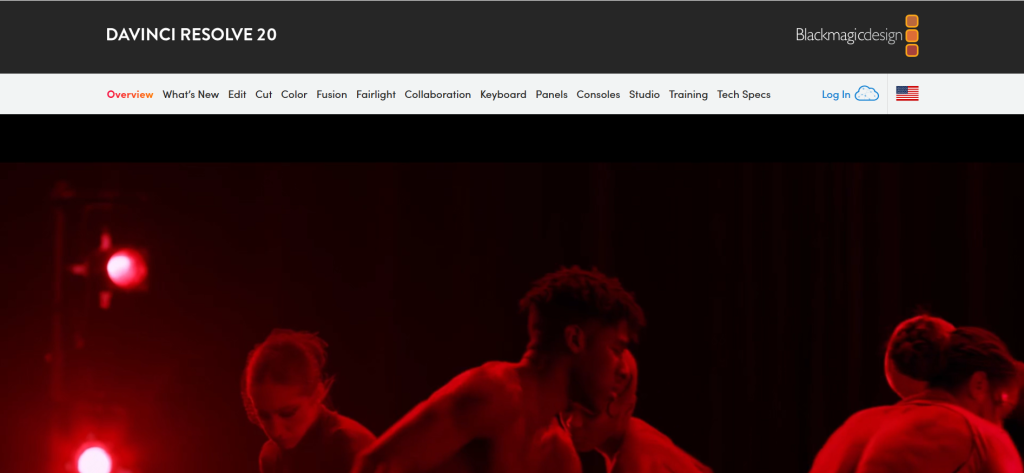
DaVinci Resolve’s free version is the most powerful no-cost creative application in any software category. The Edit page provides a complete NLE with multi-track timeline, multicam editing, advanced trimming modes, speed ramping, keyframe animation, and transitions. The Color page delivers the same node-based color grading tools that Hollywood colorists use on feature films. The Fairlight page provides a complete digital audio workstation for noise reduction, EQ, compression, and mixing. The Fusion page provides node-based visual effects compositing. All of this is genuinely free — no watermarks, no time limits, no artificial feature restrictions.
For YouTube creators specifically, the Cut page deserves attention as a workflow designed for content turnaround speed. Source Tape mode lets you scrub through all imported media as a single continuous clip, marking in and out points for rapid assembly. Smart Insert, Append, and Close-Up editing actions speed up common timeline operations. The dual timeline view shows both the full project and a zoomed detail view simultaneously. For creators producing weekly YouTube content, the Cut page’s speed-oriented design can reduce assembly editing time by 30 to 50 percent compared to traditional timeline editing.
The color grading capability is Resolve’s strongest competitive advantage for YouTube. Consistent, professional color across your videos is the single most visible production quality indicator viewers perceive, often subconsciously. Resolve’s node-based grading system enables complex looks that are saved as presets and applied across videos, creating the consistent visual brand identity that distinguishes professional YouTube channels from amateur ones.
Where DaVinci Resolve Falls Short
The professional depth that makes Resolve powerful also makes it intimidating. Five separate workspace pages, each with its own interface paradigm and learning curve, overwhelm creators who need only basic cuts and transitions. The GPU requirements are real: 4K timeline playback on the free version without proxy workflows requires at least 8GB of dedicated VRAM. Learning resources, while extensive, tend to target professional editors rather than YouTube creators learning their first NLE.
The Verdict on DaVinci Resolve
DaVinci Resolve is the universal first recommendation for any YouTube creator willing to invest learning time. It costs nothing, provides professional-quality tools across editing, color, audio, and VFX, and the Studio upgrade at $295 one-time is cheaper than a single year of Premiere Pro. For creators who produce content where visual quality matters — cinematic vlogs, travel content, short films, documentaries, music videos — Resolve’s color grading alone justifies the learning investment.
2. Adobe Premiere Pro — Best Professional Editor for Multi-Platform YouTube Creators
| Best For | Established YouTube creators with complex multi-format workflows who need the broadest codec support, deepest plugin ecosystem, and seamless integration with After Effects, Audition, and Photoshop |
| Pricing | Premiere Pro only: $22.99/mo (annual plan) or $31.49/mo (month-to-month). Creative Cloud All Apps: $54.99/mo. Students: $19.99/mo for All Apps. 7-day free trial. Business: $35.99/mo per license |
| Key Features | Complete NLE with multi-track timeline, multicam, nested sequences, and advanced trimming. Lumetri Color for professional color grading and LUT support. Essential Sound panel for one-click audio enhancement and noise reduction. Auto Reframe AI for adapting landscape content to Shorts and vertical formats. Speech-to-Text auto-captioning directly in timeline. Dynamic Link to After Effects for live motion graphics. Frame.io integration for client/team review workflows. Comprehensive codec support reads virtually every format without transcoding |
| Key Strengths | Broadest codec and format support of any NLE — reads virtually everything natively. Dynamic Link to After Effects enables live motion graphics without rendering. Auto Reframe intelligently crops footage for Shorts and vertical formats. Speech-to-Text generates accurate captions directly in the timeline. Essential Sound panel makes audio cleanup accessible to non-audio-engineers. Largest third-party plugin and template ecosystem. Premiere Pro skills are the most transferable to professional editing jobs. Frame.io integration provides professional review workflows |
| Key Weaknesses | $275.88/yr subscription cost with no perpetual license option. Resource-intensive: demands 16+ GB RAM and dedicated GPU for smooth 4K editing. Occasional stability issues and crashes on complex projects. Learning curve is steep for beginners. Overkill for simple talking-head or basic vlog content. Annual contract required for best pricing (early cancellation penalized). Creative Cloud dependency means internet required for license verification |
| Integrations | After Effects (Dynamic Link), Audition, Photoshop, Illustrator, Frame.io, Adobe Stock, Adobe Fonts, YouTube direct upload, ProRes/H.264/H.265/RED/BRAW codec support, extensive third-party plugin marketplace |
| Best Pairing | Premiere Pro for editing + After Effects for motion graphics + Audition for advanced audio + Photoshop for thumbnails |
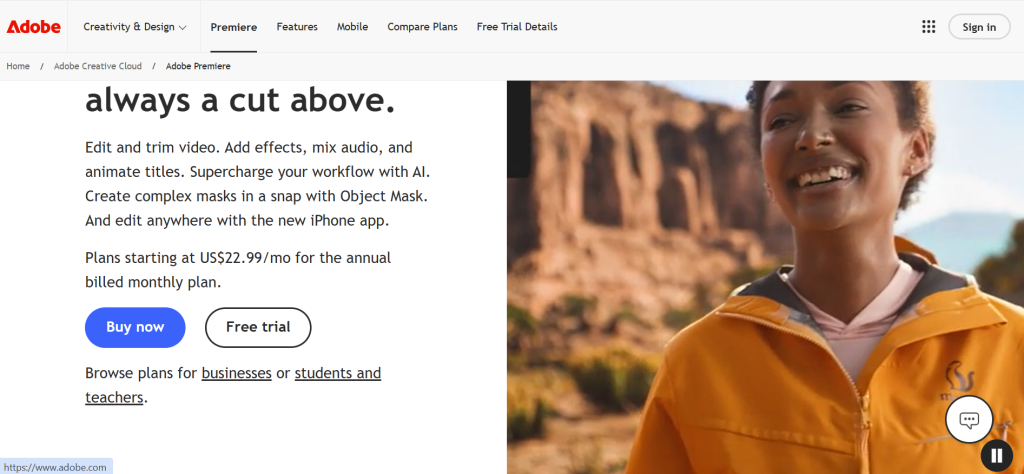
Premiere Pro holds approximately 35 percent of the professional video editing market, and its dominance among YouTube creators reflects genuine workflow advantages for multi-format production. The codec support is unmatched: RED RAW, ProRes, H.265, BRAW, ARRIRAW, and virtually every other professional format drops into the timeline without transcoding. For creators who shoot on multiple cameras with different codecs, this native compatibility eliminates hours of pre-edit conversion.
Dynamic Link to After Effects is Premiere Pro’s strongest differentiator for creators who use animated intros, lower thirds, data visualizations, or complex motion graphics. Changes made in the After Effects composition update live in the Premiere Pro timeline without rendering. This round-trip workflow means a motion graphics designer and an editor can work in parallel, or a single creator can maintain a library of After Effects templates that update instantly across all their Premiere Pro projects.
The AI-powered features serve YouTube workflows directly. Auto Reframe analyzes footage and intelligently reframes for vertical (9:16) Shorts and square (1:1) social formats, keeping subjects centered. Speech-to-Text generates timestamped caption tracks directly in the timeline for accessibility compliance and the growing viewer preference for captioned content. Essential Sound provides one-click audio profiles (Dialogue, Music, SFX, Ambience) that apply appropriate EQ, compression, and noise reduction without requiring audio engineering knowledge.
Where Premiere Pro Falls Short
The $275.88 annual subscription costs more than DaVinci Resolve Studio ($295 one-time) or Final Cut Pro ($299.99 one-time) within two years, and the gap widens every year thereafter. Five years of Premiere Pro costs $1,379 versus $295–$300 for the one-time alternatives. The hardware requirements are demanding: smooth 4K editing requires 16+ GB RAM and a dedicated GPU. Occasional stability issues and crashes on complex projects remain a recurring complaint. For creators producing simple talking-head or basic vlog content, Premiere Pro’s capabilities far exceed what they need.
3. Final Cut Pro — Best Editor for Mac-Based YouTube Creators Who Value Speed
| Best For | Mac-based YouTube creators who want the fastest editing performance, instant previews through background rendering, and a one-time purchase price with no ongoing subscription |
| Pricing | Mac: $299.99 one-time perpetual license with lifetime free updates. iPad: $4.99/mo or $49/yr. Pro Apps Bundle for Education: $199.99 (Final Cut Pro + Logic Pro + Motion + Compressor + MainStage). 90-day free trial |
| Key Features | Magnetic Timeline automatically manages clip positions and eliminates gap management. Background rendering provides instant previews without waiting. Optimized for Apple silicon (M1/M2/M3/M4) with exceptional 4K/8K performance. Multicam editing with automatic angle sync. Color grading with Color Board, Color Wheels, Color Curves, and HDR tools. Spatial video editing for Apple Vision Pro content. Compressor integration optimizes exports specifically for YouTube. Roles-based audio organization. Magnetic timeline and compound clips for complex project organization |
| Key Strengths | Fastest editing performance on Apple silicon hardware — measurably faster than competitors on same Mac. Magnetic Timeline eliminates manual gap management, accelerating editing speed. One-time $299.99 purchase with lifetime free updates (no subscription). Background rendering means you never wait for previews. Handles 4K, 8K, HDR, ProRes RAW, and 360° content effortlessly on Apple silicon. 90-day free trial provides extensive evaluation period. Pro Apps Bundle for Education at $199.99 is exceptional value for students |
| Key Weaknesses | Mac only — no Windows or Linux version. Magnetic Timeline confuses editors accustomed to traditional track-based timelines. Fewer third-party plugins and templates than Premiere Pro’s ecosystem. Color grading tools are capable but less advanced than DaVinci Resolve. Collaboration features trail cloud-based alternatives. Learning resources less abundant than Premiere Pro or Resolve. No Dynamic Link equivalent for motion graphics round-tripping |
| Integrations | Motion for custom titles and effects. Compressor for optimized YouTube export. Logic Pro for advanced audio. Frame.io for review workflows. YouTube direct upload. ProRes, H.264, H.265, HEVC codec support. XML roundtrip with DaVinci Resolve and Premiere Pro |
| Best Pairing | Final Cut Pro for editing + Motion for titles and effects + Compressor for YouTube export + Canva for thumbnails |
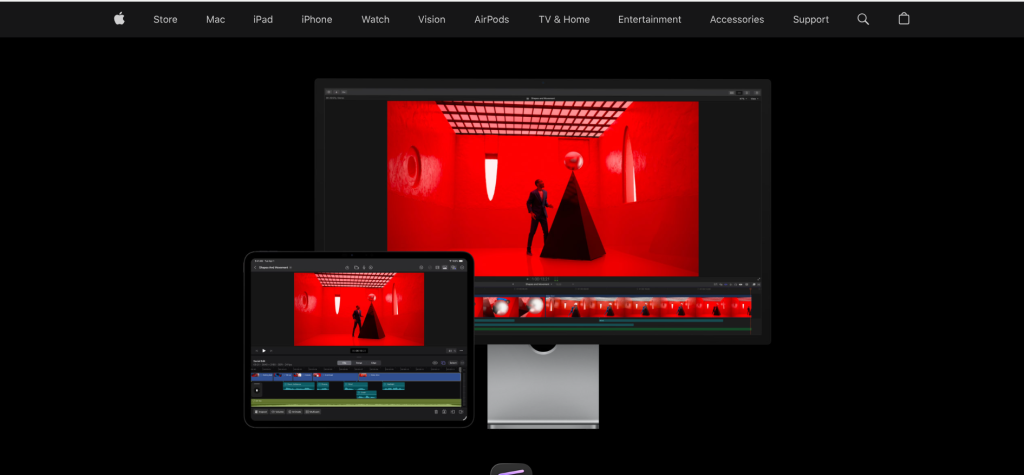
Final Cut Pro’s performance on Apple silicon is measurably faster than any competing editor on the same hardware. An M3 Pro MacBook handles multicam 4K editing, real-time effects stacking, and background rendering simultaneously without dropping frames. This performance advantage translates directly to editing speed: less time waiting for playback, less time rendering previews, less time exporting. For YouTube creators who publish on a schedule and value time efficiency, Final Cut Pro’s speed advantage is not marginal — it can save 15 to 30 minutes per editing session compared to the same workflow in Premiere Pro or Resolve on the same Mac.
The Magnetic Timeline is Final Cut Pro’s most polarizing feature and its greatest efficiency advantage for YouTube editing. Traditional track-based timelines require manual management of clip positions, gap filling, and track assignment. The Magnetic Timeline automatically closes gaps, maintains sync between connected clips, and allows clip insertion without rippling through manual track management. For YouTube editing workflows — which typically involve assembling talking-head footage, inserting B-roll, adding graphics, and trimming for pacing — the Magnetic Timeline genuinely accelerates the edit.
The one-time $299.99 purchase with lifetime free updates makes Final Cut Pro the most cost-effective professional editor over time. After 14 months, it is cheaper than Premiere Pro’s subscription. After three years, the savings exceed $500. After five years, the savings exceed $1,000. For Mac-based creators committed to long-term YouTube production, this pricing advantage compounds significantly.
Where Final Cut Pro Falls Short
The Mac-only limitation excludes the majority of YouTube creators who use Windows. The Magnetic Timeline, while efficient, genuinely confuses editors transitioning from track-based timelines in Premiere Pro or Resolve. Color grading tools are capable for YouTube content but significantly less advanced than DaVinci Resolve’s node-based system. The plugin and template ecosystem is smaller than Premiere Pro’s. There is no equivalent to Dynamic Link for motion graphics round-tripping with dedicated VFX applications.
4. CapCut — Best Free Editor for YouTube Shorts and Social-First Content
| Best For | YouTube creators who produce Shorts, vertical content, and trend-driven social videos, plus any creator who needs polished content fast with minimal editing experience |
| Pricing | Free: $0 (full editing features, effects, music, captions, export up to 4K). Pro: $8.99/mo or $107.88/yr (removes watermark from Pro features, additional cloud storage, priority exports). Web, desktop (Windows/Mac), and mobile (iOS/Android) versions |
| Key Features | Auto-captioning with customizable styles optimized for Shorts viewing. Auto-cutout (background removal) without green screen. Trend-driven effects, transitions, and template library. Speed ramping and velocity editing for dynamic pacing. Keyframe animation for position, scale, rotation, and opacity. Text-to-speech with multiple AI voices. Music library with beat-synced editing tools. Green screen chroma keying. Multi-track timeline on desktop version. AI-powered style transfer and filters |
| Key Strengths | Free version provides remarkably capable editing with no watermark on standard features. Auto-captioning is the fastest and most customizable for Shorts-format content. Template library stays current with YouTube and TikTok trends. Desktop version provides genuine multi-track timeline editing. Cross-platform: web, desktop (Win/Mac), and mobile (iOS/Android). Learning curve is minimal — productive within minutes. Music library with beat-synced tools creates professional-feeling content quickly |
| Key Weaknesses | Pro features (some effects, fonts, premium music) add watermarks unless paid. $107.88/yr for Pro approaches cost of more capable editors. ByteDance/TikTok ownership raises data privacy concerns for some creators. Desktop version is less mature than established NLEs for complex projects. Limited color grading compared to professional editors. Audio tools are basic beyond auto-enhancement. Not suitable for long-form cinematic content or complex multi-track projects. Export quality ceiling trails professional NLEs for demanding content |
| Integrations | YouTube direct upload. TikTok integration. Cloud sync across devices. Import from device camera roll and cloud storage |
| Best Pairing | CapCut for Shorts and social clips + DaVinci Resolve or Premiere Pro for long-form YouTube videos |
CapCut has become the default Shorts editor for a practical reason: it produces the specific type of content YouTube Shorts rewards faster than any alternative. Auto-captioning with customizable fonts, colors, animations, and positioning generates the subtitle-heavy format that dominates Shorts engagement. Trend-synchronized templates provide one-tap access to currently viral formats. Beat-synced editing tools automatically align cuts to music rhythm. Auto-cutout removes backgrounds without green screen. The result is polished Shorts in minutes rather than the hour or more the same content would require in a traditional NLE.
The desktop version has matured significantly beyond CapCut’s mobile origins. Multi-track timeline editing, keyframe animation, speed ramping, chroma keying, and picture-in-picture provide genuine editing capability for content beyond simple Shorts. Some YouTube creators now use CapCut’s desktop version as their primary editor for videos up to 10–15 minutes, finding its speed advantage and auto-captioning sufficient for their production quality requirements.
The free tier is remarkably generous: full editing features, effects, transitions, music library, auto-captioning, and 4K export at no cost. The Pro subscription at $8.99 per month removes watermarks from premium features, adds cloud storage, and provides priority export processing. For creators whose primary content is Shorts and short-form social content, CapCut’s free tier provides everything needed for professional-quality output.
Where CapCut Falls Short
CapCut is not a professional NLE. Color grading is basic. Audio tools handle enhancement but not professional mixing. Complex multi-track projects with nested sequences, multicam editing, and advanced effects exceed CapCut’s capability. The ByteDance/TikTok ownership creates data privacy concerns for creators who handle sensitive content. The Pro subscription at $107.88 per year approaches the cost of Filmora or Premiere Elements, which provide more capable editing environments.
5. Wondershare Filmora — Best Beginner-Friendly Editor for Growing YouTube Channels
| Best For | Beginning and intermediate YouTube creators who want capable editing tools with an intuitive interface, extensive built-in effects, and a gentle learning curve |
| Pricing | Annual Plan: $49.99/yr (1 PC). Cross-Platform Plan: $59.99/yr (1 PC + 1 Mac + 1 Mobile). Perpetual Plan: $79.99 one-time (1 PC, one major version). Free version available with watermark on exports. AI features may consume credits with usage limits |
| Key Features | Intuitive drag-and-drop timeline with multi-track editing. AI Smart Cutout for background removal. AI Auto Reframe for Shorts and vertical content. AI Copywriting generates video scripts and descriptions. Built-in screen recorder for tutorials and walkthroughs. Extensive template, effect, transition, and music library. Speed ramping with bezier curve control. Color correction with basic LUT support. Audio ducking, denoise, and enhancement. Keyframe animation for basic motion graphics. Split-screen templates for reaction and comparison content |
| Key Strengths | Fastest learning curve of any multi-track editor — beginners produce polished content in hours. Extensive built-in resource library (effects, transitions, titles, music) reduces need for external assets. AI tools (Smart Cutout, Auto Reframe, Copywriting) automate time-consuming tasks. Screen recorder included for tutorial and walkthrough creators. $49.99/yr is affordable for growing creators. Templates accelerate production for common YouTube formats. Split-screen presets serve reaction and comparison content creators |
| Key Weaknesses | Watermark on free version exports. $49.99/yr annual cost accumulates over years. AI features may consume limited credits depending on plan. Advanced color grading and audio tools are basic compared to professional NLEs. Some effects and resources require Filmora-specific formats, creating lock-in. Feature depth ceiling reached by intermediate editors. Performance can slow with complex projects and many effects layers |
| Integrations | YouTube direct upload. Cloud storage for projects and assets. Import from major cameras and smartphones. Limited third-party plugin support compared to professional NLEs |
| Best Pairing | Filmora for YouTube editing + Canva for thumbnails + CapCut for Shorts |
Filmora’s competitive advantage is the learning curve: a YouTube creator with zero editing experience can produce polished content within their first session. The interface presents tools in a logical visual hierarchy, with commonly needed functions prominent and advanced features accessible but not overwhelming. Drag-and-drop editing, visual effect previews, and template-based workflows mean beginners spend time creating content rather than learning software.
The built-in resource library eliminates the external asset hunt that consumes time for new creators. Transitions, title templates, lower thirds, music tracks, sound effects, and visual effects are all included and searchable within the application. For a creator publishing their first YouTube video, having professional-looking titles, transitions, and background music available immediately — without visiting stock sites, downloading assets, and importing them — removes friction that often delays the first upload by days or weeks.
The AI tools address specific YouTube production tasks. Smart Cutout removes backgrounds without green screen, enabling creators to composite themselves over any background. Auto Reframe intelligently crops landscape footage for Shorts. AI Copywriting generates video descriptions and scripts. These AI features save measurable time per video, particularly for solo creators who handle every production task themselves.
Where Filmora Falls Short
The watermark on free version exports makes the free tier unsuitable for published YouTube content. The $49.99 annual subscription, while affordable, accumulates to more than DaVinci Resolve Studio’s $295 one-time purchase within six years. Advanced color grading, audio mixing, and compositing capabilities are significantly limited compared to professional NLEs. Creators who develop intermediate to advanced skills will hit Filmora’s feature ceiling and face a migration to a more capable tool.
6. Descript — Best Text-Based Editor for Talking-Head and Podcast YouTube Creators
| Best For | YouTube creators who produce primarily spoken content: talking-head videos, podcasts, interviews, educational content, and screen recordings where audio drives the edit |
| Pricing | Free: Limited transcription hours and basic features. Hobbyist: $24/mo or $288/yr (10 hrs transcription, 1 watermark-free export/mo). Business: $33/mo or $396/yr (30 hrs transcription, unlimited exports). Enterprise: custom pricing. All include AI features |
| Key Features | Text-based video editing — edit video by editing the transcript. Automatic transcription with high accuracy and speaker identification. Filler Word Removal eliminates ums, uhs, and pauses with one click. AI Eye Contact adjusts gaze to simulate camera contact. AI Green Screen removes backgrounds without physical green screen. Studio Sound enhances audio quality to studio level. Screen recording built in for tutorial content. Overdub AI voice cloning for corrections. Audiogram creation for podcast promotion. Multi-track editing alongside text-based workflow |
| Key Strengths | Text-based editing is dramatically faster for spoken content — delete a sentence, the video cuts. Filler Word Removal cleans up speech patterns in seconds that would take hours manually. AI Eye Contact makes creators appear to maintain camera contact even when reading notes. Studio Sound transforms room-tone audio into professional studio quality. Screen recording built in for tutorial and walkthrough creators. Automatic captioning with word-level timestamps for YouTube accessibility. Uniquely suited for podcast-to-YouTube repurposing workflows |
| Key Weaknesses | $288–$396/yr subscription is expensive for individual creators. Less effective for visually complex, B-roll-heavy, or cinematically driven content. Text-based editing paradigm feels unnatural for editors trained on timeline workflows. Transcription hour limits on paid plans restrict high-volume producers. AI features occasionally produce visible artifacts. Export options are less comprehensive than traditional NLEs. Limited color grading and advanced visual effects capability. Not suitable for gaming, music video, or non-speech-driven content |
| Integrations | YouTube direct upload. Publishing to multiple podcast platforms. Screen recording. Integration with traditional NLE workflows (export to Premiere Pro, Resolve). Zapier for workflow automation |
| Best Pairing | Descript for talking-head editing + DaVinci Resolve or Premiere Pro for B-roll-heavy content + Canva for thumbnails |
Descript’s text-based editing paradigm is genuinely revolutionary for spoken content. Import a 30-minute talking-head recording, and Descript transcribes it with speaker identification. Read the transcript like a document. Delete the paragraph where you rambled. Cut the section where you repeated yourself. Rearrange the argument structure by moving paragraphs. The video edits itself to match the text changes. For creators whose content is driven by what they say rather than what they show, this approach can cut editing time by 50 to 75 percent compared to timeline-based editing.
Filler Word Removal is the single highest-impact feature for YouTube talking-head creators. One click identifies and removes every um, uh, like, you know, and extended pause from the entire recording. A 20-minute video with typical conversational speech patterns might contain 3 to 5 minutes of filler that, when removed, creates a noticeably tighter, more professional presentation. Achieving this same result manually in a timeline editor requires scrubbing through the entire recording and making dozens of individual cuts.
AI Eye Contact addresses a common problem for YouTube creators who use teleprompters, reference notes, or read from scripts. The AI adjusts the speaker’s eye direction to appear as though they’re looking directly at the camera, even when they were looking at a monitor or notes below the camera line. The effect is subtle enough to be convincing in most viewing contexts and eliminates the distraction of shifting eye contact that makes viewers feel the creator isn’t speaking to them directly.
Where Descript Falls Short
Descript’s text-based approach is powerful for spoken content but unhelpful for visually driven YouTube formats. Gaming montages, travel vlogs, music videos, and cinematic content derive their impact from visual composition and timing — editing paradigms where text-based workflow provides no advantage. The $288 to $396 annual cost is significant when DaVinci Resolve provides professional editing for free. Transcription hour limits on paid plans may restrict creators who produce daily or high-volume content.
7. CyberLink PowerDirector — Best Windows Prosumer Editor with AI-Powered Tools
| Best For | Windows-based YouTube creators at intermediate skill levels who want AI-powered editing tools, strong performance, and a balance between capability and usability |
| Pricing | PowerDirector 365: $54.99/yr (annual subscription with regular updates). Director Suite 365: $96.99/yr (includes PhotoDirector, AudioDirector, ColorDirector). Perpetual: varies by version. Free version: PowerDirector Essential (limited features, watermark). 30-day free trial for 365 version |
| Key Features | Multi-track timeline with up to 100 tracks. AI Motion Tracking for object and person following. AI Body Effects for body-part tracking and effects application. AI Sky Replacement changes skies in outdoor footage. AI Audio Denoise removes background noise automatically. AI Art Style Transfer applies artistic looks to footage. Speed ramping with keyframe control. Multicam editing with up to 4 camera angles. 4K and HDR editing support. Built-in screen recorder. Content-Aware Editing suggests trim points. Title Designer for custom animated titles |
| Key Strengths | AI-powered tools automate tedious editing tasks (tracking, sky replacement, noise removal). Strong performance optimized for Windows hardware. Perpetual license option available alongside subscription. Screen recorder included for tutorial creators. Director Suite bundle provides photo editing, audio editing, and color grading. Balance of capability and usability suits intermediate YouTube creators. Affordable at $54.99/yr with regular feature updates |
| Key Weaknesses | Windows-focused (Mac version exists but less optimized). Color grading tools are basic compared to DaVinci Resolve. Professional feature depth trails Premiere Pro and Resolve. Some AI effects produce visible artifacts on close inspection. Plugin ecosystem is limited. Audio tools are adequate but not professional-grade. Perpetual license versions lag behind subscription in features |
| Integrations | YouTube direct upload. Stock media integration (Shutterstock). Screen recording. Import from major cameras and smartphones |
| Best Pairing | PowerDirector for YouTube editing + AudioDirector for advanced audio + PhotoDirector for thumbnails (Director Suite) |
PowerDirector’s AI tool suite targets the specific tedious tasks that consume YouTube editing time. AI Motion Tracking automatically follows objects or people across frames, attaching text, graphics, or effects that move with the tracked element. AI Audio Denoise removes background noise, air conditioning hum, and room tone without requiring manual frequency isolation. AI Sky Replacement transforms overcast outdoor footage into vibrant scenes. AI Body Effects track body parts for creative overlays. These AI tools save 15 to 30 minutes per video on tasks that would otherwise require manual keyframing or external tools.
The Director Suite 365 bundle at $96.99 per year provides an integrated creative suite: PowerDirector for video editing, PhotoDirector for thumbnail creation and photo editing, AudioDirector for advanced audio post-production, and ColorDirector for dedicated color grading. For YouTube creators who handle every aspect of production themselves, this bundle provides all four creative applications for less than Premiere Pro alone.
Performance on Windows hardware is a genuine strength. PowerDirector’s rendering engine is optimized for Intel and NVIDIA hardware acceleration, producing fast previews and exports on mid-range Windows systems. Creators who don’t have high-end workstations will find PowerDirector more responsive than Premiere Pro or DaVinci Resolve on equivalent hardware.
Where PowerDirector Falls Short
Color grading tools are basic compared to DaVinci Resolve’s node-based system. Professional feature depth trails Premiere Pro and Resolve in areas like advanced compositing, complex audio mixing, and multi-format pipeline workflows. Some AI effects produce visible artifacts that don’t hold up at close inspection or slow playback. The plugin ecosystem is limited compared to Premiere Pro’s extensive third-party marketplace.
8. iMovie — Best Free Starting Point for YouTube Creators on Apple Devices
| Best For | First-time YouTube creators on Mac, iPhone, or iPad who want to start editing immediately with zero cost and minimal learning curve |
| Pricing | Completely free on Mac, iPhone, and iPad. Pre-installed on all Apple devices. No paid tiers, no watermarks, no restrictions. No Windows or Linux version |
| Key Features | Simple drag-and-drop timeline editing. Preset themes and templates for quick productions. Green screen chroma keying. Picture-in-picture and split-screen. Stabilization for handheld footage. Basic color correction. Audio enhancement and noise reduction. Titles and transitions library. 4K export support. Direct YouTube upload. Seamless handoff between iPhone, iPad, and Mac |
| Key Strengths | Completely free with no watermarks or restrictions. Pre-installed on every Mac, iPhone, and iPad. Simplest learning curve of any video editor. Apple device handoff: start editing on iPhone, finish on Mac. 4K export support. Direct YouTube upload. Perfectly adequate for basic vlogs, unboxing, and talking-head content. Gentle introduction to editing concepts before upgrading to Final Cut Pro |
| Key Weaknesses | Limited to Apple devices only. Single video track plus limited B-roll overlay. No multi-track timeline for complex projects. Basic color correction without professional grading tools. No multicam editing. Limited title and effect customization. No third-party plugin support. Feature ceiling reached quickly by growing creators. No proxy workflow for large file management |
| Integrations | AirDrop between Apple devices. iCloud sync. YouTube direct upload. GarageBand for audio creation. Photos app integration |
| Best Pairing | iMovie for first videos + upgrade to Final Cut Pro or DaVinci Resolve as skills develop |
iMovie’s value proposition for YouTube beginners is elimination of every barrier to the first upload. The software is free, pre-installed on every Apple device, requires no account creation, and produces watchable content within the first editing session. A creator can record on iPhone, trim and arrange clips in iMovie on the same device, add a title and background music, and upload directly to YouTube — all without transferring files, purchasing software, or watching tutorials. This zero-friction path to the first upload is iMovie’s genuine contribution to the YouTube ecosystem.
The cross-device workflow between iPhone, iPad, and Mac provides a practical advantage for creators who shoot on mobile. Start editing on iPhone immediately after recording, continue on iPad with Apple Pencil for precise trimming, and finish on Mac for final adjustments and export. This handoff happens seamlessly through iCloud sync, meaning creators can use each device for what it does best rather than being locked to a single editing station.
For basic YouTube content types — talking-head videos, unboxing, simple tutorials, travel highlights — iMovie produces perfectly adequate output. The production quality difference between an iMovie edit and a Premiere Pro edit of the same talking-head footage, with the same color correction and audio cleanup applied, is imperceptible to most YouTube viewers. The content’s value comes from what is said and shown, not from the editing software’s technical capabilities.
Where iMovie Falls Short
The single video track with limited overlay capability prevents complex editing. No multicam support. No multi-track audio mixing. Basic color correction without professional grading. Limited title customization. No third-party plugin support. Growing creators will hit iMovie’s feature ceiling within weeks to months and need to upgrade to Final Cut Pro or DaVinci Resolve. iMovie is a starting point, not a destination.
9. Canva Video — Best Template-Based Editor for Thumbnails-Plus-Video Workflow
| Best For | YouTube creators who already use Canva for thumbnails and want basic video editing with branded templates, intros, and social content in the same platform |
| Pricing | Free: $0 (basic templates, 5GB storage). Canva Pro: $119.99/yr or $14.99/mo (premium templates, Brand Kit, 1TB storage, background remover). Free for education. Teams: $100/person/yr |
| Key Features | Template-based video creation with drag-and-drop editing. Branded templates for intros, outros, and lower thirds. YouTube thumbnail creation in the same platform as video editing. Basic timeline with scene-based editing. Text animation and motion graphics templates. Stock video, music, and image library. Brand Kit for consistent visual identity. Background remover for thumbnails and video. Direct resize for YouTube, Shorts, Instagram formats |
| Key Strengths | Creates thumbnails and videos in one platform with consistent branding. Template library accelerates production for standard YouTube formats. No editing skills required for template-based content. Brand Kit ensures visual consistency across all channel assets. Free tier is genuinely useful for basic video creation. Direct resize handles multi-platform publishing. Collaborative features for team-based channels |
| Key Weaknesses | Not a real video editor — scene-based timeline lacks multi-track capability. Editing precision is limited compared to any dedicated NLE. Export quality ceiling trails dedicated video editors. Video editing features are a secondary function to graphic design. Template dependency can make content look generic. Complex editing operations impossible. Audio tools are basic. Not suitable for any content requiring precise timeline control |
| Integrations | YouTube direct upload. Social media scheduling. Cloud storage. Stock media library. Brand Kit. Google Drive, Dropbox integration |
| Best Pairing | Canva for thumbnails and quick social clips + DaVinci Resolve or Premiere Pro for primary YouTube editing |
Canva Video serves YouTube creators who already use Canva for thumbnails, channel art, and social media graphics and want to extend that workflow to basic video content. The practical advantage is brand consistency: the same colors, fonts, logos, and visual style that define your channel’s thumbnail aesthetic apply seamlessly to video intros, outros, lower thirds, and social clips. For channels where visual brand identity matters, this consistency across every visual element is easier to maintain in Canva than across separate design and editing tools.
The template library targets standard YouTube formats: intro sequences, outro cards, subscribe animations, lower thirds, and chapter title cards. For creators who publish formatted content like listicles, tutorials, and reviews, these templates provide professional-looking structural elements without motion graphics skills. The limitation is that template-based content is recognizable: viewers who see the same Canva template on multiple channels perceive less production investment.
Where Canva Video Falls Short
Canva Video is not a video editor in the traditional sense. The scene-based timeline lacks multi-track editing, precise cut points, keyframe animation, or audio waveform editing. Any YouTube content that requires precise timing, B-roll compositing, speed ramping, color grading, or complex audio mixing is beyond Canva’s capability. It is a supplementary tool for branded assets, not a primary editing platform.
10. Shotcut — Best Free Open-Source Editor for Budget-Conscious YouTube Creators
| Best For | YouTube creators on any platform who need a capable free editor with multi-track timeline, filters, and export flexibility without any cost or watermarks |
| Pricing | Completely free and open-source. No paid tiers, no watermarks, no restrictions. Cross-platform: Windows, Mac, Linux |
| Key Features | Multi-track timeline with unlimited video and audio tracks. Extensive filter library (video and audio). Keyframe animation for filter parameters. 4K and HDR editing support. Hardware acceleration for encoding. Wide codec support via FFmpeg. Proxy editing workflow for large files. Color grading with LUT support, color wheels, and scopes. Audio filters including compressor, limiter, and EQ |
| Key Strengths | Completely free with no watermarks or restrictions. Cross-platform: Windows, Mac, Linux. Multi-track timeline provides real editing capability. Extensive codec support via FFmpeg reads virtually any format. Regular updates with active development community. No account creation or telemetry. Proxy workflow handles large files on modest hardware |
| Key Weaknesses | Interface is functional but less polished than commercial editors. Learning curve is moderate with limited onboarding guidance. No built-in effects library or templates (beyond filters). Stability can be inconsistent on some configurations. No AI-powered features. Community tutorials are limited compared to Premiere Pro or Resolve. Performance trails optimized commercial editors |
| Integrations | FFmpeg codec support. Export to virtually any format. No native YouTube upload or cloud integration |
| Best Pairing | Shotcut for primary editing + Canva for thumbnails + Audacity for advanced audio if needed |
Shotcut provides the most capable free editing experience for creators who want multi-track timeline editing without DaVinci Resolve’s learning complexity. The interface is more approachable than Resolve’s five-page workspace, presenting a single editing environment with timeline, viewer, and filter controls visible simultaneously. For YouTube creators who need cuts, transitions, titles, basic color correction, and audio cleanup without professional compositing or advanced grading, Shotcut handles these workflows at zero cost.
The FFmpeg-based codec support reads virtually every video format without transcoding or plugin installation. Footage from any camera, smartphone, screen recorder, or downloaded source drops into the timeline immediately. This universal format compatibility is a practical advantage for YouTube creators who aggregate content from multiple sources.
Where Shotcut Falls Short
The interface, while functional, lacks the polish of commercial editors. No built-in effects library, templates, or AI features. Community tutorials are sparse compared to the extensive YouTube tutorial ecosystems around Premiere Pro, DaVinci Resolve, and Filmora. For most creators choosing between free editors, DaVinci Resolve provides dramatically more capability at the same zero cost, making Shotcut primarily relevant for creators who find Resolve’s interface too complex.
11. Adobe Premiere Elements — Best Simple Editor for Casual YouTube Home Creators
| Best For | Casual YouTube creators, parents documenting family content, and hobbyists who want simple guided editing with one-time purchase pricing |
| Pricing | $99.99 one-time perpetual license. Photoshop Elements + Premiere Elements bundle: $149.99. 30-day free trial. No subscription required |
| Key Features | Guided Edits walk through common editing tasks step by step. Quick Edit mode for rapid basic editing. Expert Edit mode for multi-track timeline access. Auto Creations generate highlight reels from imported footage. Candid Moments identifies best frames and expressions. AI-powered auto-tagging and smart search. 4K editing support. Title templates and motion graphics. Direct YouTube and social media sharing |
| Key Strengths | Guided Edits teach editing techniques while producing content. One-time $99.99 purchase with no subscription. Auto Creations generate highlight videos automatically from imported footage. Simplest interface for non-technical users who want more than iMovie. Bundle with Photoshop Elements covers both video and thumbnail creation. Good for family, hobby, and casual YouTube content |
| Key Weaknesses | $99.99 is expensive compared to free alternatives. Major version upgrades require new purchase. Feature set is limited compared to any professional NLE. Processing speed trails modern competitors. No advanced color grading or audio mixing. Limited export format options. Smaller user community and tutorial ecosystem. Not updated as frequently as subscription-based products |
| Integrations | YouTube direct upload. Social media sharing. Photoshop Elements integration. Adobe Premiere Pro project import (limited) |
| Best Pairing | Premiere Elements for casual editing + Photoshop Elements for thumbnails |
Premiere Elements occupies a specific niche: YouTube creators who want more capability than iMovie but find DaVinci Resolve and Premiere Pro overwhelming. The Guided Edits feature walks users through common editing tasks step by step, teaching techniques while producing content. For a parent creating family YouTube content or a hobbyist documenting their craft, Guided Edits provide structured learning that free editors’ documentation rarely matches.
Auto Creations analyze imported footage and automatically generate highlight videos with transitions, effects, and music. For creators who want quick highlight reels from events, trips, or activities, Auto Creations produce shareable content without manual editing. The AI identifies best moments, candid expressions, and action sequences to assemble engaging compilations.
Where Premiere Elements Falls Short
At $99.99 one-time, Premiere Elements costs more than DaVinci Resolve (free) and Shotcut (free) while providing fewer features. Processing speed trails modern competitors. Major version upgrades require new purchases. The casual positioning limits the tool’s relevance for creators with any growth ambition. Most creators are better served by starting with iMovie (free, Mac) or DaVinci Resolve (free, any platform) and investing the $99.99 savings in better lighting or audio equipment.
12. Kdenlive — Best Free Open-Source Editor for Linux-Based YouTube Creators
| Best For | Linux-based YouTube creators and open-source advocates who want capable multi-track editing with active community development and zero cost on any operating system |
| Pricing | Completely free and open-source (GPL). No paid tiers, no watermarks. Cross-platform: Linux, Windows, Mac (Linux-native with strongest support) |
| Key Features | Multi-track timeline with unlimited tracks. Keyframe animation for effects and transitions. Proxy editing for smooth playback of large files. Titler tool for custom text and titles. Audio mixing with volume keyframes. Color correction with basic scopes. Nested timeline support. Render profiles for YouTube-optimized export. Active community development with regular releases |
| Key Strengths | Completely free with genuine multi-track editing capability. Best-supported free editor on Linux (native application). Active development with regular feature releases. Clean interface that balances capability with approachability. Proxy editing handles 4K on modest hardware. No telemetry, tracking, or account requirements. Cross-platform compatibility (Linux, Windows, Mac) |
| Key Weaknesses | Stability issues reported more frequently than commercial editors. Plugin ecosystem is minimal. AI features are absent. Color grading tools are basic. Audio tools lack professional depth. Community tutorials are less abundant than major editors. Mac and Windows versions are less stable than native Linux build. Performance trails optimized commercial editors |
| Integrations | MLT framework for effects and transitions. FFmpeg for codec support. Frei0r video plugins. LADSPA audio plugins |
| Best Pairing | Kdenlive for editing on Linux + GIMP for thumbnails + Audacity for audio cleanup |
Kdenlive is the strongest native Linux video editor for YouTube content production. While DaVinci Resolve runs on Linux, Kdenlive integrates more naturally with Linux desktop environments, package managers, and open-source workflows. The KDE-based interface follows Linux desktop conventions that feel native to Linux users rather than ported from another platform. For YouTube creators who use Linux as their primary operating system and prefer open-source tools throughout their workflow, Kdenlive provides capable multi-track editing without requiring proprietary software.
The editing capability is genuine: unlimited video and audio tracks, keyframe animation, proxy editing for 4K on modest hardware, nested timelines, and customizable render profiles for YouTube-optimized export. For standard YouTube content — cuts, transitions, titles, basic color correction, and audio cleanup — Kdenlive handles the workflow competently.
Where Kdenlive Falls Short
Stability is Kdenlive’s primary weakness. Crashes and unexpected behavior are reported more frequently than in commercial editors or even in DaVinci Resolve’s free version. AI features are absent. Color grading and audio tools are basic. The Mac and Windows builds are less stable than the native Linux version. For Linux users who prioritize stability over native integration, DaVinci Resolve’s free version runs on Linux and provides dramatically more capability.
Which YouTube Editor Should You Choose? A Decision Framework
If you want the best free professional editor: DaVinci Resolve. Industry-leading color grading, complete audio suite, visual effects, and professional editing at zero cost.
If you need the broadest format support and plugin ecosystem: Premiere Pro ($22.99/mo). Dynamic Link to After Effects and the largest third-party marketplace.
If you edit on Mac and value speed above all: Final Cut Pro ($299.99 once). Fastest performance on Apple silicon with no ongoing subscription.
If you produce YouTube Shorts and social content: CapCut (free). Fastest path to polished Shorts with auto-captioning and trending templates.
If you’re a beginner building your first channel: Filmora ($49.99/yr) for guided experience, or DaVinci Resolve (free) for long-term investment.
If you create talking-head or podcast content: Descript ($24/mo). Text-based editing cuts spoken content production time by 50–75%.
If you want AI-powered editing on Windows: PowerDirector ($54.99/yr). AI tracking, sky replacement, and noise removal in an accessible interface.
If you’re a first-time creator on Apple devices: iMovie (free). Zero-friction path to your first YouTube upload.
If you use Linux and prefer open-source tools: Kdenlive (free) for native Linux integration, or DaVinci Resolve (free) for more capability.
True Cost of Editing Software Over 1, 3, 5, and 10 Years
| Editor | 1 Year | 3 Years | 5 Years | 10 Years | License Type |
| DaVinci Resolve (free) | $0 | $0 | $0 | $0 | Free forever |
| DaVinci Resolve Studio | $295 | $295 | $295 | $295 | One-time perpetual |
| Final Cut Pro | $300 | $300 | $300 | $300 | One-time perpetual |
| Premiere Pro (annual) | $276 | $828 | $1,380 | $2,760 | Annual subscription |
| CapCut (free) | $0 | $0 | $0 | $0 | Free (Pro: $108/yr) |
| Filmora (annual) | $50 | $150 | $250 | $500 | Annual subscription |
| Descript (Hobbyist) | $288 | $864 | $1,440 | $2,880 | Monthly subscription |
| PowerDirector 365 | $55 | $165 | $275 | $550 | Annual subscription |
| iMovie | $0 | $0 | $0 | $0 | Free with Apple devices |
| Shotcut | $0 | $0 | $0 | $0 | Free forever |
| Premiere Elements | $100 | $100–$200 | $100–$300 | $200–$500 | One-time (upgrades extra) |
| Kdenlive | $0 | $0 | $0 | $0 | Free forever |
YouTube Feature Comparison Matrix
| Editor | 4K Edit | Color | Audio | AI Tools | Captions | Shorts | Multicam | Effects | Speed | Best YouTube Use |
| DaVinci Resolve | ★★★★★ | ★★★★★ | ★★★★★ | ★★★★ | ★★★ | ★★★ | ★★★★★ | ★★★★★ | ★★★★ | Cinematic/quality |
| Premiere Pro | ★★★★★ | ★★★★ | ★★★★ | ★★★★ | ★★★★ | ★★★★ | ★★★★★ | ★★★★★ | ★★★★ | Pro multi-format |
| Final Cut Pro | ★★★★★ | ★★★ | ★★★ | ★★★ | ★★★ | ★★★ | ★★★★ | ★★★★ | ★★★★★ | Mac speed editing |
| CapCut | ★★★★ | ★★ | ★★ | ★★★★★ | ★★★★★ | ★★★★★ | ★★ | ★★★★ | ★★★★★ | Shorts & social |
| Filmora | ★★★★ | ★★ | ★★ | ★★★★ | ★★★★ | ★★★★ | ★★ | ★★★ | ★★★★ | Beginner channels |
| Descript | ★★★ | ★★ | ★★★★ | ★★★★★ | ★★★★★ | ★★★ | ★ | ★★ | ★★★★★ | Talking-head/podcast |
Recommended Editing Stacks by YouTube Channel Type
| Channel Type | Professional Stack | Cost/yr | Budget Stack | Cost/yr |
| Cinematic vlog / travel | Premiere Pro + After Effects | $660 | DaVinci Resolve (free) | $0 |
| Talking-head / education | Descript + Canva | $408 | DaVinci Resolve + Canva Free | $0 |
| Shorts-first / social | CapCut Pro + Canva Pro | $228 | CapCut Free + Canva Free | $0 |
| Gaming / montage | Premiere Pro + After Effects | $660 | DaVinci Resolve + OBS | $0 |
| Podcast to YouTube | Descript Business | $396 | DaVinci Resolve + Audacity | $0 |
| Mac-based creator | Final Cut Pro + Motion | $350 once | iMovie (free) | $0 |
| Beginner (any platform) | Filmora + Canva Pro | $170 | DaVinci Resolve + Canva Free | $0 |
| Tutorial / screen record | Descript + Canva | $408 | OBS + DaVinci Resolve | $0 |
| Multi-format pro creator | Premiere Pro + After Effects + CapCut | $660 | DaVinci Resolve + CapCut Free | $0 |
| Linux-based creator | DaVinci Resolve (Linux) | $0 | Kdenlive + GIMP + Audacity | $0 |
Frequently Asked Questions
What editing software do most popular YouTubers use?
Adobe Premiere Pro and Final Cut Pro remain the dominant editors among established YouTube creators with large channels. Premiere Pro appeals to creators who work across Windows and Mac or need After Effects integration for motion graphics. Final Cut Pro attracts Mac-based creators who prioritize editing speed and prefer a one-time purchase. DaVinci Resolve has seen significant adoption growth among quality-focused creators who value its color grading superiority and free pricing. CapCut has become the de facto Shorts editor across creator sizes. A growing number of creators use multiple editors: a primary NLE for long-form content plus CapCut for Shorts.
Which free editing software is best for starting a YouTube channel?
DaVinci Resolve provides the most powerful free editing experience for creators willing to invest learning time, with professional color grading, audio tools, and visual effects included. CapCut offers the fastest path to polished Shorts and social content with auto-captioning and trending templates. iMovie provides the gentlest introduction for Mac users who want to start editing immediately. Shotcut provides capable multi-track editing for creators who find Resolve too complex. All four produce content good enough for channels of any size. The best choice depends on your content type: DaVinci Resolve for quality-focused long-form, CapCut for Shorts, iMovie for Mac beginners, Shotcut for simplicity.
Is Premiere Pro worth the subscription cost for YouTube creators?
Premiere Pro justifies its $275.88 annual cost when creators specifically need: Dynamic Link integration with After Effects for motion graphics, the broadest codec support for mixed-format workflows, the largest third-party plugin and template marketplace, or transferable professional editing skills for career purposes. If you do not need these specific capabilities, DaVinci Resolve provides comparable editing, superior color grading, and professional audio tools for free. Final Cut Pro at $299.99 one-time provides comparable capability to Premiere Pro for Mac users at a fraction of the long-term cost. Premiere Pro’s subscription cost compounds to $2,760 over ten years — nearly ten times the cost of DaVinci Resolve Studio or Final Cut Pro.
What are the best export settings for YouTube uploads?
YouTube recommends H.264 or H.265 codec in an MP4 container at your project’s native resolution (1080p or 4K). For 1080p content: 8–12 Mbps bitrate for standard frame rates (24–30fps), 12–15 Mbps for high frame rates (60fps). For 4K content: 35–45 Mbps standard, 53–68 Mbps for 60fps. Audio should be AAC-LC stereo at 384 kbps. Use VBR (Variable Bit Rate) encoding for efficient file sizes. Upload at the highest quality your source footage supports — YouTube re-encodes everything, and higher-quality uploads produce better results after re-encoding. Most editors (Resolve, Premiere Pro, Final Cut Pro) include YouTube-specific export presets that configure these settings automatically.
Should I use different editing software for Shorts versus long-form videos?
Many successful YouTube creators use separate editors for Shorts and long-form content. CapCut excels at Shorts because its auto-captioning, vertical templates, trending effects, and rapid export workflow are optimized for 60-second vertical content. Using Premiere Pro or DaVinci Resolve for a 60-second Short is possible but slower because these tools are designed for complex long-form editing. The recommended approach is to use your primary NLE (Resolve, Premiere Pro, Final Cut Pro) for long-form content where editing quality matters most, and CapCut for Shorts where production speed and trend alignment matter most. Auto Reframe features in Premiere Pro and Resolve can also repurpose long-form landscape footage into vertical Shorts format within the same editor.
What hardware do I need for YouTube video editing?
Hardware requirements depend on your editing software, content resolution, and complexity. For 1080p editing in CapCut, Filmora, or iMovie, most modern computers with 8+ GB RAM and integrated graphics perform adequately. For 4K editing in DaVinci Resolve, Premiere Pro, or Final Cut Pro, you need 16+ GB RAM, a dedicated GPU with 4–8 GB VRAM (NVIDIA recommended for Resolve and Premiere Pro), and SSD storage for media files. Final Cut Pro on Apple silicon M-series chips delivers the best performance-per-dollar for Mac users. The single most cost-effective hardware upgrade for any editing workflow is an SSD: moving media files from a hard drive to an SSD dramatically improves timeline responsiveness in every editing application.
Final Words: Match Your Editor to Your Content, Not Your Ambition
The most common mistake YouTube creators make when choosing editing software is selecting tools based on aspiration rather than current production needs. A creator publishing weekly talking-head videos does not need Premiere Pro’s multi-format pipeline, DaVinci Resolve’s Hollywood color grading, or Final Cut Pro’s 8K ProRes RAW handling. They need fast audio cleanup, auto-captioning, and efficient export — capabilities that Descript provides at a fraction of the learning investment. Conversely, a cinematic travel creator who chooses CapCut for simplicity sacrifices the color grading and compositing capability that defines their content’s visual quality.
Start with free tools and upgrade only when you can identify the specific capability limitation costing you viewers or time. DaVinci Resolve provides professional editing, color grading, audio mixing, and visual effects at zero cost. CapCut provides polished Shorts and social content at zero cost. iMovie provides a gentle introduction at zero cost. Shotcut and Kdenlive provide capable open-source editing at zero cost. The era when starting a YouTube channel required purchasing editing software has ended completely. Invest the money you save on software into better lighting, better audio capture, and better content — the three production factors that affect viewer retention far more than which editing software processed the footage.
The true cost comparison table reveals the compounding reality of subscription pricing. Premiere Pro costs $2,760 over ten years while DaVinci Resolve Studio costs $295 once and Final Cut Pro costs $300 once. Descript costs $2,880 over ten years while DaVinci Resolve’s free version with Fairlight audio tools handles most of the same workflows at zero cost. Choose the least expensive tool that meets your specific content production requirements, invest the savings into your channel, and upgrade tools only when a specific missing capability is measurably limiting your growth.


![Marketing Automation Case Study: 12 Real Examples, Strategy & ROI Results [2026]](https://marketingcasestudy.io/wp-content/uploads/2026/05/marketing-automation-case-study-featured-300x158.png)