A video montage compresses hours of footage into minutes of emotional storytelling, and the software you use determines whether the result feels cinematic or clumsy. The difference between a polished travel montage and a slideshow with music comes down to three capabilities: transition precision that matches visual rhythm, beat-sync tools that align cuts to audio energy, and color grading that creates visual consistency across clips shot in different conditions. Every editor on the market claims to handle montages, but the tools that actually deliver professional results range from completely free to $299 per year, with wildly different approaches to the same creative goal.
The video editing landscape has split into three distinct tiers that serve different creator types. Professional editors like Adobe Premiere Pro, DaVinci Resolve, and Final Cut Pro provide unlimited creative control with steep learning curves. Prosumer tools like Filmora, PowerDirector, and Pinnacle Studio balance accessible interfaces with enough depth for polished output. Social-first platforms like CapCut and Canva Video prioritize speed and templates over manual control, getting content published in minutes rather than hours. Choosing from the wrong tier wastes either money (paying for professional complexity you never use) or creative potential (hitting walls in a basic editor when your skills advance).
This guide tests 12 video montage editors across the dimensions that matter most for montage creation: timeline flexibility and multi-track support, transition libraries and custom transition capability, beat-sync and music-matching tools, color grading depth, AI-assisted editing features, export quality and format support, platform availability, and true annual cost. Every review identifies which creator type and montage style each editor serves best, because a wedding videographer, a TikTok creator, and a YouTube documentary editor need fundamentally different tools even though they all create montages.
Quick Comparison: Top 12 Video Montage Software for 2026
| Platform | Best For | Starting Price | Annual Cost | Free Version | Platform | Our Rating |
| DaVinci Resolve | Free professional editing | Free | $0 (Studio $295 once) | Yes, full-featured | Win/Mac/Linux | 9.5/10 |
| Premiere Pro | Industry-standard pro | $22.99/mo | $275.88/yr | 7-day trial | Win/Mac | 9.3/10 |
| Final Cut Pro | Mac-optimized editing | $299.99 once | $299.99 (once) | 90-day trial | Mac/iPad | 9.2/10 |
| CapCut | Social media montages | Free | $0–$90/yr Pro | Yes, generous | All platforms | 8.8/10 |
| Filmora | Beginner-friendly editing | $49.99/yr | $49.99/yr | Yes (watermark) | Win/Mac/Mobile | 8.4/10 |
| PowerDirector | Windows prosumer | $54.99/yr | $54.99–$99/yr | Free (limited) | Win/Mac/Mobile | 8.5/10 |
| iMovie | Simple Apple editing | Free | $0 | Yes, fully free | Mac/iOS | 7.8/10 |
| Canva Video | Template-based montages | Free | $0–$120/yr Pro | Yes, basic | Web/Mobile | 7.9/10 |
| Shotcut | Free open-source editor | Free | $0 | Yes, fully free | Win/Mac/Linux | 7.6/10 |
| Premiere Elements | Consumer/home users | $99.99 once | $99.99 (once) | 30-day trial | Win/Mac | 7.7/10 |
| Pinnacle Studio | Windows one-time buy | $59.95 once | $59.95–$129.95 | Trial | Windows | 8.0/10 |
| Descript | Text-based video editing | $24/mo | $288/yr | Free (limited) | Win/Mac/Web | 8.3/10 |
How We Evaluated These Video Montage Editors
Every editor was tested by creating standardized montage projects that reveal real-world capabilities across different content types.
Timeline control and multi-track editing: We assessed track layering depth, clip trimming precision, ripple and roll editing, magnetic timeline behavior, and the ability to manage complex multi-track montages with overlapping audio, video, and graphics layers.
Transition library and customization: We counted built-in transitions, evaluated their visual quality, tested custom transition creation capabilities, and measured how easily transitions could be applied in batch across an entire montage sequence.
Music sync and beat-matching tools: We tested automatic beat detection, manual beat-marker placement, clip-to-beat snapping, speed ramping synchronized to audio energy, and the ability to create montages that feel rhythmically connected to their soundtrack.
Color grading and visual consistency: We evaluated color correction tools, LUT support, color matching between clips shot in different conditions, and the ability to create a unified visual look across an entire montage from diverse source footage.
AI-assisted editing features: We tested auto-captioning accuracy, smart scene detection, AI background removal, auto-reframing for different aspect ratios, AI-powered noise reduction, and any automated montage assembly tools.
Export quality and format support: We compared output resolution support (1080p through 8K), codec options (H.264, H.265/HEVC, ProRes), bitrate control, and direct social media publishing capabilities with platform-optimized presets.
Why Video Montage Software Changed in 2026
Three shifts have fundamentally altered how creators choose montage software. First, AI-powered editing has moved from novelty to necessity. Adobe Premiere Pro now includes Generative Extend (which fills gaps in footage using AI), text-based editing powered by Adobe Firefly, and AI-driven auto-color. DaVinci Resolve Studio uses its Neural Engine for AI noise reduction, face recognition, and speed warp. CapCut offers one-click background removal, AI auto-captions in dozens of languages, and AI-generated transition effects. These features eliminate hours of manual work that previously separated amateur montages from professional output.
Second, the pricing divide between free and paid has become a chasm of value. DaVinci Resolve’s free version now offers nearly every feature that professionals need, including full color grading, Fusion visual effects, Fairlight audio post-production, and the Cut page optimized for fast montage assembly, with no watermarks and no time limits. This creates a genuine challenge for paid competitors: Premiere Pro at $275.88 per year and Final Cut Pro at $299.99 one-time must justify their cost against a free alternative that matches or exceeds them in color grading quality.
Third, mobile-first and browser-based editing has matured enough for professional use. CapCut’s desktop and mobile apps share projects seamlessly, meaning creators can rough-cut on their phone during travel and finish on desktop at home. Canva Video provides browser-based editing with templates optimized for every social platform. Descript introduced text-based editing where you edit video by editing a transcript, fundamentally rethinking the montage creation workflow. These approaches mean traditional timeline-based editing is no longer the only path to polished output.
Detailed Reviews: Best Video Montage Software for 2026
1. DaVinci Resolve — Best Free Professional-Grade Editing, Color Grading, and Effects

| Best For | Any creator who wants professional editing, color grading, visual effects, and audio post-production at zero cost, from YouTube editors to independent filmmakers |
| Pricing | Free version: $0 (no watermarks, no time limits, no feature nagging). DaVinci Resolve Studio: $295 one-time perpetual license (includes all future updates). No subscription option. No annual renewal required |
| Montage Tools | Cut page for rapid montage assembly with smart editing tools and automatic music-beat clip trimming. Edit page for traditional timeline precision. Speed ramping, transitions library, compound clips, multicam editing. Smart Reframe for aspect ratio conversion |
| AI Capabilities | Studio only: Neural Engine powers AI noise reduction, face recognition for automatic tracking, speed warp for smooth slow-motion, Magic Mask for object isolation, voice isolation for dialogue cleanup. Free version includes basic AI scene detection |
| Key Strengths | Free version includes professional editing, industry-leading color grading, Fusion VFX, and Fairlight audio. Cut page enables rapid montage assembly with music-synced editing. Color page is the industry’s most advanced color grading suite, used on major film and TV productions. Studio at $295 one-time includes all future updates forever. Runs on Windows, Mac, and Linux. No watermarks on any version |
| Key Weaknesses | Steep learning curve due to the depth of professional features across six workspace pages. Demands powerful hardware (GPU acceleration strongly recommended, 16+ GB RAM for smooth 4K editing). Interface can feel overwhelming for casual montage creators who just want quick results. Some features (HDR grading, stereoscopic 3D, Neural Engine AI tools) require Studio. Project files are not compatible with other editing platforms |
| Integrations | Blackmagic hardware ecosystem (cameras, capture cards, control surfaces). Frame.io collaboration (Studio). XML/EDL/AAF export to Premiere Pro and other NLEs. Fusion for built-in visual effects and motion graphics. Fairlight for professional audio post-production |
| Best Pairing | DaVinci Resolve for editing + color grading + Fusion for motion graphics + Fairlight for audio (all built-in, $0) |
DaVinci Resolve is the most disruptive software on this list because its free version delivers capabilities that cost $275 to $300 per year from competitors. The free edition includes full professional editing on the Edit page, the industry’s most advanced color grading tools on the Color page (the same tools used to grade Hollywood films), Fusion for visual effects and motion graphics, and Fairlight for multi-track audio post-production. No watermarks. No time limits. No feature nagging. No export restrictions on resolution. This is not a trial or a stripped-down teaser. It is a complete professional editing application distributed at zero cost.
The Cut page is specifically designed for the fast, rhythmic editing that montage creation demands. Smart editing tools automatically analyze music beats and suggest clip durations. Source Overwrite lets you replace shots in the timeline without affecting surrounding edits. The DaVinci Neural Engine (Studio version) adds AI-powered scene detection that automatically identifies shots in long footage, AI noise reduction that cleans up smartphone and low-light footage, and Magic Mask that isolates people or objects without manual rotoscoping. For montage creators working with hours of travel, event, or sports footage, these tools reduce assembly time from hours to minutes.
The color grading tools deserve special emphasis because they represent DaVinci Resolve’s original core competency. Hollywood colorists used DaVinci hardware for decades before the software became a full editing suite. The Color page provides primary and secondary color correction, Power Windows for selective adjustments, curve editors, color matching between shots, and hundreds of film-emulation LUTs. For montages that compile clips from different cameras, locations, and lighting conditions, color matching alone justifies choosing DaVinci Resolve, as it transforms visually inconsistent source footage into a cohesive, professional-looking montage.
Where DaVinci Resolve Falls Short
The depth that makes DaVinci Resolve powerful also makes it intimidating. Six workspace pages (Media, Cut, Edit, Fusion, Color, Fairlight, Deliver) present a learning curve that casual creators often abandon. A social media creator who just wants to assemble clips with trendy effects will find CapCut or Filmora dramatically faster to learn. Hardware requirements are significant: smooth 4K editing requires a dedicated GPU, 16+ GB of RAM, and fast SSD storage. The Studio upgrade at $295 is necessary for AI-powered features that increasingly define the editing experience, though this one-time cost remains far cheaper than a year of Premiere Pro.
The Verdict on DaVinci Resolve
DaVinci Resolve is the best value proposition in video editing and the clear first recommendation for any creator willing to invest time in learning. The free version outperforms most paid alternatives. The Studio version at $295 one-time (with free lifetime updates) costs less than one year of Premiere Pro while providing comparable or superior capabilities in color grading and audio. For montage creation specifically, the Cut page’s music-sync tools and the Color page’s shot-matching capabilities make it the ideal platform for turning diverse footage into visually cohesive montages.
2. Adobe Premiere Pro — Best Industry-Standard Professional Editing and Creative Cloud Ecosystem

| Best For | Professional editors, filmmakers, agencies, and YouTube creators who need the industry-standard editing platform with deep Adobe Creative Cloud integration |
| Pricing | Premiere Pro only: $22.99/mo (annual commitment) or $31.49/mo (month-to-month). Creative Cloud All Apps: $54.99/mo (includes After Effects, Photoshop, Lightroom, etc.). Business: $35.99/mo per license. Students/teachers: $19.99/mo for All Apps. 7-day free trial |
| Montage Tools | Full multi-track timeline with unlimited video and audio tracks. Advanced trimming (ripple, roll, slip, slide). Dynamic linking with After Effects for motion graphics. Essential Graphics panel for titles. Auto Reframe for multi-platform aspect ratios. Speed ramping with optical flow. Multi-camera editing |
| AI Capabilities | Adobe Sensei and Firefly AI: Generative Extend fills footage gaps with AI-generated content. Text-based editing edits video by editing transcript. Auto Color adjusts color grading automatically. Enhanced Speech improves audio quality. Scene Edit Detection. Auto-captioning in 17+ languages. AI-powered Morph Cut for jump cut smoothing |
| Key Strengths | Industry standard used by filmmakers, agencies, YouTube creators, and broadcast professionals worldwide. Deepest integration with Adobe ecosystem (After Effects, Photoshop, Audition, Media Encoder). Most AI features of any professional editor including Generative Extend and text-based editing. Multi-camera editing with automatic sync. Frame.io integration for client review and collaboration. Supports virtually every video format and codec. Lumetri Color panel provides strong color grading. Regular monthly updates with new features |
| Key Weaknesses | $275.88/yr subscription (annual plan) is expensive compared to DaVinci Resolve’s free version or Final Cut Pro’s $299.99 one-time. Subscription-only with no perpetual license option (paying $275/yr for 10 years = $2,750). Performance can lag on complex timelines without powerful hardware. Interface complexity deters beginners. Occasional stability issues and crashes reported by users. All Apps plan at $659.88/yr for the full ecosystem is very expensive |
| Integrations | After Effects (Dynamic Link), Photoshop, Audition, Media Encoder, Adobe Stock, Frame.io, Adobe Fonts. Team Projects for cloud collaboration. Direct publishing to YouTube, Vimeo, and social platforms |
| Best Pairing | Premiere Pro for editing + After Effects for motion graphics + Photoshop for thumbnails + Audition for audio |
Premiere Pro’s position as the industry standard is not about any single feature superiority but about ecosystem depth and universal compatibility. When an agency delivers a montage to a client, the client’s post-production house expects a Premiere Pro project file. When a YouTube team collaborates on a montage, Team Projects enables simultaneous editing on the same timeline. When a freelancer builds a montage with motion graphics, Dynamic Link to After Effects enables round-tripping between editing and effects without rendering intermediate files. This ecosystem creates workflow efficiency that standalone editors cannot replicate.
The AI features in the 2025 and 2026 updates represent Premiere Pro’s strongest competitive response to DaVinci Resolve’s free offering. Generative Extend uses Adobe Firefly to generate additional frames of footage, extending a clip that is slightly too short for a montage beat. Text-based editing creates a transcript of all dialogue and narration, then lets you rearrange the video by rearranging text, a revolutionary approach for interview-based montages and documentary editing. Auto Color applies intelligent color grading that analyzes the footage and applies corrections automatically. These AI tools genuinely reduce editing time for montage-heavy workflows.
The Lumetri Color panel provides solid color grading for montage work, with color wheels, curves, HSL secondary corrections, and LUT support. While it does not match DaVinci Resolve’s Color page depth, it handles the shot-matching needs of most montage projects effectively. The Essential Graphics panel enables creating and applying motion graphics templates within Premiere Pro, eliminating the need to round-trip to After Effects for standard title cards, lower thirds, and transition graphics.
Where Premiere Pro Falls Short
The subscription model is Premiere Pro’s most significant weakness. At $275.88 per year on the annual plan (or $377.88 on month-to-month), creators pay indefinitely for access. Over five years, Premiere Pro costs $1,379 compared to DaVinci Resolve Studio’s $295 total or Final Cut Pro’s $299.99 total. The interface complexity creates a steep learning curve that beginners find discouraging, particularly when simpler tools like CapCut or Filmora achieve acceptable montage results in a fraction of the learning time. Performance on complex timelines can lag without powerful hardware, and stability issues, while improved, still affect some users.
3. Final Cut Pro — Best Optimized Editing for the Apple Ecosystem
| Best For | Mac users, Apple ecosystem creators, and professionals who want fast, optimized editing with a one-time purchase and no subscription fees |
| Pricing | $299.99 one-time perpetual license (all future updates included). Pro Apps Bundle for Education: $199 (includes Final Cut Pro, Logic Pro, Motion, Compressor, MainStage). 90-day free trial. iPad version available. Apple Creator Studio subscription bundle also available |
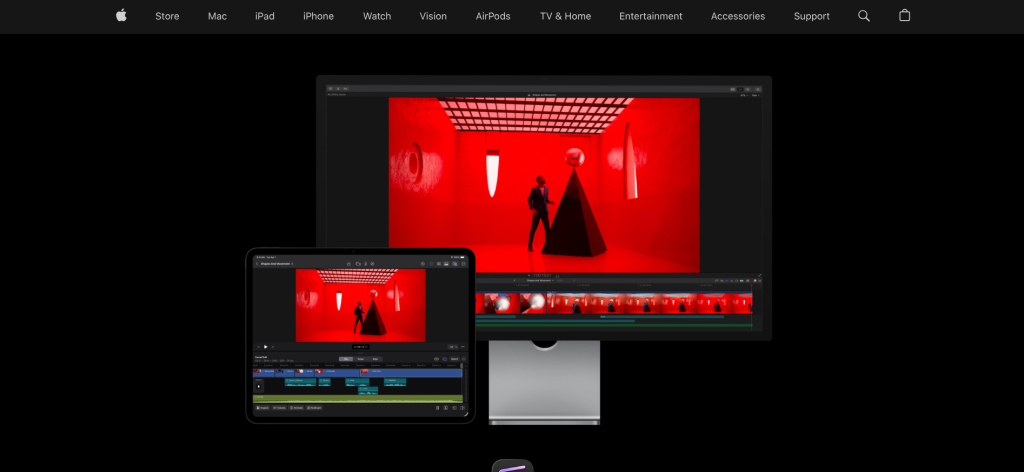
| Montage Tools | Magnetic Timeline automatically organizes clips as you edit. Connected clips for B-roll layering. Compound clips for grouping montage segments. Auditions for comparing edit variations. Roles-based organization (dialogue, music, effects, titles). Multicam editing with automatic sync. Speed ramping with smooth optical flow |
| AI Capabilities | Magnetic Mask isolates subjects from backgrounds using machine learning. Automatic captioning with speech-to-text (Apple Silicon required). Scene detection for automatic shot segmentation. Object tracking for graphics and effects. Smart Conform for automatic aspect ratio adjustment |
| Key Strengths | One-time $299.99 purchase with all future updates included (no subscription). Optimized for Apple Silicon, delivering the fastest rendering of any Mac editor. Magnetic Timeline prevents track collisions and keeps timelines organized automatically. 90-day free trial provides extensive evaluation time. iMovie to Final Cut Pro project import for seamless upgrade path. ProRes codec support produces highest-quality exports. Roles-based audio organization simplifies complex montage audio management |
| Key Weaknesses | Mac only (no Windows or Linux). $299.99 upfront is significant versus free DaVinci Resolve or free CapCut. Magnetic Timeline feels counterintuitive to editors coming from track-based editors. No native collaboration features for team projects. Color grading tools are good but less advanced than DaVinci Resolve. Effect ecosystem is smaller than Premiere Pro’s. Industry perception sometimes positions it below Premiere Pro and Resolve for film work |
| Integrations | Motion for custom titles and effects. Compressor for advanced encoding. iMovie project import. Logic Pro for advanced audio. XML export to DaVinci Resolve and other NLEs. Third-party plugins: FxFactory, MotionVFX, CoreMelt, CrumplePop |
| Best Pairing | Final Cut Pro for editing + Motion for motion graphics + Compressor for encoding + Logic Pro for audio |
Final Cut Pro approaches editing differently from every other professional editor through its Magnetic Timeline, and for montage creation specifically, this approach offers genuine advantages. Instead of managing rigid tracks where clips can collide and overwrite, the Magnetic Timeline automatically slides clips to prevent gaps and overlaps. For montage work, where you frequently rearrange dozens or hundreds of short clips to find the optimal rhythm, this automatic organization eliminates the timeline management overhead that consumes time in track-based editors like Premiere Pro.
Performance on Apple Silicon is Final Cut Pro’s most tangible advantage. Because Apple builds both the hardware and the software, Final Cut Pro is optimized at a level that third-party editors cannot match on the same hardware. Playback remains smooth during real-time effects application. Rendering and export speeds significantly exceed Premiere Pro and DaVinci Resolve on equivalent Mac hardware. For montage creators working on a MacBook Pro during travel, Final Cut Pro’s performance efficiency means longer battery life during editing sessions and faster turnaround times.
The pricing model deserves emphasis: $299.99 once, with all future updates included. Final Cut Pro 10 was released in 2011, and every update since, including the complete overhaul with version 10.8 and its AI features, has been free for original purchasers. Over the same period, an Adobe Premiere Pro subscriber would have paid over $3,000. For Mac users committed to Apple’s ecosystem, the long-term cost advantage is substantial.
Where Final Cut Pro Falls Short
The Mac-only limitation excludes the majority of creators who use Windows or Linux. The Magnetic Timeline, while powerful for montage assembly, confuses editors trained on track-based systems, and the transition period can be frustrating. Color grading tools, while improved, remain less advanced than DaVinci Resolve’s Color page. The lack of native team collaboration features means distributed teams cannot work simultaneously on the same project. The third-party plugin ecosystem, while good, is smaller than Premiere Pro’s.
4. CapCut — Best for Social Media Montages, Short-Form Content, and TikTok/Instagram Reels
| Best For | Social media creators, TikTok and Instagram Reels creators, and anyone who needs fast, trendy montages optimized for vertical and short-form video |
| Pricing | Free: $0 (basic editing, effects, 1080p export, CapCut branding on some templates). Standard: ~$9.99/mo. Pro: ~$19.99/mo or ~$180/yr (4K export, full AI tools, no watermarks, premium effects, expanded cloud storage). 7-day free trial for Pro. Pricing varies by platform and region |
| Montage Tools | Auto beat-sync matches transitions to music automatically. Speed ramping with keyframe control. Split-screen templates for side-by-side montages. Transition library with hundreds of trendy effects. Keyframe animation for custom motion. Multi-track timeline on desktop |
| AI Capabilities | AI auto-captions in dozens of languages with customizable styles. AI background removal (one-click). Auto-reframe for different aspect ratios. AI text-to-speech narration in multiple voices. AI video upscaling. Camera tracking. Noise reduction. Vocal isolation. AI-generated transition effects |
| Key Strengths | Free version is remarkably generous with most core editing features. Auto beat-sync creates music-matched montages automatically. AI auto-captions are among the most accurate available. Cross-platform editing between desktop, mobile, and web. Trendy templates and effects updated regularly to match social media trends. Fastest path from raw clips to published social media montage. Desktop version provides multi-track timeline for more complex edits. Massive user community sharing templates and techniques |
| Key Weaknesses | Owned by ByteDance (TikTok parent company), raising data privacy concerns for some users. Pro pricing increased from $9.99/mo to $19.99/mo in May 2025, causing user frustration. Not suitable for long-form professional editing or film production. Template-driven aesthetic can make content look similar to other creators. Export quality on free tier limited to 1080p with potential CapCut branding. Some premium effects and AI features locked behind Pro subscription |
| Integrations | TikTok direct publishing. Instagram, YouTube, Facebook export presets. Cloud sync between desktop and mobile apps. Commercial music library. Stock footage and effects library |
| Best Pairing | CapCut for social montages + Canva for thumbnails and graphics + TikTok/Instagram for publishing |
CapCut has become the default editing tool for social media content creation because it eliminates the gap between having raw clips and having a published montage. The auto beat-sync feature analyzes your selected music track, identifies beat patterns, and automatically creates cut points that align transitions to the music. For creators making travel montages, event highlights, or day-in-the-life compilations for TikTok and Instagram, this single feature reduces what would be 30 minutes of manual beat-matching in Premiere Pro to roughly 30 seconds in CapCut.
The AI capabilities are surprisingly advanced for an application that started as a simple mobile editor. Auto-captions achieve accuracy rates that rival dedicated transcription services, with customizable fonts, animations, and positioning. One-click background removal isolates subjects from their environments cleanly enough for professional-looking results. Auto-reframe intelligently crops horizontal footage for vertical platforms, keeping subjects centered. Text-to-speech generates voiceover narration in multiple languages and voice styles. These AI tools collectively enable a single creator to produce content that previously required a small production team.
The cross-platform experience is genuinely seamless. A creator can import and rough-cut clips on their phone during a lunch break, then open the same project on the desktop app for fine-tuning with the multi-track timeline, adding custom graphics, and exporting in higher quality. This workflow mobility means CapCut fits around a creator’s life rather than requiring dedicated editing sessions at a desk, which is why its user base has grown to hundreds of millions of monthly active users.
Where CapCut Falls Short
ByteDance ownership creates legitimate data privacy concerns for users in regions where TikTok faces regulatory scrutiny. The Pro price increase from $9.99 to $19.99 per month in May 2025 doubled the cost and frustrated creators who had budgeted around the original price. At $180 or more annually for Pro, CapCut approaches the cost of significantly more capable editors. The platform is categorically unsuitable for long-form professional editing, documentary work, or film production. The template-driven workflow, while fast, can create a homogeneous look where many creators’ montages feel visually interchangeable.
5. Wondershare Filmora — Best Beginner-Friendly Editor for Polished Montages Without Complexity
| Best For | Beginners, lifestyle vloggers, educators, and small business content creators who want polished montage output without learning professional-grade editing software |
| Pricing | Free: $0 (full features with watermark on exports). Cross-platform quarterly: $29.99/quarter. Cross-platform annual: $49.99/yr. Perpetual (Windows only): $79.99 one-time. AI credits for premium AI features may cost extra. Filmstocks and effects packs available separately |
| Montage Tools | Auto Montage Maker assembles montages from selected clips automatically with music sync. Drag-and-drop timeline with intuitive trimming. 900+ built-in transitions, effects, and templates. Split-screen templates for multi-clip montages. Speed ramping with keyframe control. Beat detection for music-synced editing. Title templates and text animations |
| AI Capabilities | AI Copilot assistant guides editing decisions. AI Smart Cutout for object and subject isolation. AI audio denoise removes background noise. AI audio stretch matches music length to video duration. AI portrait for background effects. AI thumbnail generator. Text-to-video generation |
| Key Strengths | Most intuitive interface for absolute beginners (productive in under an hour). Auto Montage Maker creates complete montages from selected clips automatically. 900+ built-in transitions, effects, and templates eliminate sourcing external assets. Built-in royalty-free music and stock media library. Affordable at $49.99/yr annual plan. Perpetual license option available for Windows ($79.99 once). AI Copilot provides real-time editing guidance. Cross-platform between desktop and mobile |
| Key Weaknesses | Free version adds a prominent Filmora watermark to all exports. Professional editors find the toolset shallow compared to Premiere Pro or DaVinci Resolve. Some AI features require purchasing additional credits beyond the subscription. Color grading capabilities are basic compared to DaVinci Resolve. Performance slows with 4K footage on modest hardware. Some effects and templates require separate Filmstocks subscription |
| Integrations | Direct export to YouTube, TikTok, Vimeo. Stock media library built-in. Filmstocks effects marketplace. Boris FX and NewBlue plugin support. Filmora mobile app sync |
| Best Pairing | Filmora for editing + Canva for thumbnails + built-in stock library for media assets |
Filmora’s Auto Montage Maker is the feature that most directly addresses the montage creation use case on this list. Select your clips, choose a music track, and Filmora automatically assembles a complete montage with beat-synced transitions, trimmed highlights, and pacing that matches the music’s energy. The result is not a rough draft but a polished montage that many creators can publish immediately or refine minimally. No other editor on this list provides this level of automated montage assembly with this quality of output.
The interface prioritizes discoverability over power. Where DaVinci Resolve hides capabilities behind six workspace pages and hundreds of menus, Filmora presents effects, transitions, titles, and tools in a visual browser where you can preview each one before applying it to your timeline. Drag-and-drop application means beginners start creating within minutes of opening the software. The 900+ built-in transitions and effects eliminate the need to search for, download, and install third-party assets, which is a significant time savings for creators who just want to build a montage without research.
The perpetual license at $79.99 for Windows provides a one-time purchase option that remains rare among editing applications in 2026. Creators who prefer to pay once rather than subscribe annually get a complete editing tool without recurring costs, though the perpetual license does not include future major version upgrades. The annual plan at $49.99 per year makes Filmora the most affordable subscription editor that provides professional-looking output.
Where Filmora Falls Short
The watermark on free version exports is large and prominently placed, making the free version unsuitable for any published content. Professional editors will quickly outgrow Filmora’s toolset: advanced color grading, complex compositing, and multi-camera editing are either absent or rudimentary. The AI credit system means some premium AI features cost extra beyond the subscription, creating unexpected expenses. Color grading is particularly weak, providing basic adjustments but nothing approaching DaVinci Resolve’s professional color science.
6. CyberLink PowerDirector — Best Windows Prosumer Editor with Fast Rendering
| Best For | Windows users who want prosumer editing power with the fastest rendering speeds, integrated stock libraries, and AI-enhanced tools without professional-grade complexity |
| Pricing | PowerDirector 365: $54.99/yr (continuous updates). Director Suite 365: $96.99/yr (includes PhotoDirector, AudioDirector, ColorDirector). PowerDirector 2026 perpetual: ~$99.99 one-time. Free version with limited features and watermark. 30-day free trial |
| Montage Tools | Multi-track timeline with up to 100 video and audio tracks. Over 240 title templates and 280+ transitions. Motion tracking for attaching graphics to moving subjects. Keyframe animation. Speed ramping. Multi-camera editing with up to 100 angles. Storyboard mode for quick montage assembly. Collage designer for multi-clip layouts |
| AI Capabilities | AI Body Effects for motion-based visual effects. AI Sky Replacement changes skies in outdoor footage. AI Object Detection and removal. AI Speech-to-Text for auto-captioning. AI Background Replacement. AI Audio Denoise. Shutterstock and Getty Images integrated stock library with millions of assets |
| Key Strengths | Fastest rendering engine of any Windows consumer/prosumer editor. Integrated Shutterstock and Getty stock library provides millions of clips, images, and audio tracks. 240+ title templates and 280+ transitions built-in. AI Sky Replacement transforms outdoor footage atmosphere. 8K video import support. Both subscription and perpetual license options available. Director Suite bundle includes photo, audio, and color tools. Multi-GPGPU acceleration for hardware-optimized rendering |
| Key Weaknesses | Primarily Windows-focused (Mac version exists but with fewer features). AI features, while numerous, can feel gimmicky compared to DaVinci Resolve’s more targeted tools. Interface can feel cluttered with feature density. Color grading tools are adequate but not professional-grade. Some AI effects produce artificial-looking results. Stock library requires active 365 subscription |
| Integrations | Shutterstock and Getty Images stock library. Direct publishing to YouTube, Vimeo, and social media. CyberLink cloud for project backup. DirectorZone for community-shared effects and templates |
| Best Pairing | PowerDirector for editing + PhotoDirector for photo editing + AudioDirector for audio (Director Suite 365 bundle) |
PowerDirector’s rendering speed is its most measurable competitive advantage. CyberLink’s multi-GPGPU hardware acceleration, optimized over two decades of development, consistently produces the fastest export times in benchmark tests among Windows consumer and prosumer editors. For creators who produce montages frequently, whether daily social media content or weekly YouTube compilations, the time saved on rendering compounds into hours recovered per month. A montage that takes 10 minutes to export in Filmora may finish in 4 to 5 minutes in PowerDirector on the same hardware.
The integrated Shutterstock and Getty Images library, included with 365 subscriptions, provides legitimate access to millions of premium stock video clips, photos, and music tracks. For montage creators who supplement their own footage with stock material, this integration eliminates separate stock library subscriptions that typically cost $29 to $199 per month. The practical value of included stock access makes the $54.99 annual subscription competitive even before considering the editing tools.
AI Sky Replacement is the standout creative AI feature for travel and outdoor montage creators. The tool analyzes outdoor footage, identifies the sky, and replaces it with alternative skies that transform the mood entirely. A overcast travel clip becomes a dramatic sunset scene. The quality of the replacement, particularly edge detection around trees and buildings, has improved significantly in the 2026 version. For travel montages where weather conditions varied across a trip, sky replacement creates visual consistency that would otherwise require color grading skill.
Where PowerDirector Falls Short
The Mac version lacks features available on Windows, making it a secondary choice for Mac users. While the AI features are numerous, some produce results that look artificial or processed, particularly AI background replacement and body effects. The interface’s density of features, buttons, and panels can overwhelm new users despite the generally accessible design. Color grading tools are adequate for basic correction but lack the professional depth needed for high-end montage work with visually challenging source footage.
7. iMovie — Best Free Simple Editor for Apple Users Who Want Quick, Clean Montages
| Best For | Apple users (Mac, iPhone, iPad) who want the simplest possible path to clean, professional-looking montages with zero cost and zero complexity |
| Pricing | Completely free on all Apple devices. Pre-installed on Mac. Free download on iPhone and iPad. No paid tiers, no in-app purchases, no watermarks |
| Montage Tools | Magnetic Timeline with simplified controls. Trailer templates for structured montage creation. Theme-based projects with matching transitions and titles. Split-screen for multi-clip display. Speed adjustments (slow-mo and fast-forward). Picture-in-picture. Green screen compositing. Audio ducking for background music under narration |
| AI Capabilities | Automatic video stabilization. Smart sound level adjustment. Automatic color enhancement. Ken Burns effect automation for photos. Theme-based automation applies consistent styles |
| Key Strengths | Completely free with no watermarks, no restrictions, and no upgrade nagging. Pre-installed on Mac, making it the fastest start for Apple users. Trailer templates provide structured montage frameworks with professional results. Interface is the simplest of any editor on this list. iMovie to Final Cut Pro project import creates a clear upgrade path. Optimized for Apple Silicon with smooth performance. Shared projects across Mac, iPhone, and iPad via iCloud |
| Key Weaknesses | Apple-only (no Windows or Linux). Only two video tracks severely limits complex montage layouts. Limited transitions, effects, and title options. No color grading tools (only basic auto-enhance). No multi-camera editing. Cannot export in ProRes or professional codecs on iPhone/iPad. Professionals quickly outgrow the feature set. No advanced audio editing tools |
| Integrations | iCloud for cross-device project sync (Mac, iPhone, iPad). Final Cut Pro project import. GarageBand for basic audio. Apple Photos integration |
| Best Pairing | iMovie for quick editing + upgrade to Final Cut Pro when ready for advanced features |
iMovie exists as the on-ramp to video editing for Apple’s ecosystem, and it accomplishes this role better than any competitor’s free offering except DaVinci Resolve. The Trailer templates are particularly relevant for montage creation: they provide structured frameworks with placeholder shots, pre-built transitions, and integrated title cards that guide users to create cinematic-feeling montages simply by filling slots with their clips. A first-time editor can produce a polished one-minute montage in 15 to 20 minutes using a trailer template.
The seamless cross-device experience between Mac, iPhone, and iPad via iCloud means editing happens wherever you are. Start importing and rough-cutting clips on your iPhone immediately after shooting, refine on iPad with Apple Pencil precision, and finish on Mac with the largest timeline view. This device fluidity makes iMovie ideal for travel montages where footage capture and editing happen on the same device during the trip.
The simplicity is iMovie’s greatest strength and greatest limitation simultaneously. The two-track video limit means you cannot create complex overlay compositions. The effect and transition libraries are small. Color correction is limited to automatic enhancement. There are no advanced audio tools. But for the specific use case of assembling clean, simple montages from personal footage, iMovie’s simplicity means you spend time creating rather than learning, and the output quality is clean and professional enough for personal projects, social sharing, and basic client work.
Where iMovie Falls Short
The two-track video limitation prevents any complex montage composition involving picture-in-picture layers, overlay graphics, or multi-source compositing beyond the most basic level. The lack of real color grading tools means montages from diverse source footage cannot be visually unified beyond automatic enhancement. The transition and effects libraries are minimal compared to any other editor on this list. Professional editors will find iMovie frustrating within hours of starting, and even intermediate creators outgrow it within weeks.
8. Canva Video — Best for Template-Based Montages with Graphics and Brand Consistency
| Best For | Social media managers, small business owners, marketers, and non-editors who need branded video content and template-based montages without learning traditional editing |
| Pricing | Free: $0 (basic editing, 5 GB storage, limited templates and stock). Canva Pro: $12.99/mo or $119.99/yr (premium templates, 1 TB storage, Brand Kit, premium stock, Background Remover). Canva Teams: $10/mo per person (5-person minimum). Canva for Education: free |
| Montage Tools | Template-based video creation with hundreds of montage-specific designs. Drag-and-drop timeline with simple trimming and arranging. Text animation and graphic overlay tools. Page-based structure for social media montages. Bulk Create for multi-variant content. Brand Kit for consistent visual identity across all montages |
| AI Capabilities | Magic Media AI generates images and video clips from text prompts. Magic Switch converts between formats and platforms. Background Remover isolates subjects. Magic Resize adapts content for different social platforms. Magic Write generates text content. Magic Eraser removes unwanted objects |
| Key Strengths | Fastest path from zero to published branded montage for non-editors. Hundreds of professionally designed montage templates. Brand Kit ensures consistent colors, fonts, and logos across all content. Web-based with no software installation required. Integration with photo and graphic design in the same platform. Excellent for marketing teams creating consistent social content. Free tier is genuinely usable for basic montage creation |
| Key Weaknesses | Not a real video editor (limited timeline control, no multi-track editing). Export quality limited compared to dedicated editors. Template dependency means custom creative work is constrained. Performance degrades with longer videos. Cannot handle professional editing tasks. Limited audio editing capabilities. Some AI features are Pro-only |
| Integrations | Social media direct publishing (Instagram, Facebook, TikTok, YouTube, LinkedIn, Pinterest). Google Drive, Dropbox, OneDrive cloud storage. Canva Docs, Presentations, Websites. HubSpot, Mailchimp, and marketing platform integrations |
| Best Pairing | Canva for branded montages and graphics + CapCut for more complex social video editing |
Canva Video is not a video editor in the traditional sense, and that is precisely its advantage for its target audience. A social media manager who needs to produce three branded montage posts per week does not need Premiere Pro’s hundred-track timeline. They need a template that matches their brand, drag-and-drop clip insertion, text overlays with branded fonts, and one-click publishing to multiple platforms. Canva provides this workflow in a browser with no software installation, no learning curve beyond basic drag-and-drop, and visual output quality that looks polished and professional.
The Brand Kit feature is uniquely valuable for business montage creation. Upload your brand colors, fonts, and logo once, and every template automatically uses them. A franchise operation can ensure that 50 different locations all produce montage content with identical visual branding. This brand consistency, maintained automatically without design training, is something that traditional video editors cannot enforce.
For its intended purpose of template-based branded content, Canva Video delivers excellent results. For anything beyond that, including custom transitions, multi-track compositing, color grading, professional audio mixing, or long-form editing, Canva Video is not the right tool. The distinction matters because choosing Canva Video for professional montage work will frustrate, while choosing Premiere Pro for simple branded social posts is overspending.
Where Canva Video Falls Short
Canva Video lacks fundamental editing capabilities that even basic free editors include. There is no multi-track timeline, no professional trimming tools, no color grading, and no audio mixing beyond basic volume adjustment. Export resolution and quality are limited compared to dedicated editors. Longer videos (beyond a few minutes) cause performance issues in the browser. Template dependency constrains creative freedom for editors who want custom compositions. It is a content creation tool, not a video editing tool.
9. Shotcut — Best Free Open-Source Video Editor for Cross-Platform Use
| Best For | Budget-conscious creators on any operating system who want a genuinely free, open-source editor with no watermarks, no feature restrictions, and no data collection |
| Pricing | Completely free and open-source. No paid tiers, no watermarks, no feature restrictions, no in-app purchases, no ads. Available on Windows, Mac, and Linux. Funded by community donations |
| Montage Tools | Multi-track timeline with unlimited tracks. Trimming, splitting, and ripple editing. Keyframe animation for filters and effects. Transition library (dissolves, wipes, iris, and more). Speed control including slow-motion and fast-forward. Audio mixing with built-in filters |
| AI Capabilities | No AI features. Relies entirely on manual editing tools and traditional filter-based effects. Clean, straightforward approach without AI complexity |
| Key Strengths | Completely free with no watermarks and no feature restrictions. Open-source with transparent code (no hidden data collection). Runs on Windows, Mac, and Linux (true cross-platform). Supports wide range of input and output formats via FFmpeg. Multi-track editing with unlimited tracks. No account creation required. Lightweight and runs on modest hardware. Active community development |
| Key Weaknesses | Interface is functional but not visually polished (looks dated). No AI features of any kind. Learning curve is moderate due to unconventional interface design. No built-in stock media, templates, or effects packs. Stability can be inconsistent, especially with complex projects. Limited community tutorials compared to DaVinci Resolve or Premiere Pro. No hardware acceleration on all systems |
| Integrations | FFmpeg codec support (virtually every format). MLT multimedia framework. No cloud integration. No social media direct publishing. Export to standard formats only |
| Best Pairing | Shotcut for editing + GIMP for graphics + Audacity for audio (all free and open-source) |
Shotcut occupies the niche of the completely free, genuinely open-source video editor that asks nothing of its users: no account creation, no data collection, no watermarks, no feature gating, no upgrade prompts. For creators who prioritize privacy and open-source principles, or who cannot use DaVinci Resolve due to hardware limitations, Shotcut provides legitimate multi-track editing capability at zero cost on any operating system.
The FFmpeg foundation means Shotcut supports virtually every video format without requiring codec installations or format conversions. Import footage from any camera, phone, or screen recorder and begin editing immediately. The multi-track timeline provides unlimited video and audio tracks, keyframe animation, and a range of transitions and filters. For straightforward montage assembly where you need to trim, arrange, add transitions, and export, Shotcut handles the task capably.
Where Shotcut falls behind DaVinci Resolve’s free offering is in nearly every dimension of capability depth: color grading, effects, audio post-production, AI features, and interface polish. Shotcut is the better choice only when DaVinci Resolve’s hardware requirements exceed your system capabilities (Shotcut runs on significantly more modest hardware), when you specifically require Linux compatibility with low system resources, or when open-source licensing is a non-negotiable requirement.
Where Shotcut Falls Short
The interface looks dated and operates unconventionally compared to both professional editors and consumer-friendly tools. There are no AI features, no templates, no built-in stock media, and no effects packs. Stability with complex projects can be inconsistent. The community and tutorial ecosystem is small compared to DaVinci Resolve, Premiere Pro, or even Filmora. For most creators, DaVinci Resolve’s free version provides a strictly better free editing experience.
10. Adobe Premiere Elements — Best for Casual Home Users Who Want Guided Editing
| Best For | Casual home users, family event videographers, and hobbyists who want Adobe-quality editing with step-by-step guidance and a one-time purchase price |
| Pricing | $99.99 one-time purchase (perpetual license for that version). Premiere Elements + Photoshop Elements bundle: $149.99 one-time. No subscription. Upgrade pricing available from previous versions. 30-day free trial |
| Montage Tools | Three editing modes: Quick (simplest), Guided (step-by-step tutorials built-in), and Expert (full timeline). Auto Creations assembles montages from imported media automatically. Slideshow creator for photo montages. Smart Tags for automated media organization. Scene detection for automatic shot segmentation |
| AI Capabilities | Adobe Sensei AI: Auto Creations generates montage compilations from imported media. Moving Overlays add animated effects. Auto Smart Tone adjusts exposure and color. Animated Skies replaces sky backgrounds. Auto Smooth Skin for portrait footage. Artistic effects (comic, watercolor, old film) powered by AI |
| Key Strengths | One-time $99.99 purchase with no subscription required. Three editing modes scale from complete beginner to intermediate editor. Guided Edits provide built-in step-by-step tutorials for specific effects and techniques. Auto Creations assembles polished montages automatically from imported media. Smart Tags automatically categorize and tag footage by content. Adobe brand quality and stability. Photoshop Elements bundle adds photo editing for $149.99 total |
| Key Weaknesses | $99.99 is expensive given DaVinci Resolve’s free professional version. Feature set is modest compared to any professional editor. Each version is a separate purchase (no free major version upgrades). Limited export options and format support. Slower rendering than competing consumer editors. Interface feels dated compared to modern tools. No mobile companion app |
| Integrations | Limited Adobe ecosystem integration (not the same as Creative Cloud apps). Organizer for media management. Direct sharing to YouTube and social media. Limited third-party plugin support |
| Best Pairing | Premiere Elements for video + Photoshop Elements for photos ($149.99 bundle) |
Premiere Elements targets users who want Adobe’s brand trust and editing quality without the complexity or subscription cost of Premiere Pro. The three editing modes provide a unique scaling approach: Quick mode strips the interface to essential functions for fast assembly, Guided mode provides step-by-step tutorials built directly into the interface for learning specific effects and techniques, and Expert mode reveals the full timeline for users who have grown confident. This progressive disclosure of complexity helps beginners avoid overwhelm while providing a growth path.
Auto Creations is the standout montage feature. Import footage and Premiere Elements automatically generates polished montage compilations with music, transitions, and effects. The AI analyzes content to identify highlight-worthy moments, particularly faces, action, and well-composed shots. For family event montages, vacation highlights, and personal memories, Auto Creations produces results that require minimal refinement, making it the lowest-effort path to a presentable montage.
The $99.99 one-time purchase and the $149.99 bundle with Photoshop Elements provide concrete value for home users who prefer paying once rather than subscribing. However, this pricing model means each new version requires a separate purchase, unlike DaVinci Resolve Studio’s $295 perpetual license that includes all future updates.
Where Premiere Elements Falls Short
At $99.99, Premiere Elements faces a devastating competitive challenge from DaVinci Resolve’s free version, which provides dramatically more capable editing, professional color grading, built-in visual effects, and audio post-production at zero cost. The feature set cannot match any professional editor and quickly becomes limiting as skills develop. Rendering speed lags behind PowerDirector and other consumer editors. The interface feels dated compared to CapCut, Filmora, and other modern consumer tools. Each new version requires a separate purchase.
11. Pinnacle Studio — Best One-Time Purchase Windows Editor with Pro Features
| Best For | Windows users who want a one-time purchase editor with professional features including multi-camera editing, motion tracking, and 8K support without ongoing subscription costs |
| Pricing | Pinnacle Studio: ~$59.95 (one-time, standard editing). Pinnacle Studio Plus: ~$99.95 (one-time, adds multi-cam and color grading). Pinnacle Studio Ultimate: ~$129.95 (one-time, adds 8K, unlimited tracks, premium effects). No subscription. Upgrade pricing from previous versions. Free trial available |
| Montage Tools | Multi-track timeline with up to unlimited tracks (Ultimate). Drag-and-drop editing with ripple trimming. 1,500+ effects, transitions, and templates. Motion tracking for graphics and effects. Keyframe animation. Speed control with time remapping. Multi-camera editing up to 6 cameras. Split-screen video. Blend modes for creative effects |
| AI Capabilities | Smart Object Tracking attaches effects to moving subjects. Face Detection for automatic tracking. Mask generation. Speech-to-text captioning. No generative AI features |
| Key Strengths | One-time purchase from $59.95 (no subscription). Three tiers provide price flexibility. Ultimate supports 8K video and unlimited tracks. Multi-camera editing with up to 6 angles. 1,500+ built-in effects, transitions, and templates. Motion tracking and keyframing. Blend modes for creative visual effects. In-app tutorials help navigate features. Good rendering performance on Windows |
| Key Weaknesses | Windows only (no Mac or Linux). $129.95 Ultimate price is significant given DaVinci Resolve’s free professional features. Standard tier ($59.95) is limited. Each new version requires separate purchase. Smaller community and fewer tutorials than major competitors. Stability historically uneven (improved under Corel). Interface design trails modern competitors |
| Integrations | Standard format export (H.264, H.265, ProRes). Direct sharing to YouTube and social media. Stock media library access. Limited third-party plugin ecosystem |
| Best Pairing | Pinnacle Studio Ultimate for editing + separate audio tool if needed |
Pinnacle Studio’s value proposition is clear: professional-adjacent features at one-time purchase prices. The Ultimate edition at $129.95 provides 8K video support, unlimited video and audio tracks, multi-camera editing with six angles, 1,500+ effects and transitions, motion tracking, keyframing, and blend modes. These capabilities approach professional editor functionality at a price that is less than half of one year of Premiere Pro’s subscription.
The three-tier pricing lets creators pay only for the feature level they need. The standard $59.95 edition handles basic montage assembly with trimming, transitions, and effects. The Plus edition at $99.95 adds multi-camera editing and enhanced color grading for event videographers who shoot with multiple angles. The Ultimate edition at $129.95 unlocks everything, including 8K support and the full effects library for creators who want maximum capability without recurring costs.
For Windows users who philosophically oppose subscription software and want more capability than iMovie or basic free editors provide, Pinnacle Studio represents a practical middle ground. The editing experience has improved significantly since Corel acquired the software, with stability and performance reaching reliable levels after historically uneven quality.
Where Pinnacle Studio Falls Short
Windows-only availability excludes Mac and Linux users. DaVinci Resolve’s free version provides superior color grading, effects, and audio tools at no cost, making Pinnacle Studio’s pricing harder to justify on pure feature comparison. The community and tutorial ecosystem is significantly smaller than major competitors. Each new version requires a new purchase, unlike DaVinci Resolve Studio’s lifetime updates. The interface design, while improved, feels less modern than competitors.
12. Descript — Best Text-Based Editing for Interview Montages, Podcasts, and Talking-Head Content
| Best For | Podcasters, interview editors, talking-head content creators, and teams who want to edit video by editing text, eliminating the need for traditional timeline skills |
| Pricing | Free: limited transcription minutes and exports. Hobbyist: $24/mo (10 hours transcription, watermark-free exports). Business: $33/mo per user (unlimited transcription, brand kits, collaboration). Enterprise: custom pricing. Annual billing available at discount |
| Montage Tools | Text-based editing: edit video by editing the transcript (delete words, and the corresponding video is removed). Scene-based editing for visual arrangement. Filler word removal (deletes um, uh, you know automatically). Auto-generated highlight reels from longer content. Templates for social clips and montage segments |
| AI Capabilities | AI-powered transcription with high accuracy in 20+ languages. AI filler word detection and removal. AI Eye Contact correction (adjusts speaker gaze to camera). AI Green Screen (background replacement without physical green screen). AI voice cloning for narration corrections. AI text-to-speech. AI-generated summaries and social clips from longer content |
| Key Strengths | Revolutionary text-based editing paradigm eliminates traditional timeline learning curve. Edit video as naturally as editing a document. Automatic filler word removal cleans up interview footage instantly. AI transcription accuracy rivals dedicated transcription services. AI Eye Contact makes speakers look directly at camera. Automatic highlight reel generation creates montages from long interviews. Screen recording built-in for tutorial and explainer content. Collaboration features for team editing |
| Key Weaknesses | $24–$33/mo subscription is expensive for individual creators. Not suitable for visual montages (travel, sports, events) where there is no spoken dialogue to edit. Traditional timeline control is limited compared to dedicated editors. Rendering quality does not match Premiere Pro or DaVinci Resolve. Feature set focused narrowly on dialogue-based content. Some AI features produce noticeable artifacts (eye contact correction, green screen) |
| Integrations | YouTube, social media publishing. Podcast hosting platforms. Zoom, Riverside, and recording platform integration. Google Drive, Dropbox cloud storage. Zapier for workflow automation |
| Best Pairing | Descript for interview/podcast editing + Premiere Pro or DaVinci Resolve for visual montages |
Descript fundamentally reimagines how editing works for dialogue-based content. Instead of scrubbing a timeline to find the right cut point, you read the transcript and delete words, sentences, or paragraphs. The corresponding video is removed automatically. Rearrange paragraphs in the transcript, and the video rearranges to match. This text-based approach makes interview montages, podcast highlights, and talking-head compilations accessible to anyone who can edit a text document, even if they have never used a video editor.
The AI filler word removal is the feature that saves the most time for interview montage creation. One click identifies and removes every um, uh, you know, like, and other verbal fillers from an interview, instantly tightening the pacing without manual identification and cutting of each filler instance. For a 30-minute interview being condensed to a 5-minute highlight montage, this automation saves 20 to 40 minutes of tedious editing work.
The automatic highlight reel generation analyzes longer content and creates shorter montage clips suitable for social media promotion. Upload a 60-minute interview, and Descript generates multiple short clips featuring the most engaging moments, formatted for different social platforms. For podcasters and interview-based content creators who need to produce promotional montages from every episode, this automation transforms a task that took hours into one that takes minutes.
Where Descript Falls Short
Descript is categorically unsuitable for visual montages without dialogue: travel compilations, sports highlights, music-driven montages, and wedding reels gain nothing from text-based editing because there is no text to edit. The $24 to $33 per month subscription is expensive relative to DaVinci Resolve (free) or Filmora ($49.99/yr) for creators who also need traditional editing capability. Visual quality and export options are more limited than dedicated editors. Some AI features, particularly eye contact correction, can produce uncanny results that attentive viewers notice.
Which Video Montage Editor Should You Choose? A Decision Framework
The right editor depends on your content type, technical comfort, platform requirements, and budget.
If you want the best free editor: DaVinci Resolve. Professional-grade editing, industry-leading color grading, built-in VFX and audio tools, no watermarks, no restrictions. Nothing else comes close.
If you work in a professional studio or agency: Adobe Premiere Pro ($22.99/mo). Industry standard with the deepest ecosystem integration and collaboration tools.
If you are a Mac user who prefers one-time purchase: Final Cut Pro ($299.99 once). Fastest performance on Apple hardware, Magnetic Timeline ideal for montage assembly, free lifetime updates.
If you create TikTok/Instagram Reels: CapCut (free to $19.99/mo). Auto beat-sync, trendy templates, AI captions, fastest path from clips to published social montage.
If you are a complete beginner: Filmora ($49.99/yr). Most intuitive interface, Auto Montage Maker, built-in stock library, polished output without learning curve.
If you want the fastest Windows editor: PowerDirector ($54.99/yr). Fastest rendering, integrated stock library, prosumer features without professional complexity.
If you want simple Apple editing at zero cost: iMovie (free). Pre-installed on Mac, trailer templates for quick montages, seamless iPhone-to-Mac workflow.
If you need branded template-based content: Canva Video (free to $119.99/yr). Brand Kit consistency, template-driven creation, no editing skills required.
If you edit interviews and podcasts: Descript ($24/mo). Text-based editing, auto filler word removal, AI transcription, automatic highlight reels.
If budget is zero and you want open-source: Shotcut (free). No watermarks, no data collection, runs on any OS including low-spec hardware.
True Cost Comparison Over One, Three, and Five Years
Subscription costs compound over time. This table reveals the total cost of ownership at key milestones.
| Editor | Year 1 | Year 3 | Year 5 | 10-Year Total | License Type | Updates |
| DaVinci Resolve | $0 | $0 | $0 | $0 | Free forever | Free updates |
| DaVinci Resolve Studio | $295 | $295 | $295 | $295 | One-time perpetual | Free lifetime |
| Adobe Premiere Pro | $276 | $828 | $1,380 | $2,760 | Annual subscription | Continuous |
| Final Cut Pro | $300 | $300 | $300 | $300 | One-time perpetual | Free lifetime |
| CapCut Pro | $180 | $540 | $900 | $1,800 | Annual subscription | Continuous |
| Filmora Annual | $50 | $150 | $250 | $500 | Annual subscription | Continuous |
| Filmora Perpetual | $80 | $80 | $80 | $80 | One-time (Win only) | Current version |
| PowerDirector 365 | $55 | $165 | $275 | $550 | Annual subscription | Continuous |
| iMovie | $0 | $0 | $0 | $0 | Free (Apple only) | Free updates |
| Canva Pro | $120 | $360 | $600 | $1,200 | Annual subscription | Continuous |
| Shotcut | $0 | $0 | $0 | $0 | Free open-source | Free updates |
| Premiere Elements | $100 | $100–$200 | $100–$300 | $100–$500 | One-time per version | Paid upgrades |
| Pinnacle Ultimate | $130 | $130–$260 | $130–$390 | $130–$650 | One-time per version | Paid upgrades |
| Descript Business | $396 | $1,188 | $1,980 | $3,960 | Annual subscription | Continuous |
Montage Feature Comparison Matrix
Capability ratings specific to montage creation (not general editing features).
| Editor | Timeline | Transitions | Beat Sync | Color | AI Tools | Effects | Audio | Export | Best Montage Type |
| DaVinci Resolve | ★★★★★ | ★★★★ | ★★★★ | ★★★★★ | ★★★★ | ★★★★★ | ★★★★★ | ★★★★★ | Film/documentary |
| Premiere Pro | ★★★★★ | ★★★★★ | ★★★ | ★★★★ | ★★★★★ | ★★★★★ | ★★★★ | ★★★★★ | Professional/agency |
| Final Cut Pro | ★★★★★ | ★★★★ | ★★★ | ★★★★ | ★★★ | ★★★★ | ★★★★ | ★★★★★ | YouTube/creative |
| CapCut | ★★★ | ★★★★ | ★★★★★ | ★★ | ★★★★ | ★★★★ | ★★★ | ★★★ | Social/TikTok/Reels |
| Filmora | ★★★ | ★★★★★ | ★★★★ | ★★ | ★★★ | ★★★★ | ★★★ | ★★★★ | Lifestyle/vlog |
| PowerDirector | ★★★★ | ★★★★ | ★★★ | ★★★ | ★★★ | ★★★★ | ★★★ | ★★★★ | Events/multi-cam |
| iMovie | ★★ | ★★★ | ★★ | ★★ | ★★ | ★★ | ★★ | ★★★ | Personal/family |
| Canva Video | ★ | ★★★ | ★ | ★ | ★★★ | ★★★ | ★ | ★★★ | Branded social |
| Descript | ★★★ | ★★ | ★★ | ★★ | ★★★★★ | ★★ | ★★★★ | ★★★ | Interview/podcast |
Recommended Editor by Creator Type
| Creator Type | Recommended Editor | Annual Cost | Free Alternative | Why This Choice |
| Professional filmmaker | Premiere Pro or DaVinci Resolve Studio | $276 or $295 once | DaVinci Resolve Free | Industry pipeline + color grading |
| YouTube creator | Final Cut Pro or DaVinci Resolve | $300 once or $0 | DaVinci Resolve Free | Performance + one-time cost |
| TikTok/Instagram creator | CapCut | $0–$180/yr | CapCut Free | Beat sync + social templates |
| Wedding/event videographer | DaVinci Resolve Studio | $295 once | DaVinci Resolve Free | Color matching + multi-cam |
| Corporate/marketing team | Premiere Pro or Canva Video | $276/yr or $120/yr | Canva Free | Collaboration + brand kits |
| Podcast/interview editor | Descript | $288/yr | DaVinci Resolve Free | Text-based editing + AI trim |
| Complete beginner | Filmora or iMovie (Mac) | $50/yr or $0 | iMovie or Shotcut | Easiest learning curve |
| Student/budget creator | DaVinci Resolve Free | $0 | DaVinci Resolve Free | Professional tools, zero cost |
| Travel vlogger | DaVinci Resolve or Final Cut Pro | $0–$300 | DaVinci Resolve Free | Color grading + portability |
| Sports highlight editor | Premiere Pro or DaVinci Resolve | $276/yr or $0 | DaVinci Resolve Free | Speed ramping + precision |
Frequently Asked Questions
What is the best free video montage software?
DaVinci Resolve’s free version is the best free video editor available, period. It provides professional editing, the industry’s best color grading tools, Fusion visual effects, Fairlight audio post-production, and the Cut page optimized for fast montage assembly, all with no watermarks, no time limits, and no feature nagging. For social media montages specifically, CapCut’s free version offers the fastest workflow with auto beat-sync and trendy templates. For Apple users who want simplicity, iMovie is pre-installed and completely free.
Is DaVinci Resolve really free? What’s the catch?
There is no catch. DaVinci Resolve’s free version includes full professional editing, the Color page with industry-standard grading tools, Fusion for visual effects, Fairlight for audio, and export up to 4K resolution. Blackmagic Design profits from selling camera hardware, capture cards, and the $295 Studio upgrade, which adds Neural Engine AI tools, HDR grading, stereoscopic 3D, multi-user collaboration, and additional effects. The free version is genuinely complete for the vast majority of montage creation needs.
Should I pay for Premiere Pro or use free DaVinci Resolve?
Pay for Premiere Pro if your workflow specifically requires Adobe ecosystem integration (After Effects Dynamic Link, Photoshop, Frame.io collaboration), if clients or employers deliver project files in Premiere format, or if you need the specific AI features like Generative Extend and text-based editing. Choose DaVinci Resolve if color grading is important to your montage work, if you prefer a one-time purchase over subscriptions, or if budget is a significant factor. DaVinci Resolve’s free version provides better color grading than Premiere Pro’s included Lumetri tools.
What is the best video editor for wedding montages?
DaVinci Resolve Studio ($295 one-time) is the best choice for wedding montages because it provides the color matching needed to create visual consistency across ceremony, reception, and outdoor footage shot in different lighting conditions. The Cut page enables fast assembly of highlight reels, and multi-camera editing handles multiple-angle ceremony footage. For beginners, Filmora’s Auto Montage Maker can assemble a wedding highlight montage automatically from imported clips, though the output will lack the polish that manual color grading provides.
Which editor is best for YouTube montages?
For Mac users, Final Cut Pro ($299.99 once) provides the best combination of performance, ease of use, and value. For cross-platform creators, DaVinci Resolve (free) offers professional tools at zero cost. For creators who also need motion graphics and integration with Adobe products, Premiere Pro ($22.99/mo) provides the deepest ecosystem. For gaming montages specifically, DaVinci Resolve’s speed ramping tools and color grading create the cinematic look that gaming content demands.
Can I create professional-looking montages on my phone?
Yes. CapCut’s mobile app produces professional-looking social montages with auto beat-sync, AI captions, and trendy effects. iMovie on iPhone creates clean montages with trailer templates. Filmora’s mobile app provides more editing control than CapCut with a similar ease of use. For truly professional output, capture on your phone but edit on desktop using DaVinci Resolve, Premiere Pro, or Final Cut Pro, as mobile editors limit export quality, color grading depth, and complex timeline management.
Final Words: Match Your Editor to Your Montage, Not the Other Way Around
The video montage software market in 2026 presents a paradox: the best free option (DaVinci Resolve) is more capable than most paid alternatives, yet millions of creators willingly pay for Premiere Pro, Final Cut Pro, and CapCut because capability alone does not determine the right tool. A TikTok creator who learns DaVinci Resolve’s six-page interface to create 30-second Reels is investing learning time that will never pay off, because CapCut produces equivalent social montages in one-tenth the time. A wedding videographer who uses CapCut for highlight reels is sacrificing the color-matching capability that makes the difference between an amateur-looking montage and a cinematic one.
Start with what you need to create today. If you make social media montages, CapCut’s free version gets you publishing immediately. If you edit interviews, Descript’s text-based approach eliminates the learning curve of timeline editing entirely. If you want a complete, free, professional tool that grows with you from beginner to expert, DaVinci Resolve is the singular recommendation. And if your workflow genuinely requires Adobe ecosystem integration or Apple hardware optimization, Premiere Pro and Final Cut Pro justify their costs through the specific workflow advantages they provide.
The most important number in this guide is not a feature count or a star rating. It is the ten-year cost comparison. DaVinci Resolve: $0. Final Cut Pro: $300. Filmora: $500. Premiere Pro: $2,760. CapCut Pro: $1,800. Descript Business: $3,960. These totals represent real money that compounds into thousands of dollars over a creative career. Every dollar saved on software is a dollar available for better cameras, lighting, audio equipment, travel, and the experiences that create the footage worth editing. Choose the least expensive tool that meets your specific needs, invest the savings into your creative work, and upgrade only when you can articulate exactly which capability you are gaining that your current tool cannot provide.