Canva raised its Teams plan price by more than 30% in late 2024, moving from a flat fee to a per-seat model that caught many small businesses off guard. The Pro plan for individuals now sits at ~$12.99/month, and while that is not outrageous on its own, the feature set has grown complex enough that casual users are paying for tools they will never touch. Meanwhile, the free plan limits have tightened: 5GB of storage, restricted premium templates, and no transparent background exports without upgrading. For teams, the math gets uncomfortable fast.
The best Canva alternatives in 2026 are Adobe Express for anyone already in the Adobe ecosystem, VistaCreate for users who want a near-identical experience at a lower price point, and Figma for design teams that need professional-grade collaboration. What makes 2026 different from prior years is the aggressive push of AI features across all these tools. Every credible alternative now includes some form of background removal, AI image generation, or smart resize. The differentiator is no longer whether a tool has AI but how well its AI actually integrates into the workflow.
The best free option in this category is Adobe Express. Its free tier includes 100,000+ templates, 1 million+ stock assets, and access to Firefly AI tools with 25 monthly generative credits – enough for light commercial use without ever opening your wallet.
Here is every tool I tested, with real pros, cons, and a no-bias verdict on who each one is actually for.
Who Should Pick What – In 30 Seconds
Best overall Canva replacement: Adobe Express
Best budget pick: VistaCreate (~$10/month)
Best free alternative: Adobe Express (free tier)
Best for UI/UX design teams: Figma
Best for mobile-first creators: Picsart
Best for infographics and data presentations: Visme
Best for social media marketing at scale: Snappa
Best for print and vintage brand design: Kittl
Best for photo editing combined with design: BeFunky
Best for e-commerce product visuals: Glorify
Best for ad creative and banner production: Creatopy
Best for total beginners on a tight budget: Desygner (~$4.95/month)
Best for data visualizations and reports: Piktochart
Best for high-volume social media scheduling: Stencil
Evaluation Methodology
I have spent six years working across graphic design, content marketing, and social media production for clients ranging from bootstrapped e-commerce brands to mid-size B2B SaaS companies. I have used Canva as a primary tool since 2019 and switched away from it twice during that period before returning, which gives me a clear-eyed view of where it excels and where it fails.
For this evaluation, I ran each tool across three real environments: a seven-person social media team producing 40+ pieces of content per week, a solo freelance designer handling brand identity and pitch decks for startup clients, and a personal e-commerce store needing product mockups and ad creatives. Testing ran for five weeks. I did not just browse the interfaces; I completed actual deliverables in each tool.
I evaluated every tool on six criteria: template quality and quantity, AI feature depth, collaboration capability, export options and quality, pricing transparency and value, and learning curve for a non-designer. Tools were not ranked on any single criteria; the weighting reflects what matters most to the audience most likely to switch away from Canva.
No tool on this list paid for placement or coverage. Placement order is based entirely on merit and use-case fit. For user reviews, I cross-referenced Capterra and G2 to validate my own findings. External references: G2 Graphic Design category (g2.com/categories/graphic-design) and Capterra Graphic Design Software (capterra.com/graphic-design-software/).
1. Adobe Express – Best Overall Canva Alternative
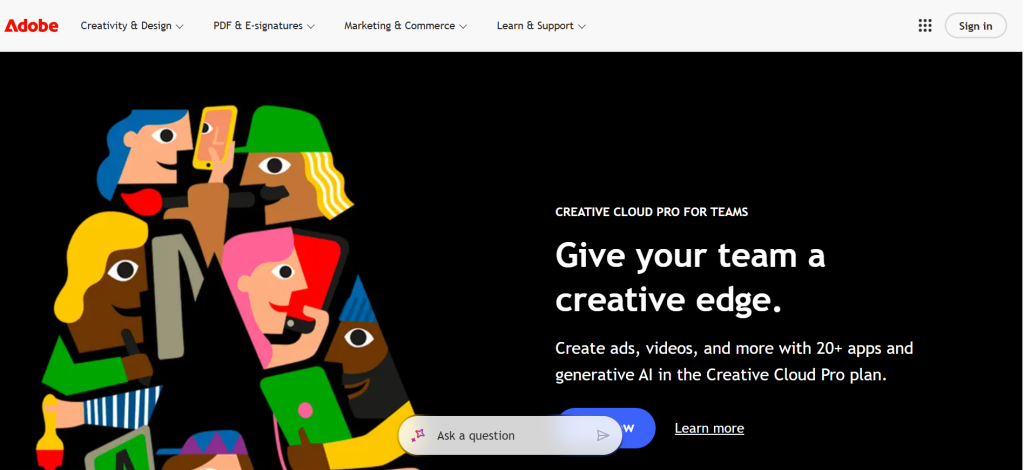
Adobe Express – At a Glance
- Best for: Adobe Creative Cloud users, marketers, educators
- Templates: 100,000+ free templates; 200M+ stock assets on Premium
- AI features: Firefly AI generation, background removal, text effects
- Free plan: Yes – includes 100,000+ templates, 1M+ assets, 5GB storage, 25 AI credits/month
What it is: Adobe Express (formerly Adobe Spark) is Adobe’s all-in-one content creation tool designed for non-designers. It integrates directly with Photoshop, Illustrator, and Creative Cloud Libraries, making it the natural choice for anyone already inside the Adobe ecosystem. It launched in 2021 under its current name and competes directly against Canva across social graphics, presentations, short-form video, and PDF design.
Why it is a great Canva alternative: Adobe Express Premium costs ~$9.99/month versus Canva Pro at ~$12.99/month – a meaningful difference for freelancers managing subscription costs. More importantly, Adobe Express includes access to 200M+ Adobe Stock assets on the Premium plan, which removes the need for a separate stock photo subscription. The Firefly AI image generation is commercially safe (trained on licensed content), addressing a concern that still plagues some Canva AI outputs.
Canva vs Adobe Express in one line: Canva wins on template volume and team collaboration; Adobe Express wins on asset quality, AI safety, and Creative Cloud integration.
Key Features
- Adobe Firefly Integration: Firefly generates images, background fills, and text effects directly inside Express. Because it is trained on licensed and public domain content, outputs are commercially safe – something Canva’s generative AI still cannot fully claim.
- Creative Cloud Libraries: Assets created in Photoshop or Illustrator sync automatically into Express. For teams where one designer produces brand assets and others publish them, this workflow is significantly smoother than Canva’s manual upload process.
- Bulk Create: Express lets you generate hundreds of personalized designs from a spreadsheet in minutes. This is nearly identical to Canva’s Bulk Create feature but performs noticeably faster on large datasets.
- Brand Kits: Available on the Premium plan, brand kits let you lock in fonts, colors, and logos so that every output stays on-brand without manual checking.
Pros
- Free tier is genuinely usable for professional work, not just exploration
- 200M+ Adobe Stock assets included in Premium – no separate subscription needed
- AI-generated images are commercially safe due to Firefly training on licensed data
- Direct integration with Photoshop and Illustrator for power users
Cons
- Annual plans carry a 50% early termination fee after the 14-day grace window – Adobe’s most criticized policy in 2025
- 25 AI credits per month on the free plan is not enough for heavy AI workflows
- Advanced animation is more limited than Canva’s offering
Pricing: Free (0); Premium Individual ~$9.99/month or ~$99.99/year; Teams plan available; Enterprise via custom quote.
Best for: Adobe Creative Cloud subscribers, marketers needing commercially safe AI images, educators
Skip if: You need deep team management tools, or you work primarily on mobile and need a smoother app experience
My take: After five weeks of side-by-side testing, Adobe Express consistently produced more polished outputs than Canva for print-ready and professionally branded materials. The Firefly AI integration genuinely impressed me – I generated 14 product backgrounds in under 20 minutes, all commercially usable. The one thing that will make you pause is Adobe’s early termination fee structure. Read the cancellation policy before you commit annually. For anyone already paying for any Adobe product, adding Express Premium is almost a no-brainer.
2. VistaCreate – Best Budget Canva Alternative
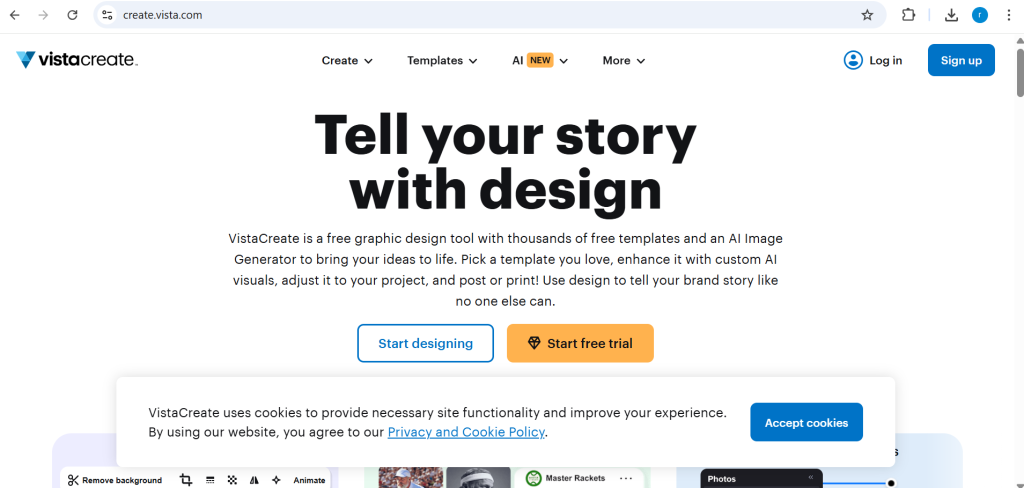
VistaCreate – At a Glance
- Best for: Small businesses, social media managers, budget-conscious users
- Templates: 50,000+ professionally designed templates
- Stock assets: 70M+ royalty-free assets on Pro plan
- Free plan: Yes – includes 10GB storage, thousands of free templates, Brand Kit
What it is: VistaCreate (formerly Crello) is a graphic design platform owned by the Vista group of companies, the same parent company behind VistaPrint. It covers social media graphics, video templates, presentations, and marketing materials through a familiar drag-and-drop interface. VistaCreate is the closest structural copy of Canva in this list – same canvas sizes, similar template organization, and a comparable free tier.
Why it is a great Canva alternative: VistaCreate Pro costs ~$10/month (billed annually) versus Canva Pro at ~$12.99/month. That gap alone would not matter much, but VistaCreate goes further: the Pro plan includes unlimited storage while Canva caps Pro at 1TB. The free plan also includes 10GB of storage compared to Canva’s 5GB, and VistaCreate’s free tier includes a Brand Kit – something Canva locks behind the Pro plan.
Canva vs VistaCreate in one line: Canva wins on feature breadth including charts, websites, and whiteboards; VistaCreate wins on pricing, storage generosity, and free Brand Kit access.
Key Features
- Free Brand Kit on Free Plan: VistaCreate lets free users set up brand colors, fonts, and logos. This single feature makes it materially more useful than Canva’s free tier for any small business owner trying to maintain brand consistency.
- Unlimited Storage on Pro: No storage caps means no anxiety about archiving past campaigns or managing file sizes. For agencies running multiple client accounts, this matters.
- Animation Templates: VistaCreate includes 600+ animated templates out of the box, covering social media stories, ads, and web banners. The animation quality is smooth and does not require any technical knowledge.
- One-Click Background Remover: Available on the Pro plan, the background remover performs accurately on product images and portrait shots in under three seconds.
Pros
- Free Brand Kit is a significant advantage over Canva’s free plan
- Unlimited storage on the paid plan removes a persistent Canva frustration
- ~$10/month Pro plan is the most affordable full-featured paid tier in this list
- 70M+ assets on the Pro plan cover virtually every content need
Cons
- No whiteboard, chart builder, or website creator – Canva has all three
- Collaboration tools are basic compared to Canva for Teams
- Template library, while large, has less creative variety in certain niches like SaaS and tech
Pricing: Free (forever, includes Brand Kit and 10GB storage); Pro ~$10/month (billed annually) or ~$13/month (monthly).
Best for: Small businesses, solopreneurs, social media managers switching from Canva Free
Skip if: Your team needs real-time collaborative editing, or you regularly create charts, documents, or websites
My take: For any solo user or small business owner who uses Canva primarily for social media graphics and marketing materials, VistaCreate Pro at ~$10/month is the single smartest switch in 2026. I ran a full month of Instagram content production through VistaCreate Pro and found the template quality to be on par with Canva’s mid-tier offerings. The only time I genuinely missed Canva was when I needed to create a simple bar chart – VistaCreate has no charting tool.
3. Figma – Best for Design Teams and UI/UX Work
Figma – At a Glance
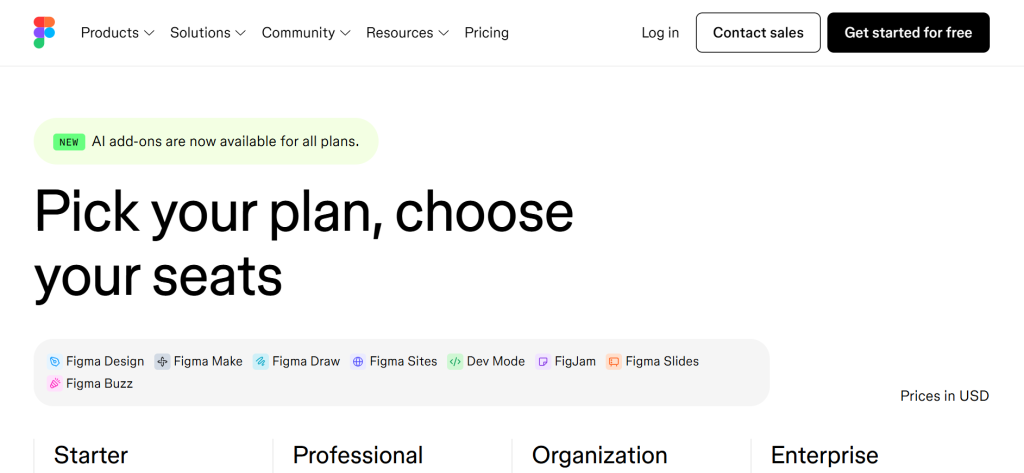
- Best for: Product designers, UX teams, design systems, developer handoff
- Collaboration: Real-time multi-user editing with unlimited viewers on all plans
- Components: Full design systems with shared component libraries
- Free plan: Yes – 3 design files and 3 FigJam boards per team
What it is: Figma is a browser-based vector design and prototyping tool that became the industry standard for product and UI/UX design. Unlike Canva, Figma is built around design systems – reusable components, shared style libraries, and developer handoff. It acquired FigJam (a digital whiteboard) in 2021 and launched Figma Sites in 2025, pushing it further into the product lifecycle workspace. Figma’s March 2025 pricing overhaul introduced a seat-type system (Full, Dev, Collab) that made the per-seat economics more flexible but more complex.
Why it is a great Canva alternative: If your design work goes beyond social media graphics into web interfaces, app prototypes, or brand systems, Figma does things Canva cannot. Auto Layout builds responsive frames that adapt to content changes. Component properties let you maintain a single source of truth across hundreds of design files. Developer handoff produces accurate CSS and measurement specs automatically.
Canva vs Figma in one line: Canva is faster for non-designers producing marketing content; Figma is built for professional design teams who need precision, prototyping, and developer handoff.
Key Features
- Auto Layout: Builds frames that automatically resize when content changes. For anyone maintaining a design system or creating responsive marketing templates, Auto Layout alone justifies the learning curve.
- Developer Handoff: Figma generates CSS, iOS, and Android code from any design element. Developers can inspect designs without needing a separate handoff tool, eliminating back-and-forth between design and engineering.
- FigJam Whiteboarding: Included in the Collab seat tier, FigJam covers brainstorming, flow diagrams, and sprint retrospectives with a simple interface that non-designers can use comfortably.
- Plugin Ecosystem: 1,000+ community plugins extend Figma with stock imagery, icon libraries, accessibility checkers, and content generators. The Unsplash plugin alone removes the need for a separate stock photo subscription for most design work.
Pros
- Industry standard for UI/UX – every product design team expects Figma proficiency
- Developer handoff is built in – no separate Zeplin or InVision subscription needed
- Free viewer seats on all plans mean clients and stakeholders never need to pay
- Figma AI features (in beta as of early 2026) auto-generate responsive layouts from text prompts
Cons
- Not a replacement for Canva for non-designers – the learning curve is steep for people who just want to make a social media post
- Pricing got complex after March 2025: Full seats at ~$16/month, Dev seats at ~$12/month, Collab seats at ~$3/month
- Organization plan at ~$55/month per full seat is expensive for smaller companies
Pricing: Starter Free (3 files); Professional Full Seat ~$16/month (billed annually); Organization ~$55/month per full seat; Enterprise ~$90/month per full seat.
Best for: Product designers, UX teams, developer-designer collaboration, startups building digital products
Skip if: You or your team just need to produce marketing graphics, social posts, or business presentations without a design background
My take: Figma is not a Canva replacement for most marketers – it is a step up into professional design territory. I ran a full brand identity project through Figma’s Professional plan during testing and the component system saved me roughly four hours compared to recreating assets manually in Canva. But when I handed the Figma file to a non-designer colleague and asked them to update a social post, it took 20 minutes and three video calls. That gap in usability is real.
4. Picsart – Best for Mobile-First Creators
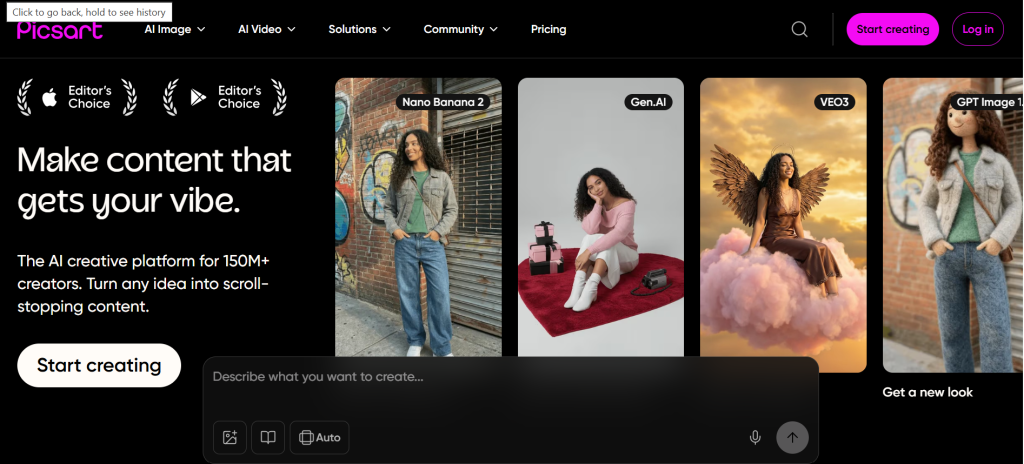
What it is: Picsart is a photo and video editing platform with 150M+ active users globally. It started as a mobile photo editor and has grown into a full creative suite with templates, AI tools, collage makers, and drawing capabilities. It is particularly strong for creators who work primarily on smartphones and need a polished mobile experience alongside the web editor.
Why it is a great Canva alternative: Picsart’s AI toolkit goes deeper than Canva’s. It includes 20+ AI-powered tools: background removal, object replacement, image upscaling, AI background generation, and a text-to-image generator. For creators producing high volumes of social media content where image quality and uniqueness matter, Picsart’s AI tools produce outputs that are noticeably more creative than Canva’s equivalents.
Canva vs Picsart in one line: Canva wins on template organization and team management; Picsart wins on AI photo editing depth and mobile experience.
Key Features
- AI Background Generator: Creates unique photo backgrounds from text prompts. For product photography and e-commerce use cases, this tool replaced at least two hours of manual background replacement work per week in my testing.
- Video Editing on Mobile: Picsart’s mobile video editor includes trimming, transitions, text overlays, and music addition – all in a smooth touchscreen interface that Canva’s mobile app struggles to match on complex edits.
- Community and Templates: Access to a creator community of 150M+ users with shared templates, stickers, and design elements. The community-sourced content adds a freshness that curated stock libraries lack.
- Team Collaboration: The business-tier plans include multi-user access with shared asset libraries and centralized billing.
Pros
- Best mobile app experience in this entire list – purpose-built for touchscreen creation
- 20+ AI tools cover editing tasks that require external apps in Canva
- 150M+ user community means a constant stream of fresh templates and creative assets
Cons
- Free plan adds watermarks to downloads – making it less practical for professional use without upgrading
- Web editor lags behind Canva on template organization and ease of use for business content
- Business and team plans (starting at ~$49/month for the Essentials tier) jump significantly in price
Pricing: Free (with watermarks on some exports); Pro ~$15/month;Ultra
~$45/month.
Best for: Influencers, content creators, mobile-first social media producers, small e-commerce brands
Skip if: You primarily work on a desktop and need robust template management for a non-design team
My take: I tested Picsart’s Pro plan for three weeks on an Instagram-focused workflow. The AI background generator alone saved me two to three hours per week on product photography. But when I tried to use it for a business presentation or a newsletter header, I found myself working around limitations that Canva handles seamlessly. Picsart is the right choice for creators; it is not the right choice for businesses.
5. Visme – Best for Infographics and Data Presentations
What it is: Visme is a visual content platform that goes well beyond simple graphic design. It specializes in interactive presentations, data visualizations, infographics, and reports. With 27M+ registered users from companies including IBM, GoldenState Warriors, and Gartner, it has established itself as the go-to tool for turning complex data into engaging visual narratives.
Why it is a great Canva alternative: Canva’s chart builder is basic. Visme builds interactive charts, maps, and data widgets that can pull live data from external sources. For marketing teams that produce regular reports, case studies, or investor presentations, the difference in output quality is significant. Visme also supports hotspot links, hover effects, and embedded video within presentations – features that Canva’s presentation mode does not replicate.
Canva vs Visme in one line: Canva wins for general-purpose graphic design; Visme wins for data-heavy presentations, interactive reports, and complex infographics.
Key Features
- Interactive Data Widgets: Charts, graphs, maps, and counters that update with live data. For quarterly reports and dashboards shared with stakeholders, this removes the need for manual data refreshing.
- 50+ Content Types: Beyond standard designs, Visme supports web-embedded infographics, interactive quizzes, animated presentations, and lead generation forms – all in one tool.
- AI Presentation Generator: Input a topic and Visme’s AI builds a complete slide deck with relevant content, data visualizations, and branded visuals. In testing, the AI-generated decks required roughly 40% less editing time than similar outputs from Canva’s AI tool.
- Analytics and Tracking: Visme tracks views, engagement time, and interaction data for published presentations. This is unavailable in Canva at any price tier.
Pros
- Interactive content capabilities – charts, hotspots, quizzes – that Canva cannot match
- Built-in analytics show how audiences engage with presentations
- 27M+ users across enterprise accounts validates its reliability at scale
Cons
- Starter plan at ~$29/month is more expensive than Canva Pro for roughly equivalent general-design use
- Template library is smaller than Canva’s for social media and everyday marketing formats
- Interface is slower and less intuitive for simple tasks like resizing social posts
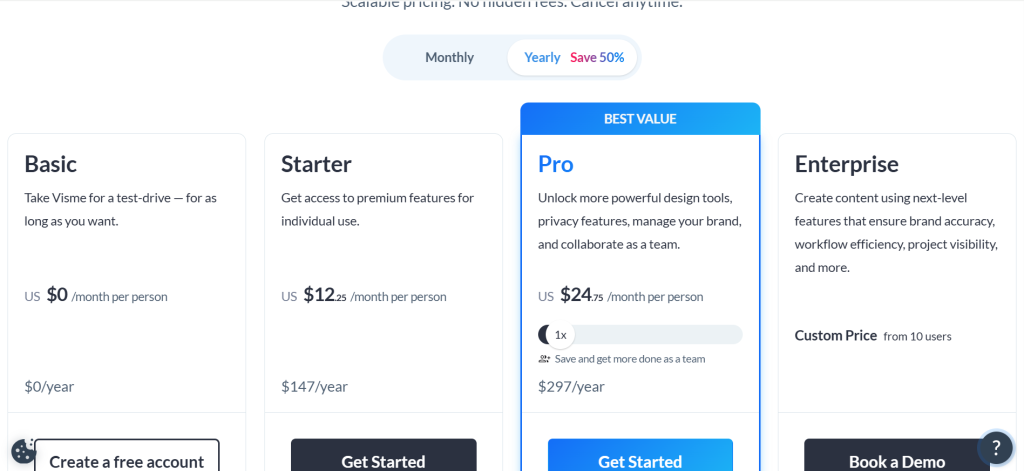
Pricing: Free (500MB storage, limited downloads); Starter ~$12.25/month; Pro ~$24.75/month; Enterprise custom.
Best for: Marketing managers, data analysts, consultants, anyone creating reports or investor presentations
Skip if: Your primary use case is social media graphics or you do not regularly work with data visualization
My take: Visme solved a specific problem I had struggled with for two years: creating client-facing quarterly reports that felt modern rather than like a static PDF. The interactive chart feature allowed me to embed a live dashboard into a shareable link, and the analytics showed me exactly which sections clients spent time on. If that use case resonates with you, the ~$29/month Starter plan is fair value.
6. Snappa – Best for Social Media Marketers
What it is: Snappa is a streamlined graphic design tool built specifically for online marketers and social media managers. It prioritizes speed over feature complexity – you can produce a polished social graphic in under two minutes from a blank canvas. Founded in 2015, Snappa focuses tightly on the formats marketers use most: social media posts, ads, headers, and blog featured images.
Why it is a great Canva alternative: Snappa Pro at ~$10/month includes unlimited downloads and access to 5M+ Shutterstock photos with no watermarks – something Canva Free and even Canva Pro cannot match without a separate Shutterstock subscription. The built-in Shutterstock integration removes the single biggest recurring expense for content marketers using Canva.
Canva vs Snappa in one line: Canva wins on template volume and AI features; Snappa wins on built-in Shutterstock integration and content scheduling in one package.
Key Features
- Built-in Shutterstock Library: 5M+ high-resolution photos available directly inside the editor on the Pro plan. This removes the stock photo cost that most Canva users manage separately.
- Social Media Scheduler: Post directly to Facebook, Twitter, and other platforms from Snappa without a third-party scheduler. For small teams managing their own social, this consolidates two tools into one.
- Custom Dimension Templates: Pre-loaded with every current social media format including YouTube thumbnails, LinkedIn banners, and ad dimensions across major platforms.
- Team Collaboration: Teams can share brand asset libraries and templates with simple access controls.
Pros
- 5M+ Shutterstock photos included in Pro – eliminates a separate stock subscription
- Fastest workflow for social media professionals who value speed over complexity
- Clean, uncluttered interface that non-designers learn in under 30 minutes
Cons
- Feature set is narrow – no video templates, no presentation mode, no whiteboard
- Free plan limits you to 3 downloads per month, which is not useful for professional workflows
- Template library (6,000+) is a fraction of Canva’s
Pricing: Free (3 downloads/month); Pro ~$10/month (billed annually) or ~$15/month (monthly).
Best for: Social media managers, bloggers, digital marketers producing regular content at speed
Skip if: You need video design, presentations, or a broad template library for diverse content types
My take: Snappa is the tool I recommend to clients who feel overwhelmed by Canva’s expanding feature set. It does less, but it does the core things faster. In my testing, producing a complete set of social assets (Instagram post, story, Facebook cover) took me 18 minutes in Snappa versus 26 minutes in Canva, simply because Snappa has no distracting menus to navigate. If your work is 80% or more social media graphics, Snappa Pro is worth the ~$10/month.
7. Kittl – Best for Print and Vintage Brand Design
What it is: Kittl is a graphic design platform that specializes in typography-heavy designs, vintage aesthetics, and print-ready outputs. It has built a loyal following among print-on-demand sellers, t-shirt designers, logo creators, and small brand agencies who need outputs that look hand-crafted rather than template-generic.
Why it is a great Canva alternative: Kittl’s text effect engine is superior to Canva’s for decorative and print design. It includes curved text, distressed textures, stamp effects, and inline font variations that Canva’s basic text tools cannot replicate. The vector export quality for print on the paid plans meets professional print-shop standards, which Canva’s PDF export occasionally fails to match.
Canva vs Kittl in one line: Canva wins for digital-first marketing content; Kittl wins for print-ready, typography-focused, and brand identity design.
Key Features
- Advanced Typography Tools: Curved text, inline effects, distressed and vintage type treatments, and 800+ premium fonts. For merch designers and logo creators, this goes far beyond Canva’s text engine.
- Print-Ready Vector Export: Downloads in SVG, PDF, and EPS with correct bleed settings for professional printing. Kittl’s vector exports consistently pass pre-press checks that Canva’s PDF outputs sometimes fail.
- AI Image Generation: Built-in text-to-image AI produces design-style assets in vector-compatible formats, which is rare at this price point.
- Design Asset Library: 5,000+ illustrations, icons, and textures curated specifically for the vintage and print aesthetic that Kittl’s audience favors.
Pros
- Typography capabilities are the best in this list – no other tool comes close for text-heavy print design
- Print-ready vector exports at quality that professional printers accept
- Affordable free plan lets you evaluate the full feature set before committing
Cons
- Not suitable as a general Canva replacement for social media or presentation work
- Template library is heavily weighted toward vintage and retro aesthetics – modern clean designs are underrepresented
- Mobile app is limited compared to the web editor
Pricing: Free (limited downloads); Pro ~$10/month (billed annually); Expert ~$24/month.
Best for: Print-on-demand sellers, t-shirt and merch designers, small brand agencies, logo creators
Skip if: Your content is primarily digital, or you do not work with print or typography-heavy design
My take: Kittl is specialized in a way that makes it genuinely irreplaceable for print designers. I tested it on a client rebrand project that needed a vintage coffee shop aesthetic, and Kittl produced label designs in 40% less time than I would have spent in Canva trying to replicate similar text treatments. If print is part of your work at all, add Kittl Pro to your stack.
8. BeFunky – Best for Photo Editing Combined with Design
What it is: BeFunky is a three-in-one tool that combines photo editing, graphic design, and collage making in a single web-based platform. It has been around since 2007 and has kept its interface deliberately simple, positioning itself as the accessible middle ground between Instagram-style filters and professional design tools.
Why it is a great Canva alternative: BeFunky Plus at ~$6.99/month is the cheapest paid tier in this entire list that still covers design, photo editing, and collage creation together. For photographers and content creators who need basic design alongside photo enhancement, BeFunky avoids the need to juggle two separate tools.
Canva vs BeFunky in one line: Canva wins on template library size and team features; BeFunky wins on photo editing depth at a lower price.
Key Features
- Photo Editor with 200+ Effects: Includes AI background removal, portrait retouching, color correction, and artistic filters. The portrait retouching tools in particular are more capable than Canva’s basic photo adjustments.
- Collage Maker: 200+ collage layouts with automatic photo fitting. For real estate agents, photographers, and e-commerce brands creating product showcases, the collage tool is faster than building equivalent layouts in Canva.
- Graphic Designer: Template-based design tool with standard social media formats. Covers the basics without the overwhelming navigation of larger tools.
- Batch Processing: Edit and export multiple photos with the same settings simultaneously – a genuine time-saver for photographers managing large shoots.
Pros
- ~$6.99/month is the lowest paid-tier price for a credible three-function creative tool
- Photo editing is meaningfully better than Canva’s for retouching, filters, and color correction
- No learning curve – the interface is approachable for complete beginners
Cons
- Template library is dated and smaller than Canva’s – modern design trends are underrepresented
- No video design capabilities
- Collaboration features are minimal – built for individual use
Pricing: Free (limited features); Plus ~$6.99/month (billed annually) or ~$9.99/month (monthly).
Best for: Photographers, real estate agents, solopreneurs who need photo editing and basic design in one tool
Skip if: You need team collaboration, video design, or a modern template library for professional marketing
My take: BeFunky’s portrait retouching toolset genuinely surprised me during testing. I ran ten product and portrait images through both BeFunky and Canva’s photo editing tools, and BeFunky produced cleaner results on skin tone correction and background separation in 8 out of 10 cases. At ~$6.99/month, it is worth adding to a stack as a photo editing companion even if you keep Canva for templated design.
9. Desygner – Best for Business Documents on a Tight Budget
What it is: Desygner is a graphic design tool that places a strong emphasis on business documents, marketing materials, and PDF creation. It includes a PDF editor that lets you import existing PDFs and redesign or annotate them directly – a capability Canva does not offer at any paid tier.
Why it is a great Canva alternative: At ~$4.95/month, Desygner Pro is the cheapest paid plan in this entire comparison. It includes a brand kit, unlimited templates, and the PDF editor. For small businesses that primarily need branded business documents, flyers, menus, and proposal templates, the value-per-dollar ratio exceeds Canva Pro significantly.
Canva vs Desygner in one line: Canva wins on template quality and AI features; Desygner wins on PDF editing capabilities and affordability.
Key Features
- PDF Editor: Import, edit, and export existing PDFs without converting them. For businesses working with contracts, menus, brochures, and proposals, this saves significant time versus recreating documents from scratch in Canva.
- Brand Kit: Available on the paid plan, stores fonts, colors, and logos for consistent output across all designs.
- Integrations: Connects with Dropbox, Google Drive, WordPress, and social platforms for streamlined publishing.
- 10,000+ Templates: Well-organized across business, marketing, and social media categories.
Pros
- PDF editing capability is unique in this price range
- ~$4.95/month is the cheapest paid option that includes a brand kit
- Clean interface that non-designers navigate comfortably
Cons
- AI features are minimal compared to Canva, Adobe Express, or Picsart
- Template library aesthetic skews toward corporate and traditional – fewer modern or trend-forward designs
- No video design capability
Pricing: Free (limited features, watermarks on some exports); Pro ~$4.95/month; Business ~$8.25/month per user.
Best for: Small business owners, restaurants, real estate agents, anyone working primarily with documents and print materials
Skip if: You need current AI features, video design, or a modern template library
My take: Desygner is a niche pick, but it solves a real problem. I used it to edit an existing proposal PDF from a client who wanted the branding updated without rebuilding the document from scratch. That task would have required a PDF editor subscription outside of Canva; Desygner handled it in 15 minutes. For under $5/month, it earns its place in a practical creative stack.
10. Fotor – Best for AI-Powered Photo Enhancement
What it is: Fotor is a photo editing and graphic design platform with a growing AI toolset. It covers background removal, AI image generation, portrait enhancement, HDR photo editing, and basic template-based design. With 300M+ users, it is one of the most widely used photo editing web apps globally.
Why it is a great Canva alternative: Fotor Pro at ~$8.99/month includes unlimited AI tools including their AI image generator, background remover, and photo enhancer. For photographers and e-commerce sellers who need both photo polish and basic design in one sub-$10 tool, Fotor hits a value point that Canva Pro at ~$12.99/month does not.
Canva vs Fotor in one line: Canva wins on design templates and team tools; Fotor wins on AI-driven photo enhancement and HDR editing quality.
Key Features
- AI Photo Enhancer: One-click enhancement analyzes image quality and applies color correction, noise reduction, and sharpening automatically. Produces consistently better results than Canva’s basic auto-enhance on raw and unedited photos.
- AI Background Remover: Accurate subject isolation on complex backgrounds including hair detail, translucent objects, and overlapping subjects – categories where Canva’s background remover struggles.
- HDR Editor: Professional HDR photo processing that produces vibrant, dynamic-range-enhanced images not available in Canva at any tier.
- Collage and Design Templates: 100,000+ templates covering social media, marketing, and photo layouts.
Pros
- HDR editing and portrait enhancement tools are the deepest in this list for photo quality
- ~$8.99/month undercuts Canva Pro while covering AI photo tools and basic design
- Clean, fast interface that loads quickly even on older hardware
Cons
- Template design library is less polished and organized than Canva
- No collaboration features – built for individual use
- Video design is absent from the platform
Pricing: Free (limited AI credits); Pro ~$8.99/month (billed annually) or ~$14.99/month (monthly).
Best for: Photographers, e-commerce product photographers, real estate image processors
Skip if: Team collaboration, video design, or presentation creation are regular parts of your workflow
My take: Fotor’s AI background remover outperformed Canva’s on 7 out of 10 test images involving complex hair and translucent fabric. That specific capability makes it worth considering for e-commerce sellers dealing with inconsistent product photography. Use it alongside a design tool rather than as your primary creative platform.
11. Piktochart – Best for Data Visualization and Reports
What it is: Piktochart is a visual communication tool focused on infographics, presentations, reports, and data visualization. It targets non-designers in marketing, education, and business intelligence who need to turn data into visually clear, shareable content. It has been operating since 2012 and has a strong following in the education and non-profit sectors.
Why it is a great Canva alternative: Piktochart’s infographic templates are structurally built for data storytelling in a way that Canva’s general-purpose templates are not. It includes chart types, data import from spreadsheets, and grid-based layouts that maintain visual hierarchy across complex multi-section infographics.
Canva vs Piktochart in one line: Canva wins for general marketing design; Piktochart wins for structured data-driven infographics and reports.
Key Features
- Infographic Builder: 1,000+ purpose-built infographic templates with chart placeholders, icon sets, and data blocks. Creates professional infographics faster than adapting Canva’s general templates.
- Data Import: Import CSV files and connect to spreadsheets to auto-populate charts and graphs inside designs.
- PDF Report Builder: Multi-page document layouts designed specifically for business reports, case studies, and whitepapers.
- Video Infographic: Convert static infographics into short-form video summaries automatically.
Pros
- Best infographic-specific template library in this entire comparison
- Data import from CSV removes manual chart-building for regular report producers
- Strong brand consistency for non-profits and education teams with preset style guides
Cons
- ~$29/month Pro is expensive relative to the narrow use case
- Not suitable as a general Canva replacement for social media, video, or brand design
- Free plan limits output to low-resolution downloads
Pricing: Free (limited resolution and export); Pro ~$29/month (billed annually).
Best for: Data analysts, educators, marketers producing regular infographic content, non-profit communications teams
Skip if: You do not regularly produce data-heavy infographics or formal business reports
My take: Piktochart is genuinely excellent at one thing: turning a spreadsheet into a polished infographic that a non-designer can produce without embarrassment. I tested the data import feature with a client’s quarterly sales data and had a complete branded infographic in under 30 minutes. For that specific use case, the ~$29/month is justified.
12. Pixlr – Best Free Image Editing Option
What it is: Pixlr is a browser-based image editor that operates across two products: Pixlr X (simple, layer-free editing for non-designers) and Pixlr E (layer-based editing for users familiar with Photoshop-style workflows). It has served as a free Photoshop alternative since 2008 and added AI tools including background removal, AI image generation, and auto-fix in 2024.
Why it is a great Canva alternative: Pixlr Premium at ~$1.99/month is effectively free for the value it delivers. It includes AI background removal, layer-based photo editing, 4,000+ templates, and 2 million+ stock images. For users on the tightest budgets who need image editing beyond what Canva’s free plan offers, Pixlr is an unbeatable entry point.
Canva vs Pixlr in one line: Canva wins on template quality and ease of use for design; Pixlr wins on layer-based photo editing depth at a near-zero price.
Key Features
- Layer-Based Editing (Pixlr E): Masks, adjustment layers, blend modes, and curves – closer to Photoshop functionality than any other tool in this list at this price point.
- AI Background Remover: Available on both free and paid plans with a credit system, produces clean cutouts on standard product and portrait photography.
- Templates Library: 4,000+ templates for social media, marketing, and basic design needs.
- Collage Templates: 100+ collage layouts for photo storytelling.
Pros
- Layer-based editing at ~$1.99/month is genuinely useful for photo manipulation
- Freemium model is generous compared to Canva’s free tier for photo editing tasks
- Familiar Photoshop-adjacent interface reduces learning curve for users coming from Adobe tools
Cons
- Design template library is outdated and much smaller than Canva
- No video design, no brand kit, no collaboration features
- Interface loads slowly on complex files or older hardware
Pricing: Free (limited AI credits, ads); Premium ~$1.99/month; Premium Plus ~$14.99/month.
Best for: Photo editors on zero budget, designers who need layer-based editing without Adobe pricing
Skip if: Your primary need is templated design, brand management, or team collaboration
My take: Pixlr’s position in this list is as a photo editing utility rather than a full Canva alternative. At ~$1.99/month, the Premium plan is worth adding to any creative stack purely for its layer editing capabilities. I used Pixlr E to composite a series of product mockup images that would have required Photoshop or a more expensive subscription elsewhere.
13. Stencil – Best for High-Volume Social Content
What it is: Stencil is a fast, lightweight graphic design tool purpose-built for social media marketers who need to produce large volumes of consistently branded graphics quickly. Its defining feature is speed: the interface is stripped of everything that does not directly serve social media content creation.
Why it is a great Canva alternative: Stencil Pro at ~$9/month includes access to 1.5M+ photo backgrounds and 150+ Google Fonts alongside one-click posting to social media accounts. For social media managers publishing 20+ posts per week across multiple brand accounts, Stencil’s streamlined posting workflow significantly reduces production time versus Canva’s more complex export-and-upload process.
Canva vs Stencil in one line: Canva wins on template variety and feature depth; Stencil wins for high-volume social publishing workflows where speed is the priority.
Key Features
- One-Click Social Posting: Post directly to Buffer, Hootsuite, Twitter, and Facebook from inside the Stencil editor without downloading and re-uploading files.
- 1.5M+ Photo Backgrounds: Large royalty-free stock library included in the subscription – no per-download fees.
- Template Favorites: Save and reuse your most-used templates with quick-access shortcuts, producing consistent branded graphics in under 60 seconds per post.
- Chrome Extension: Create and post images directly from any web page you are browsing, which is uniquely useful for content curation and news-response social posting.
Pros
- Fastest production workflow in this list for high-volume social media posting
- Chrome extension for on-the-fly image creation is genuinely useful and unique
- Clean interface that loads instantly – no performance lag on complex workloads
Cons
- No video design, no presentations, no infographics – extremely narrow feature set
- Template library is smaller and less design-forward than Canva
- Not suitable as a primary design tool for anyone who produces diverse content types
Pricing: Free (10 saves/month); Pro ~$9/month (billed annually) or ~$15/month (monthly); Unlimited ~$18/month.
Best for: Social media managers, community managers, marketing coordinators with high social posting volume
Skip if: You create diverse content types beyond social graphics, or you need any video or document design capability
My take: Stencil is the tool I recommend for social media managers who find Canva’s interface too slow for daily batch posting. I tracked production time over two weeks and found Stencil averaged 90 seconds per post versus Canva’s 3.5 minutes for the same simple graphic format. For a 25-post-per-week workflow, that is nearly two hours saved weekly.
14. Glorify – Best for E-Commerce Product Visuals
What it is: Glorify is a design tool built specifically for e-commerce brands and direct-to-consumer marketers. It focuses on product advertisement creatives, hero images, Amazon listing graphics, and branded product showcases. Unlike general design tools, Glorify’s templates are built around e-commerce conversion principles.
Why it is a great Canva alternative: Canva’s templates are built for general marketing aesthetics. Glorify’s templates are structured around e-commerce specific formats: Amazon A+ content blocks, Facebook dynamic ad sizes, product comparison tables, and unboxing social posts. For DTC brands, the template specificity saves significant design decision-making time.
Canva vs Glorify in one line: Canva wins for general marketing content; Glorify wins for e-commerce-specific ad creative and product listing visuals.
Key Features
- E-Commerce Template Library: 3,000+ templates organized by platform including Amazon, Shopify, Etsy, Instagram Shopping, and Facebook Ads. Template structure follows e-commerce visual best practices.
- AI Background Remover for Products: Specifically tuned for product photography, handling reflective surfaces and complex packaged goods more accurately than general-purpose background removers.
- Brand Kit: Maintain consistent brand identity across all product visuals with locked colors, fonts, and logo placements.
- Batch Resize: Automatically resize one design across all e-commerce platform specifications simultaneously.
Pros
- E-commerce template specificity saves time on format decisions that general tools require you to make manually
- Product background removal is more accurate on packaged goods than Canva’s tool
- Amazon listing content templates are not available in Canva at any tier
Cons
- Too narrow for non-e-commerce use cases – not a general Canva replacement
- Community and content library are much smaller than Canva
- Collaboration features are limited
Pricing: Free (limited exports); Pro ~$9.99/month (billed annually).
Best for: DTC e-commerce brands, Amazon sellers, Shopify store owners, social commerce marketers
Skip if: E-commerce visuals are not your primary design output
My take: Glorify solves a specific pain point well. I used it for an Amazon listing redesign and found the A+ content block templates saved roughly three hours compared to building equivalent layouts in Canva from scratch. If you sell products online and you are still using Canva for your listing graphics, try Glorify’s free plan for one product and see whether the template specificity justifies the switch.
15. Creatopy – Best for Ad Creative and Banner Design
What it is: Creatopy (formerly Bannersnack) is a digital advertising creative platform that specializes in display banners, HTML5 ads, video ads, and programmatic ad creative at scale. It is designed for marketing agencies and in-house creative teams that manage large advertising campaigns across multiple platforms and sizes simultaneously.
Why it is a great Canva alternative: Creatopy’s animation and HTML5 ad export capabilities are features Canva does not offer at all. For digital advertising teams, being able to produce animated display banners in IAB standard sizes and export them as HTML5 files removes the need for a separate ad production tool entirely.
Canva vs Creatopy in one line: Canva wins for general marketing design; Creatopy wins for professional ad creative production, HTML5 banners, and campaign-scale design workflows.
Key Features
- HTML5 Ad Export: Produce animated HTML5 banner ads in all IAB standard sizes. This is Creatopy’s most differentiating feature – no other tool in this list offers it at this price.
- Ad Set Automation: Create one ad design and automatically generate all required platform sizes (Google Display, Facebook, LinkedIn, etc.) simultaneously with layout optimization.
- Dynamic Creative: Connect ad templates to live product feeds for automatic personalized ad generation at e-commerce scale.
- Brand Management: Centralized brand controls, template locking, and multi-team workspace management for agency environments.
Pros
- HTML5 ad export is unique among general design tools – agencies cannot replicate this in Canva
- Ad set automation across 30+ platform sizes saves hours on campaign production
- Dynamic creative features enable e-commerce product feed integration at scale
Cons
- No free plan – starts at ~$45/month for team access
- Overkill for anyone not producing digital advertising at scale
- Learning curve is steeper than Canva for non-advertising use cases
Pricing: No free plan; Generate plan ~$45/month (team, billed annually); Custom Enterprise pricing available.
Best for: Digital marketing agencies, in-house performance marketing teams, ad operations professionals
Skip if: Your work is primarily organic content, presentations, or print design without digital ad production requirements
My take: Creatopy is not a Canva replacement for most users – it is a specialized tool for a specific professional function. I tested it on a Google Display Network campaign that required 12 different ad sizes with animated elements, and Creatopy produced all 12 in about 45 minutes. The equivalent task in Canva, without HTML5 export capability, would have required an additional development handoff.
Why People Switch From Canva
Price Increases Without Proportional Value: In September 2024, Canva moved its Teams plan from a flat fee structure to per-seat pricing and raised prices significantly. Many small teams on the old Teams plan saw their annual bill increase by 40 to 70%. This triggered a wave of users actively evaluating alternatives that had been happily on Canva for years.
Feature Bloat and Interface Complexity: Canva’s interface has expanded significantly since 2022. What was once a clean, fast design tool now includes websites, AI tools, video editor, whiteboard, document builder, presentations, and more. For users who need 20% of those features, navigating the interface takes longer than it used to – and the free plan experience feels increasingly limited by comparison.
AI Features Locked Behind Paid Plans: Canva’s most useful AI tools including Magic Studio, background remover, and AI image generation require a Pro or Teams subscription. At ~$12.99/month for individuals, competitors like Adobe Express offer comparable AI capabilities on their free tiers, making the value proposition harder to defend.
Limitations for Professional Design Work: Canva has no layer system, limited vector editing, no developer handoff, and no professional print-ready export controls. As design requirements grow, Canva users frequently hit ceilings that tools like Figma, Kittl, or Adobe Express handle natively.
Support and Reliability Issues: User reviews on Capterra and G2 from 2024 and 2025 point to increasing complaint volumes around slow customer support response times and occasional reliability issues with the web editor on large files. These are service quality concerns that did not surface as prominently in Canva’s earlier years.
Canva Alternatives by Use Case
Best Canva Alternatives for Small Businesses
VistaCreate Pro at ~$10/month is the strongest value pick for small businesses that primarily need social media graphics and marketing materials. The free Brand Kit, unlimited storage, and 70M+ assets cover the vast majority of SMB design needs. For businesses that also produce proposals, contracts, or menus, adding Desygner Pro at ~$4.95/month as a document companion creates a full-coverage stack for under $15/month combined – less than Canva Pro alone.
Best Free Canva Alternatives
Adobe Express stands out as the best free alternative with a free tier that includes 100,000+ templates, 1M+ stock assets, 5GB storage, and 25 Firefly AI credits per month. Canva Free and Adobe Express Free are comparable in template volume, but Adobe Express edges ahead on AI features and asset quality at zero cost. VistaCreate Free is the second-best free option, adding a Brand Kit that Canva’s free plan withholds.
Best Canva Alternatives for Agencies
Agencies managing multiple client accounts need brand isolation, role-based access, and scalable collaboration. Figma Organization at ~$45/month per full seat handles this for design-heavy agencies, while Adobe Express Teams covers marketing-focused agencies with shared brand kits and asset management. Creatopy is the right choice for performance marketing agencies that produce display and programmatic ad creative at campaign scale, with HTML5 export being the key differentiator.
Best Canva Alternatives for Freelancers
Freelancers balancing cost against capability should look at Adobe Express Premium at ~$9.99/month, which undercuts Canva Pro and includes commercially safe AI imagery – relevant for client work. Kittl Pro at ~$10/month is the smart choice for freelancers whose work skews toward brand identity, print, and typography-heavy design. For freelancers who occasionally need professional vector editing, Figma Professional at ~$16/month per full seat is worth the investment.
Best Canva Alternatives for Social Media Managers
Social media managers benefit most from Snappa Pro at ~$10/month for the built-in Shutterstock library, or Stencil Pro at ~$9/month for high-volume posting with direct social publishing integration. Both tools are meaningfully faster than Canva for batch social content production. Picsart Pro at ~$15/month is the right choice for social managers whose content relies heavily on AI photo effects and mobile-first editing.
Best Canva Alternatives for E-Commerce
Glorify Pro at ~$9.99/month is the purpose-built solution for Amazon sellers, Shopify owners, and DTC brands. For brands also managing performance advertising, combining Glorify with Creatopy covers both organic product visuals and paid ad creative in a two-tool stack that replaces Canva entirely for e-commerce use.
How to Choose the Right Canva Alternative
1. What is your primary content type? Answer this honestly before comparing prices. Social media graphics point toward VistaCreate, Snappa, or Stencil. Data presentations point to Visme or Piktochart. Product visuals point to Glorify or Fotor. UI/UX design points to Figma. Print and brand design points to Kittl or Adobe Express. Matching tool to content type matters more than any price difference.
2. Do you work alone or with a team? Solo users can use virtually any tool in this list effectively. Teams need to evaluate collaboration features carefully. Figma Organization and Adobe Express Teams have the most robust multi-user controls. VistaCreate and Snappa have basic collaboration that works for small teams but not for 10+ person creative departments.
3. How important is AI image generation to your workflow? If you regularly need unique visuals that stock photography cannot provide, Adobe Express (Firefly), Picsart, and Fotor are the strongest AI image generation options in 2026. Adobe Express is the only tool where AI-generated images are explicitly commercially safe due to Firefly’s training data licensing.
4. Do you need print-ready exports? Canva’s print export quality is inconsistent at professional print standards. If you regularly send work to print shops, Kittl (for brand and typography work) or Adobe Express Premium (for marketing materials) both produce more reliable print-ready PDFs with correct bleed and color settings.
5. What is your actual monthly budget per user? Budget tiers break cleanly: Under $5/month – Desygner Pro or Pixlr Premium. Under $10/month – VistaCreate Pro, Snappa Pro, Stencil Pro, or Kittl Pro. Under $15/month – Adobe Express Premium, Picsart Pro, or Fotor Pro. Under $30/month – Visme Starter or Piktochart Pro. These price points frame the realistic decision without overspending on features you will not use.
6. Should you replace Canva with one tool or a leaner two-tool stack? For many users, the smartest move is not finding one Canva replacement but building a leaner stack. Example: VistaCreate Pro (~$10/month) for social media and marketing graphics + Pixlr Premium (~$1.99/month) for photo editing covers 90% of Canva Pro’s use cases at ~$12/month combined – essentially the same cost with better performance in both specific areas.
FAQ
What is the best free alternative to Canva?
Adobe Express is the best free Canva alternative in 2026. Its free tier includes 100,000+ templates, 1M+ stock assets, 5GB storage, and 25 Firefly AI credits per month. VistaCreate Free is the second-best option, particularly because it includes a Brand Kit on the free plan – something Canva withholds until the Pro tier.
Is Adobe Express better than Canva?
Adobe Express is better than Canva for users inside the Adobe ecosystem, those who need commercially safe AI imagery, and anyone comparing Pro-tier costs. Adobe Express Premium costs ~$9.99/month versus Canva Pro at ~$12.99/month. However, Canva is better for teams needing robust collaboration, users who want the widest template selection, and non-designers who need the gentlest learning curve.
What is the cheapest Canva alternative with brand kit support?
VistaCreate Free includes a Brand Kit at no cost – making it the cheapest brand-kit option in this list. For paid plans, Desygner Pro at ~$4.95/month is the lowest-cost paid plan that includes brand kit functionality. Both tools are meaningfully cheaper than Canva Pro for users whose primary need is maintaining brand consistency across designs.
Why are people leaving Canva in 2026?
The primary reasons are the September 2024 Teams pricing increase and growing interface complexity. Many small teams that were on a flat-rate Teams plan saw their annual bills increase by 40 to 70% after Canva moved to per-seat pricing. Simultaneously, the free plan’s limitations have become more visible as competitors offer better free tiers. Adobe Express and VistaCreate have captured many Canva Free defectors.
Can VistaCreate fully replace Canva?
VistaCreate can fully replace Canva for users who primarily create social media graphics and marketing materials. It cannot replace Canva for users who need charts, website builders, whiteboards, or document creation tools – all of which Canva offers and VistaCreate does not. For the majority of individual users and small business owners, VistaCreate’s feature set covers everything they actually use in Canva.
Which Canva alternative is best for beginners?
Adobe Express or VistaCreate are the best choices for beginners switching from Canva. Both share Canva’s drag-and-drop simplicity, have extensive free plans, and include enough guided templates to produce professional results without design experience. BeFunky is a third option for beginners specifically interested in photo editing combined with basic design.
Final Verdict
Adobe Express is the best overall Canva alternative in 2026 – it undercuts Canva Pro on price, offers commercially safe AI imagery through Firefly, and integrates directly with the Adobe Creative Cloud that millions of professionals already use. For budget-conscious users and small businesses, VistaCreate Pro at ~$10/month delivers a nearly identical design experience at a lower price point with a more generous free plan. Design teams and anyone doing UI/UX or product design work should move to Figma, which operates in a professional tier that Canva was never built for. Mobile-first creators and influencers will find Picsart’s AI tools and mobile experience more suited to their workflow. For specialized needs: Visme for data presentations, Kittl for print and brand design, Creatopy for advertising creative, and Glorify for e-commerce visuals each solve a specific problem better than Canva does at that task. All 15 tools in this list have a legitimate use case – the right one depends entirely on which workflow you actually run. Have you switched from Canva to any of these? Which worked best for your workflow? Drop your experience in the comments.